





The best AI tools for motion designers and video creators are no longer limited to generating a few experimental clips from text prompts. They now support almost every stage of modern production: concept development, storyboarding, image animation, character motion, video generation, editing, localization, voice-over, audio cleanup, music creation, footage restoration, and final delivery.
That does not mean motion design has become automatic. A strong video still needs art direction, pacing, composition, visual hierarchy, sound design, continuity, typography, and an understanding of how movement communicates meaning. AI can produce options quickly, but it cannot decide which option supports the message, fits the brand, or deserves to survive the edit.
The real value of AI is not that it replaces After Effects, Premiere Pro, DaVinci Resolve, Blender, Cinema 4D, Maya, or Unreal Engine. Its value is that it can remove friction around those tools. It can help a designer generate a temporary voice-over before recording the final narration, turn a style frame into a motion test, extract motion from video, repair weak footage, create alternate aspect ratios, localize a campaign, or produce visual references before a team commits to expensive production.
This guide examines the top AI tools for motion designers and video creators from a production perspective. Instead of treating every platform as an all-purpose solution, it explains where each tool fits, what it does well, what still requires human judgment, and how it can be combined with traditional motion design software.
The list includes AI video generators, avatar platforms, markerless motion-capture systems, enhancement software, text-based editors, voice tools, music generators, and more technical generative models. Some are designed for fast social content, while others belong in professional 3D, VFX, localization, or post-production workflows.
Features, models, pricing, usage rights, and commercial licenses can change. Always review the current product page and terms before using AI-generated video, voices, music, avatars, or motion data in client work.
Explore More DesignRise Resources:
- How Designers Can Build Consistent Visual Styles With AI
- What Skills Designers Should Learn in 2026 to Stay Relevant
- AI-Powered Branding: Creating Logos, Style Guides, and Ads in Hours
- Most Designers Don’t Need More AI Tools — They Need a Better Workflow
What AI Actually Changes in a Motion Design Workflow
Motion design has always involved more than animation. A single project may require research, scripts, style frames, storyboards, voice-over, assets, transitions, character work, compositing, sound, revisions, localization, rendering, and multiple delivery formats.
AI is most useful when applied to one clearly defined bottleneck. A motion designer does not need one platform that claims to do everything. A more reliable workflow uses different tools for different production stages.
AI Can Accelerate Pre-Production
- Generate visual directions and rough concept frames.
- Turn written ideas into storyboard references.
- Create temporary narration for timing an animatic.
- Explore camera movement before building a final scene.
- Produce alternate visual treatments for client review.
AI Can Support Production
- Generate short video clips from text or reference images.
- Animate still illustrations and brand assets.
- Extract body movement from recorded video.
- Create presenter-led content without a physical shoot.
- Generate narration, dialogue, sound effects, or music.
AI Can Improve Post-Production
- Transcribe and edit spoken video through text.
- Remove filler words, noise, and weak pauses.
- Stabilize, denoise, interpolate, or upscale footage.
- Create captions and translated versions.
- Adapt horizontal content into vertical or square formats.
What AI Does Not Remove
AI does not remove the need for a designer to judge timing, continuity, emotion, hierarchy, or brand consistency. Generative tools often produce beautiful isolated shots that fail when placed beside one another. The difficult work is still creating a coherent sequence.
A professional workflow therefore treats AI output as material rather than a finished answer. The generated clip may become a background plate, transition, pitch reference, texture, insert shot, or starting point for compositing. It still needs direction.
Quick Comparison of the Best AI Tools for Motion Designers
How to Choose an AI Video Tool Without Wasting Time
AI platforms often overlap on paper. Several tools may claim to generate video, animate images, create voices, or automate editing. The important difference is not the feature list. It is the kind of production problem each tool solves reliably.
Start With the Bottleneck
Do not begin with, “Which AI tool should I use?” Begin with, “Which part of this project is taking too long or producing weak results?”
- If the bottleneck is filming a presenter, consider Synthesia.
- If the bottleneck is creating visual experiments, test Pika or Luma AI.
- If the bottleneck is damaged or low-resolution footage, use Topaz Video.
- If the bottleneck is 3D body animation, investigate Move AI.
- If the bottleneck is editing interviews, use Descript.
- If the bottleneck is narration or localization, consider ElevenLabs.
- If the bottleneck is a temporary music direction, test Boomy.
Decide Whether You Need Generation or Control
Generative tools are useful for exploration, but they do not always provide exact control over choreography, typography, product details, continuity, or camera blocking. If a project depends on precise art direction, AI may be more useful for references and individual elements than for the final sequence.
Check Export Quality and Editability
A beautiful preview is not enough. Before choosing a tool, check:
- Available resolution and aspect ratios.
- Whether a watermark appears.
- Whether the output can be used commercially.
- Whether clips can be extended or revised.
- Whether transparent backgrounds or layers are available.
- Whether the result fits your existing editing or 3D pipeline.
Evaluate Cost Per Usable Result
AI tools are often priced through credits, generation time, media minutes, or subscription limits. The real cost is not the price of one generation. It is the cost of reaching one usable shot after failed attempts, revisions, upscaling, and cleanup.
1. Synthesia
Best for: presenter-led business video, explainers, onboarding, training, internal communication, and multilingual localization.
Website: Synthesia
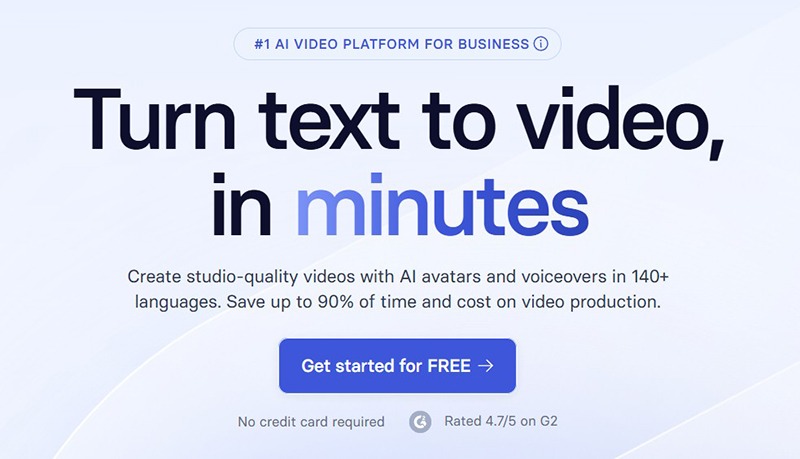
Synthesia is built for a production problem that many motion designers know well: a company needs a clear presenter-led video, but filming actors, booking a studio, recording voice-over, and creating localized versions would take too long.
The platform turns scripts into videos using AI avatars, voices, templates, branding controls, screen recordings, and translation tools. It is particularly useful for structured communication rather than cinematic storytelling.
Where Synthesia Fits Best
- Software tutorials and product walkthroughs.
- Employee onboarding and internal training.
- Sales enablement and customer education.
- Localized versions of one core video.
- Temporary presenter footage for an early edit.
- Frequently updated content where reshooting would be inefficient.
Why Motion Designers Use It
Synthesia can reduce the logistics around presenter footage, but motion designers still add significant value. Brand typography, visual pacing, diagrams, screen compositions, transitions, supporting animation, and information hierarchy still need thoughtful design.
A productive approach is to treat the avatar as one layer in a broader motion system. Instead of leaving the presenter centered on a generic background for the entire video, create structured scenes with graphics, product footage, callouts, animated statistics, and moments where the avatar leaves the screen.
Practical Workflow
- Write the script around short visual sections.
- Generate a temporary avatar and voice version.
- Build a timed animatic using that narration.
- Create supporting motion graphics in After Effects or another editor.
- Return to Synthesia for final localized versions.
- Check every language for timing, line breaks, and layout changes.
Limitations to Consider
Synthesia is not the best tool for expressive acting, complex cinematic scenes, emotionally nuanced performances, or highly original visual storytelling. It is strongest when clarity, scalability, speed, and consistency matter more than dramatic performance.
2. Stable Video Diffusion by Stability AI
Best for: technical exploration, image-to-video experiments, custom deployment, research, and teams that want deeper model-level control.
Website: Stability AI
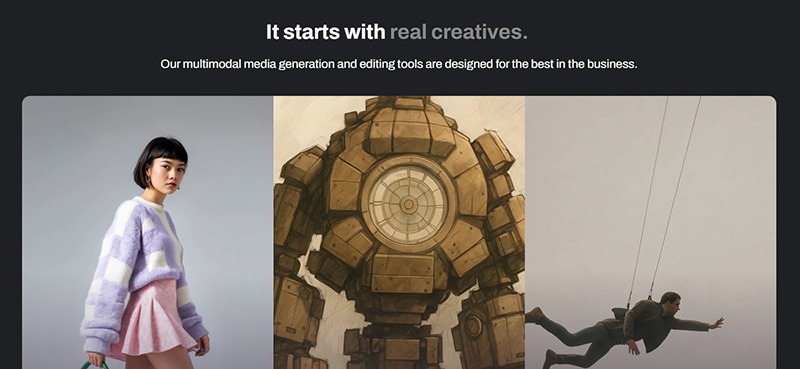
Stable Video Diffusion is different from most creator-facing AI video apps in this guide. It is better understood as a generative model and technical building block than as the simplest browser-based tool for everyday social content.
That distinction matters. A motion designer who wants one-click effects may be better served by Pika or Kaiber. A studio, developer, researcher, or technical artist that wants to experiment with custom infrastructure and model behavior may find Stable Video Diffusion more relevant.
Useful Applications
- Animating selected concept frames.
- Testing motion from still images.
- Researching generative-video behavior.
- Creating visual references for title sequences.
- Building custom tools or internal pipelines.
- Exploring multi-view and dynamic asset workflows through related Stability AI research.
Why It Can Be Valuable
Creator platforms usually hide technical complexity. That is convenient, but it also limits control. A model-oriented workflow can give technical teams more freedom around deployment, experimentation, customization, and integration.
For independent motion designers, the main value may be educational. Working closer to the model makes it easier to understand frame consistency, motion intensity, prompt behavior, temporal artifacts, and the difference between generating a striking frame and generating a usable moving sequence.
Limitations to Consider
Stable Video Diffusion should not be presented as the easiest current option for polished client video. Its outputs, deployment model, licensing, hardware requirements, and workflow can be more technical than mainstream creator platforms. Review the current Stability AI license and documentation before production use.
3. Pika
Best for: short AI-generated clips, image animation, surreal transformations, social content, visual effects, and fast concept exploration.
Website: Pika
Pika is designed around fast visual experimentation. It is particularly effective when a creator wants to turn an image into motion, build a short transformation, test a playful effect, or create a visually surprising clip without constructing the full effect manually.
The platform includes several distinct creative workflows rather than one generic text-to-video box. Depending on the current plan and model, creators can work with scenes, frames, additions, swaps, twists, and stylized effects.
Where Pika Works Well
- Short social media clips.
- Surreal product transformations.
- Animated poster concepts.
- Music visual experiments.
- Transitions between designed frames.
- Character or object effects.
- Pitch-deck motion references.
A Better Way to Use Pika
The weakest approach is entering a vague prompt and hoping for a finished commercial. A better approach begins with a strong designed frame.
- Create the composition in Photoshop, Figma, Procreate, Blender, or another design tool.
- Remove unnecessary details that may distort during animation.
- Define one clear movement rather than several competing actions.
- Generate multiple variations.
- Select the strongest section rather than forcing the entire clip into the edit.
- Composite typography and brand elements afterward for accuracy.
Example Prompt Structure
Subject + action + camera + environment + visual style + motion restraint.
For example: “A chrome perfume bottle slowly rotates on a black reflective surface, subtle camera push-in, controlled studio lighting, deep red rim light, premium beauty commercial, stable product shape, no extra objects.”
Limitations to Consider
Pika is excellent for fast visual impact, but exact product geometry, hands, text, logos, long continuity, and multi-shot consistency may still require manual control. Keep important typography and brand marks out of the generative stage whenever accuracy matters.
4. Topaz Video
Best for: upscaling, restoration, denoising, stabilization, frame interpolation, slow motion, and improving weak source footage.
Website: Topaz Video
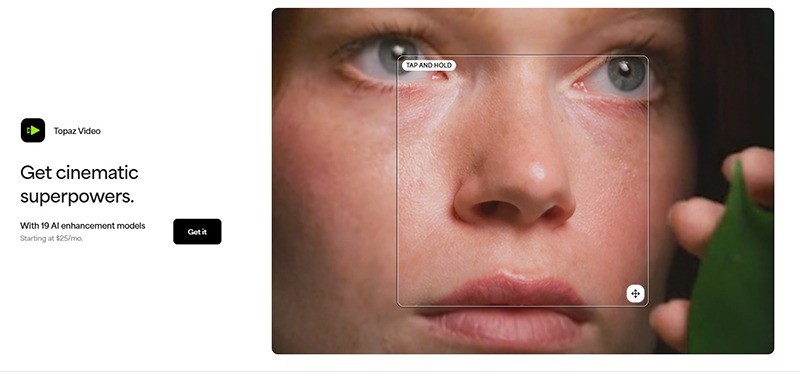
Not every AI tool needs to generate new content. In professional post-production, improving existing footage can be more valuable than producing a new synthetic clip.
Topaz Video is designed for enhancement tasks such as upscaling, denoising, sharpening, stabilization, deinterlacing, and frame interpolation. It can be useful when a project includes old footage, compressed client files, low-resolution stock clips, archived material, cropped shots, or AI-generated video that needs a stronger final output.
Where Topaz Video Fits Best
- Restoring archive footage.
- Improving low-resolution source clips.
- Upscaling approved AI-generated shots.
- Creating smoother slow motion through interpolation.
- Reducing visible noise or compression artifacts.
- Stabilizing selected handheld footage.
- Preparing material for higher-resolution delivery.
Professional Workflow Tip
Do not apply every enhancement at maximum strength. Overprocessing can create plastic skin, artificial edges, temporal shimmer, or invented detail. Test a short representative section before processing an entire project.
Compare the result at full resolution and during normal playback. A frame may look sharper when paused but less natural in motion.
When Topaz Video Is Most Valuable
It becomes especially useful when the original footage is important but technically weak. A client archive, historical clip, licensed source, or irreplaceable recording may deserve restoration rather than replacement.
Limitations to Consider
AI enhancement cannot recover detail that never existed with complete accuracy. It estimates. For documentary, legal, medical, historical, or evidence-based material, be transparent about enhancement and avoid presenting inferred detail as original visual truth.
5. Move AI
Best for: markerless motion capture, 3D character animation, games, VFX, previs, and capturing human movement without traditional suits or markers.
Website: Move AI
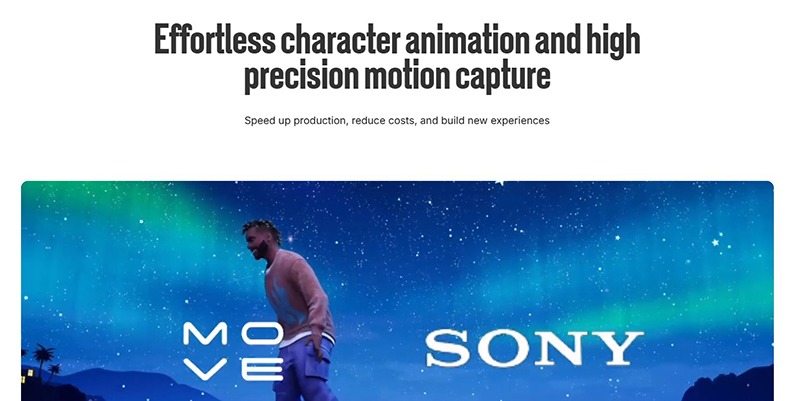
Move AI addresses one of the most expensive parts of 3D animation: capturing believable human movement. Traditional motion capture often requires suits, markers, calibrated spaces, specialist equipment, and a dedicated technical team.
Move AI uses video-based markerless motion capture. Its systems are designed to turn recorded human performance into 3D motion data without requiring actors to wear conventional marker suits.
Where Motion Designers Can Use It
- Character animation for short films.
- Previsualization for VFX sequences.
- Game animation and cinematic prototypes.
- Dance and performance capture.
- Virtual production tests.
- Animated music visuals.
- Social content featuring 3D characters.
Why It Changes the Workflow
Markerless capture can make motion data more accessible to small studios and independent creators. It also allows performers to move in more natural clothing and reduces some of the setup associated with traditional systems.
Move One provides a more accessible single-camera iPhone workflow, while higher-end Move AI systems are designed for professional studio capture.
Practical Production Advice
- Use clear lighting and a visible full body.
- Avoid excessive motion blur when possible.
- Keep the performer separated from the background.
- Record a clean reference take before adding props or complex interaction.
- Expect to clean and refine animation after capture.
- Test retargeting early with the actual character rig.
Limitations to Consider
Motion capture is not finished animation. Captured movement may still need cleanup, foot locking, contact correction, timing adjustment, hand animation, facial work, and character-specific exaggeration.
The best results come when a motion designer treats captured data as a performance foundation rather than an untouchable final result.
6. Kaiber
Best for: music videos, beat-synced visuals, looping animation, stylized transformations, and audiovisual experimentation.
Website: Kaiber
Kaiber is built around the relationship between sound and image. Its current creative environment includes tools for generating visual material, synchronizing edits to music, and polishing the result.
This makes it particularly relevant for musicians, visual artists, editors, and motion designers who think in rhythm rather than only in isolated prompts.
Where Kaiber Works Best
- Music visualizers.
- Lyric-video backgrounds.
- Album campaign assets.
- Looping projections.
- Concert-screen experiments.
- Short social clips synchronized to a track.
- Style transformations applied to existing footage.
Why Beat Sync Matters
Many AI-generated videos look visually impressive but feel disconnected from the soundtrack. Motion design depends on timing. Cuts, camera movement, visual accents, and transitions need to respond to musical structure.
Kaiber’s music-focused workflow can reduce some of the manual setup required to align visual changes with a beat. The designer still needs to decide which beats matter, where energy should build, and when the image should become quiet.
Practical Workflow
- Identify the main musical sections: intro, verse, build, drop, and ending.
- Create a visual rule for each section.
- Generate several visual families rather than one long random sequence.
- Use beat synchronization as a first edit.
- Refine key cuts manually.
- Add final typography and branding in a traditional editor.
Limitations to Consider
Music-synced effects can become repetitive if every beat creates a visual change. Strong motion design uses contrast. Some sections should move aggressively; others should hold, breathe, or repeat with subtle evolution.
7. Luma AI
Best for: cinematic AI video generation, image-to-video, video transformation, reframing, extensions, multi-shot exploration, and creative production workflows.
Website: Luma AI
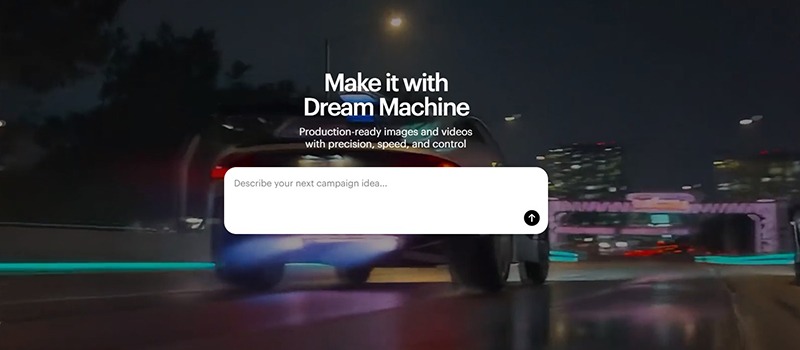
Luma AI has developed into a broad creative environment rather than a single text-to-video generator. Its current video ecosystem is built around Luma Ray models and supports workflows involving text, images, existing footage, extensions, transformations, reframing, audio, and multi-shot creation.
For motion designers, that breadth is useful because production rarely begins and ends with one generated clip. A shot may need to be extended, restyled, adapted to vertical format, connected to another frame, or used as part of a larger sequence.
Where Luma AI Fits Best
- Cinematic concept shots.
- Image-to-video animation.
- Video-to-video style transformation.
- Extending an approved clip.
- Changing aspect ratio through generative reframing.
- Creating transitions between keyframes.
- Building multi-shot visual experiments.
- Producing alternate campaign formats.
Why It Is Useful for Motion Designers
Luma’s broader workspace encourages creators to treat generated shots as editable building blocks. That is more useful than a workflow where every generation becomes a disconnected file.
A designer can begin with a key visual, animate it, extend the result, reframe it for another platform, add audio, and combine it with additional clips. Traditional software may still be used for typography, exact compositing, grading, and final delivery.
Practical Continuity Strategy
- Use the same approved reference image across related shots.
- Keep wardrobe, lighting, and location descriptions consistent.
- Generate short controlled actions rather than complex scenes.
- Use the final frame of one shot as a reference for the next.
- Grade the complete sequence after generation.
- Add logos and precise text during compositing, not generation.
Limitations to Consider
Even advanced video models can struggle with persistent characters, exact products, physical interactions, spatial logic, and long-form continuity. A beautiful result still needs to be evaluated frame by frame before client delivery.
8. Descript
Best for: interviews, podcasts, explainers, tutorials, screen recordings, captions, repurposing, and editing spoken video through text.
Website: Descript
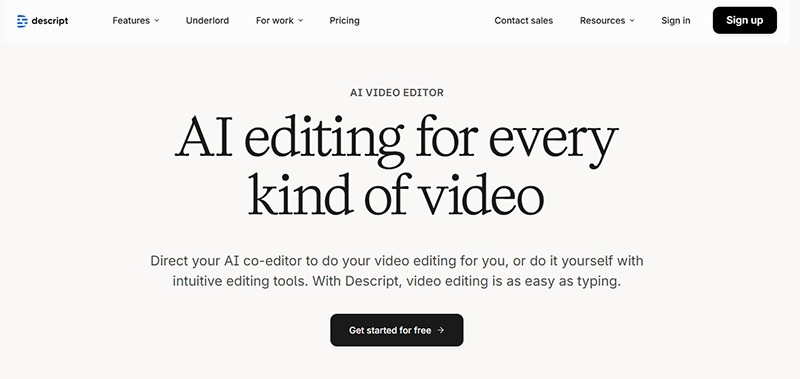
Descript changes the interface of editing. Instead of beginning with a complex timeline, it automatically transcribes spoken content and allows the creator to edit the video by editing the text.
Delete a sentence from the transcript, and the corresponding section disappears from the video. Move a paragraph, and the media moves with it. This is particularly useful for projects where the spoken message matters more than cinematic frame-by-frame editing.
Key Features for Video Creators
- Automatic transcription.
- Text-based video and audio editing.
- Filler-word and silence removal.
- Studio Sound for voice cleanup.
- Captions and translation.
- Green-screen and eye-contact tools.
- Screen recording and remote recording.
- AI-generated visuals and B-roll.
- AI co-editor Underlord.
- Repurposing long content into shorter clips.
Where Descript Saves the Most Time
Descript is especially valuable during the first edit of an interview, tutorial, webinar, course, product demo, or podcast. A producer can shape the story at the transcript level before moving the approved structure into a traditional editor for more advanced finishing.
Practical Hybrid Workflow
- Import and transcribe the raw recording.
- Remove repeated ideas and weak sections through text.
- Clean filler words selectively.
- Create an approved narrative cut.
- Export or continue editing inside Descript.
- Add higher-end motion graphics and finishing in Premiere Pro, After Effects, or DaVinci Resolve.
What Not to Automate Blindly
Automatic filler-word removal can make a speaker sound unnatural if every pause and hesitation disappears. Good editing preserves rhythm and personality. Remove what distracts, not every sign that a human being is speaking.
9. ElevenLabs
Best for: AI voice-over, multilingual dubbing, character dialogue, voice design, sound effects, audio isolation, and music generation.
Website: ElevenLabs
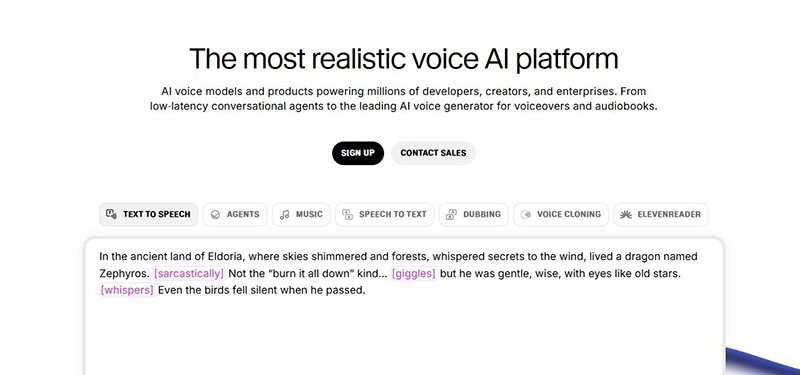
ElevenLabs has expanded beyond text-to-speech into a broader AI audio environment. Motion designers can use it for voice-over, dialogue, dubbing, sound effects, voice isolation, transcription, and music.
This matters because sound is often treated too late in motion design. Designers sometimes build an entire sequence around temporary timing, then discover that the final narration is longer, the music changes the pacing, or the sound effects do not support the movement.
Useful Applications
- Temporary narration for animatics.
- Final voice-over where licensing permits.
- Multilingual dubbing and localization.
- Character voices for animation prototypes.
- Dialogue between multiple speakers.
- Custom sound-effect generation.
- Ambient sound and audio ideation.
- Music generation for drafts or licensed production use.
Voice-Over Workflow for Motion Design
- Write the script for speech rather than silent reading.
- Generate several tone and pacing variations.
- Select the strongest performance before animating in detail.
- Edit timing and emphasis at the audio stage.
- Build animation around the approved narration.
- Add room tone, music, and sound effects during the mix.
Localization Workflow
Localization is not simply replacing English audio with another language. Sentences change length, rhythm, emphasis, and cultural meaning. Every translated version should be checked by a fluent human reviewer.
Motion layouts may also need adjustment because subtitles, titles, or narration timing can become longer. Build templates with flexible text containers rather than fixed line lengths.
Ethical and Legal Requirements
Only clone or reproduce a voice when you have clear permission. Do not imitate a real person, performer, employee, client, or public figure without authorization. Review the plan, model, and output terms for the intended distribution channel.
10. Boomy
Best for: generating music ideas, temporary soundtracks, social content, rough cuts, and creators without traditional music-production experience.
Website: Boomy
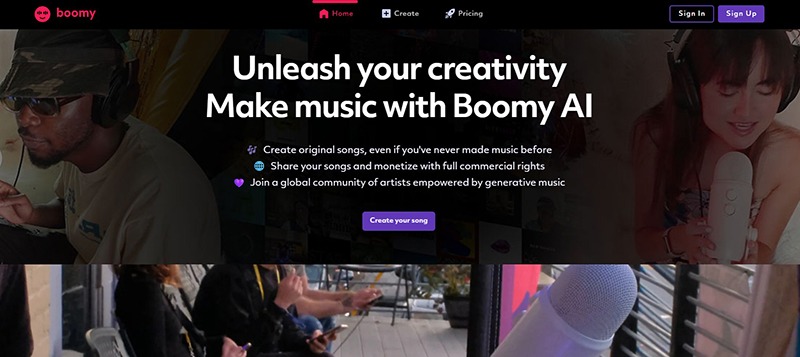
Boomy is designed to make generative music creation accessible. A creator can choose a direction, generate a song, and develop variations without traditional composition or production experience.
For motion designers, the most immediate use is not necessarily creating the final soundtrack. Boomy can help establish tempo, mood, edit rhythm, and musical direction during concept development.
Where Boomy Can Help
- Temporary music for animatics.
- Music direction during a client pitch.
- Short-form social content.
- Testing different pacing styles.
- Generating background tracks where the relevant license permits.
- Exploring musical contrast before commissioning a composer.
Why Temporary Music Matters
Motion designers often animate differently depending on the soundtrack. A slow ambient track creates different movement than an aggressive electronic rhythm. Testing music early helps reveal whether a visual concept has enough energy, space, or variation.
Licensing Requires Attention
Do not describe every generated Boomy track as universally royalty-free. Download rights and commercial permissions depend on the applicable membership and license. Check the current terms for advertising, client work, social distribution, film, television, podcasts, streaming, or commercial music releases.
Limitations to Consider
AI-generated music can feel generic when the creative direction is vague. Use specific mood, tempo, instrumentation, structure, and energy references. For major campaigns, consider using AI music for ideation and then working with a composer or licensed music provider for the final soundtrack.
Four Practical AI Workflows for Real Motion Design Projects
Workflow 1: A Multilingual Product Explainer
- Write and simplify the script.
- Create a temporary narration with ElevenLabs or Synthesia.
- Build a storyboard and animatic.
- Create product UI animation in After Effects.
- Use Synthesia for presenter-led sections when needed.
- Edit the spoken structure in Descript.
- Create localized narration or dubbing.
- Adjust layouts and timing for each language.
- Run final human translation and brand review.
Workflow 2: A Music Visual or Album Campaign
- Define the visual concept and color system.
- Create key frames manually.
- Animate selected images with Pika or Luma AI.
- Use Kaiber to explore beat-synced sequencing.
- Generate additional sound elements with ElevenLabs where appropriate.
- Edit the strongest clips manually.
- Add exact typography, logos, and release information afterward.
- Adapt the master into vertical, square, and widescreen formats.
Workflow 3: A 3D Character Performance
- Plan the action around a clear physical performance.
- Record the performer for Move AI.
- Process and retarget the motion to the character rig.
- Clean feet, contacts, hands, and transitions.
- Add facial animation and secondary movement.
- Render character passes in Blender, Maya, Unreal Engine, or another 3D tool.
- Composite with generated or designed backgrounds.
- Use Topaz Video only when final enhancement is genuinely needed.
Workflow 4: Repurposing a Long Interview
- Import the full interview into Descript.
- Edit the narrative through the transcript.
- Remove only distracting filler words and dead sections.
- Generate captions and identify short clips.
- Create visual B-roll or transitions with Pika or Luma AI.
- Clean the voice with Studio Sound or another audio tool.
- Add animated titles and brand graphics.
- Export separate versions for YouTube, LinkedIn, Instagram, and TikTok.
How to Prompt AI Video Tools More Professionally
A useful video prompt is closer to a shot brief than a poetic paragraph. The model needs to understand what should move, how the camera behaves, what the scene looks like, and what should remain stable.
Use a Shot-Based Prompt Structure
Subject + action + environment + camera movement + lens or framing + lighting + visual treatment + movement constraints.
Example
“Close-up of a translucent glass sculpture slowly unfolding like a flower inside a dark gallery, controlled clockwise camera orbit, 85mm cinematic lens, shallow depth of field, soft white spotlight with deep red reflections, premium art-film aesthetic, smooth restrained motion, stable geometry, no text.”
Prompting Rules That Improve Results
- Describe one primary action per shot.
- Use clear camera language.
- Separate visual style from physical action.
- Avoid asking for multiple scene changes in one short clip.
- State what must remain consistent.
- Use reference images whenever the platform supports them.
- Generate several controlled variations rather than rewriting the entire idea each time.
Do Not Generate Critical Typography
Logos, legal text, pricing, subtitles, UI labels, and exact brand typography should usually be added after generation. AI video models may distort letters between frames even when a single still looks correct.
Quality-Control Checklist for AI-Generated Video
AI output should be reviewed with the same seriousness as footage from a shoot or animation from a studio.
Visual Continuity
- Does the subject remain recognizable?
- Do clothing, props, and background elements change unexpectedly?
- Does the lighting direction remain consistent?
- Does the camera movement make physical sense?
- Are there flickers, morphs, or disappearing details?
Human Movement
- Do hands, faces, eyes, and limbs remain anatomically believable?
- Do contacts with floors, chairs, and objects feel real?
- Does lip sync match the audio?
- Are emotional expressions appropriate to the message?
Brand Accuracy
- Are products, logos, packaging, and colors correct?
- Has the model invented extra text or symbols?
- Does the visual style match the approved campaign?
- Could the output misrepresent the product?
Technical Delivery
- Is the resolution sufficient?
- Does compression create visible artifacts?
- Are frame rate and motion blur appropriate?
- Does the clip hold up after grading and export?
- Have all platform-specific aspect ratios been checked?
Copyright, Consent, and Commercial-Use Questions
AI production can become legally and ethically complicated when tools involve real faces, voices, copyrighted references, branded assets, or unclear music licenses.
Before Publishing, Confirm:
- You have permission to use uploaded footage and photographs.
- You have permission to clone or synthesize any identifiable voice.
- You are not presenting an AI avatar as a real person without disclosure where disclosure is required.
- The selected plan permits the intended commercial use.
- The music license covers the distribution channel.
- The output does not copy a protected character, logo, or distinctive living artist’s work.
- Client agreements explain how AI tools are used when necessary.
- Sensitive or confidential assets are not uploaded to unsuitable services.
Keep a Production Record
For professional work, document which tools were used, what assets were uploaded, which licenses applied, who approved the result, and what manual changes were made. This is especially useful for agencies, client teams, and regulated industries.
What Motion Designers Should Not Automate
Core Creative Direction
A model can generate styles, but the designer must decide what the project should communicate and why the movement supports that message.
Final Brand Judgment
AI does not understand a brand’s long-term equity, cultural context, or strategic boundaries as deeply as the people responsible for the identity.
Emotional Pacing
Timing is not simply placing cuts on every beat. Good pacing includes anticipation, silence, hesitation, acceleration, repetition, and release.
Final Accessibility Review
Captions, contrast, flashing content, type size, reading speed, and audio clarity still require deliberate human review.
Final Fact Checking
Generated visuals can imply events, products, locations, or details that are not real. Never assume that a convincing image is accurate.
Frequently Asked Questions
What are the best AI tools for motion designers?
The best tools depend on the production stage. Pika and Luma AI are useful for generative video exploration, Move AI supports markerless motion capture, Topaz Video enhances footage, Descript edits spoken video through text, and ElevenLabs supports voice-over and localization.
Can AI replace After Effects or professional video editors?
No single AI tool replaces a complete professional motion-design workflow. AI can generate assets, speed up repetitive work, and automate selected tasks, but After Effects, Premiere Pro, DaVinci Resolve, Blender, Cinema 4D, Maya, and similar tools still provide deeper control over timing, layers, compositing, typography, color, and delivery.
Which AI tool is best for social media video?
Pika and Luma AI are useful for short generative clips, Kaiber works well for music-synced visuals, and Descript is useful for captions, spoken video, and repurposing long recordings into shorter content.
Which AI tool is best for improving video quality?
Topaz Video is designed specifically for tasks such as upscaling, denoising, stabilization, restoration, and frame interpolation.
Which tool is best for AI voice-over?
ElevenLabs is a strong option for expressive speech, dubbing, dialogue, sound effects, and related audio workflows. Synthesia is useful when the voice is part of an avatar-led business-video workflow.
Can AI-generated videos be used commercially?
Commercial rights depend on the platform, plan, model, uploaded assets, and intended distribution. Always check the current license and terms before using generated content in advertising, client work, film, television, merchandise, or paid products.
How can motion designers keep AI video consistent?
Use approved reference images, keep prompts structured, limit each shot to one main action, repeat character and environment descriptions, use end frames as references, and complete typography, grading, and compositing after generation.
Final Thoughts
The most useful AI tools for motion designers and video creators are not the ones with the longest feature lists. They are the ones that solve a specific production problem without removing the control that makes the work distinctive.
Synthesia can scale presenter-led communication. Stable Video Diffusion can support technical experimentation. Pika can create fast visual transformations. Topaz Video can rescue weak footage. Move AI can capture human movement for 3D animation. Kaiber can connect imagery to music. Luma AI can generate and transform cinematic material. Descript can simplify spoken-video editing. ElevenLabs can support voice, dubbing, sound, and music. Boomy can help establish an early musical direction.
The strongest workflow is usually hybrid. A designer may generate a concept with AI, rebuild important elements manually, animate exact typography in After Effects, clean footage in Topaz Video, edit narration in Descript, produce localization with ElevenLabs, and complete the final grade in DaVinci Resolve.
That workflow is not less creative because AI is involved. It becomes less creative only when the designer stops making decisions.
AI can accelerate production, but motion design still becomes memorable through human timing, taste, restraint, and direction.
For more practical AI workflows, motion design resources, video tools, and future-ready creative guidance, continue exploring DesignRise.
Discover more from DesignRise
Subscribe to get the latest posts sent to your email.


Compression, cleanup, and scaling are separate decisions. Handling them in the right order preserves more detail than applying every operation to an already compressed social-media export.
Absolutely. The order of operations matters just as much as the tools themselves. Starting with the highest-quality source, handling cleanup and scaling first, and compressing only at the final export stage helps preserve significantly more detail. Thanks for highlighting this important point!