



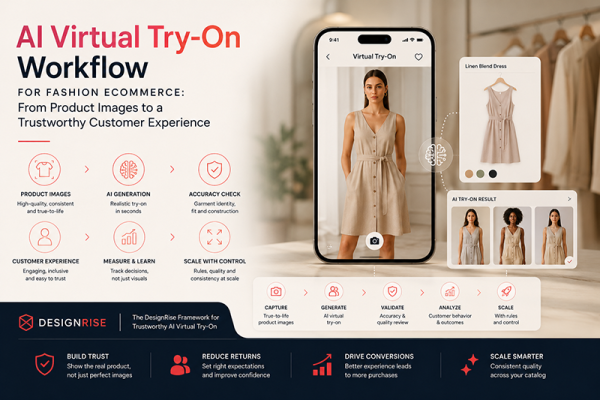

The best AI tools for UI/UX designers in 2026 are no longer limited to generating a polished screen from a short prompt. They now support almost every stage of product design: early ideation, sitemap planning, wireframing, interface exploration, component creation, accessibility review, predictive attention analysis, user research, usability testing, developer handoff, and frontend code generation.
That broader capability is useful, but it also creates a new problem. Product teams can now generate screens faster than they can validate whether those screens solve the right problem. A visually complete interface may still contain weak information architecture, inaccessible color combinations, confusing labels, missing states, unrealistic content, or an interaction model that has never been tested with a real person.
Professional UI/UX work therefore requires more than adding AI to every stage. The real skill is knowing which decisions can be accelerated and which decisions still need research, evidence, accessibility expertise, technical collaboration, and human judgment.
AI can help a designer turn a rough concept into several editable directions, locate existing assets inside a large design system, generate initial website structures, summarize research sessions, or prepare a responsive code foundation. It cannot independently decide which user problem matters most, whether the research sample is credible, whether a generated journey reflects real behavior, or whether a product deserves to exist in its proposed form.
This DesignRise guide examines ten current AI and AI-assisted platforms from a practical product-design perspective. Instead of repeating marketing descriptions, it explains where each tool fits, what it can realistically accelerate, what still needs manual review, and how to combine the tools into a responsible end-to-end workflow.
The article includes tools for AI UI generation, UX research, accessibility, predictive heatmaps, sitemaps, wireframes, design-to-code workflows, user testing, and scalable website planning. Features, plans, credit limits, integrations, and availability can change, so confirm the current conditions on the original platform before introducing it into a client or company workflow.
Explore More DesignRise Resources:
- Most Useful AI Tools for Marketing and Sales
- 10 Most Essential AI Tools for eCommerce in 2026
- Top AI Tools for Motion Designers and Video Creators
- Best AI Tools for Graphic Design
How AI Is Changing the UI/UX Workflow
The traditional product-design process was never as linear as many diagrams suggested. Research often revealed problems that forced teams back into information architecture. Usability testing exposed missing states. Development constraints changed interactions. Business priorities shifted before the final screens were approved.
AI does not remove that uncertainty. It reduces the cost of producing and revising intermediate material.
Tasks AI Can Accelerate
- Turning written product ideas into initial screens or wireframes.
- Converting screenshots and sketches into editable interface concepts.
- Generating alternative layouts for comparison.
- Finding components, screens, and assets inside large design files.
- Replacing placeholder copy with more realistic content.
- Creating first-draft sitemaps and page structures.
- Preparing prototype-testing plans and research questions.
- Transcribing and summarizing usability sessions.
- Predicting early visual-attention patterns before launch.
- Checking contrast, focus order, typography, and other accessibility issues.
- Producing an initial responsive frontend implementation.
Decisions That Still Need Human Judgment
- Problem selection: determining which user and business problem deserves attention.
- Research quality: deciding whether the evidence is sufficient and representative.
- Information architecture: organizing content according to user expectations rather than generated convenience.
- Interaction logic: defining states, errors, permissions, dependencies, and edge cases.
- Accessibility: going beyond automated checks to test actual assistive-technology experiences.
- Product ethics: protecting privacy, avoiding manipulative patterns, and preventing biased decisions.
- Prioritization: deciding which improvements create meaningful value.
- Final quality: refining typography, hierarchy, rhythm, content, and system consistency.
The fastest team is not the team that generates the most screens. It is the team that reaches a validated decision with the least unnecessary production.
Quick Comparison of the Best AI Tools for UI/UX Designers
How We Evaluated These AI Tools
A tool was not included simply because it can produce a visually impressive result. The selection focuses on whether it solves a recognizable problem inside a professional UI/UX process.
Evaluation Criteria
- Workflow relevance: the tool supports a real product-design task.
- Editability: designers can refine the output rather than accept a flattened result.
- Evidence quality: research and analytics tools retain a connection to source data.
- Collaboration: outputs can be reviewed by product managers, developers, researchers, and stakeholders.
- System compatibility: the tool can work with design systems, structured files, or existing production tools.
- Risk visibility: limitations are understandable enough for teams to review the output responsibly.
- Professional usefulness: the result can advance a project rather than merely create a demo.
1. Figma AI — Best for AI Assistance Inside the Design System
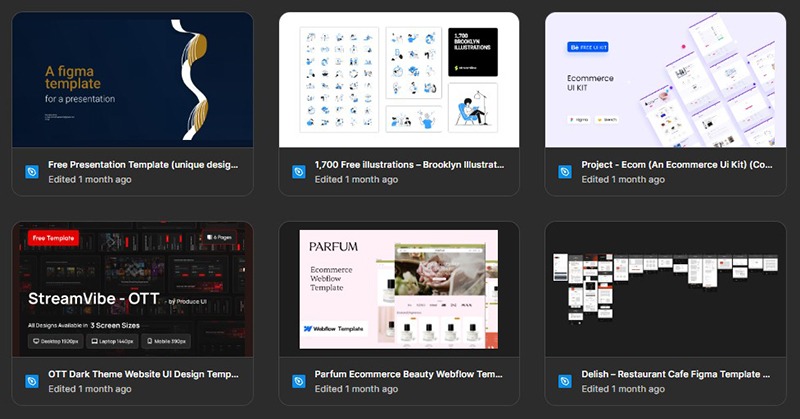
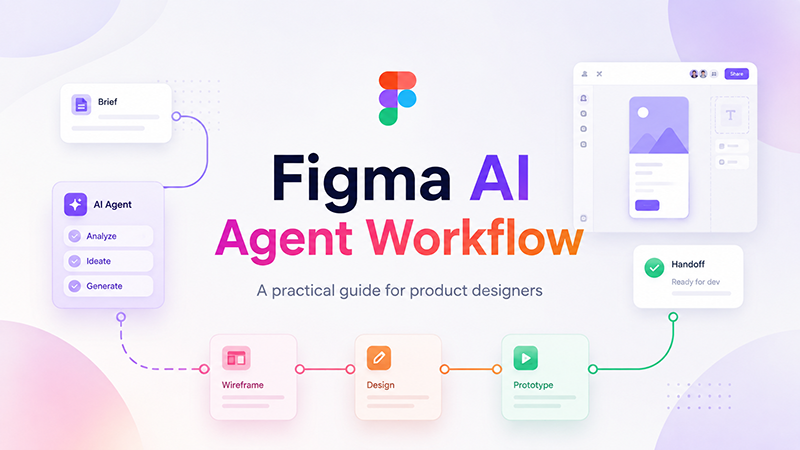
Figma AI is most valuable because it operates inside the environment where many product teams already design, prototype, review, and hand off interfaces. Designers do not have to export every screen into a separate generator and then rebuild the result manually.
Current AI capabilities can help teams explore design directions, find assets and previous work, replace repetitive placeholder content, rewrite or translate copy, edit images, organize layers, and accelerate prototype creation. Figma’s newer agent-based workflow also allows designers to move between natural-language direction and direct canvas editing instead of treating AI generation as a separate one-time step.
Where Figma AI Creates Real Value
- Finding an existing component or approved pattern inside a large workspace.
- Generating several initial approaches without leaving the design file.
- Replacing repeated placeholder copy with more realistic content.
- Preparing early interactive prototypes.
- Editing imagery and supporting assets in context.
- Reducing tedious layer and file-maintenance work.
The Main Professional Risk
A generated screen may look consistent while quietly bypassing the team’s actual component library, spacing rules, content standards, naming system, or interaction patterns. Before accepting the output, verify that components are connected correctly, Auto Layout behaves as expected, variants are appropriate, and responsive behavior is defined rather than simulated visually.
Best practice: give the AI access to a structured system and clear context. AI is far more useful when it extends an established product language than when it invents a new one on every screen.
2. Uizard — Best for Turning Rough Ideas Into Editable Prototypes
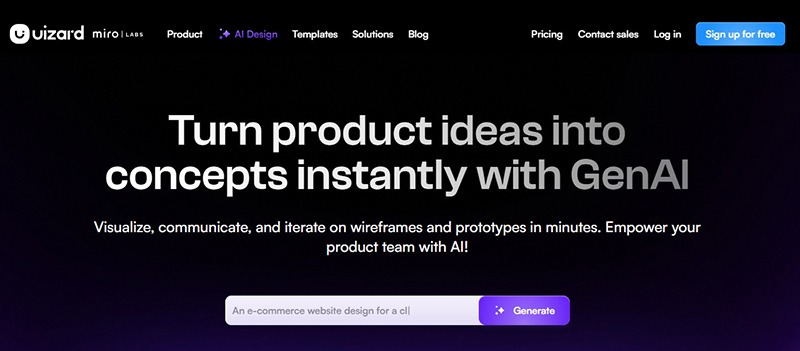
Uizard is designed for rapid movement between an idea and something a team can see, discuss, and edit. Autodesigner can generate multi-screen interface concepts from written prompts, while the Screenshot Scanner and Wireframe Scanner can transform visual references or hand-drawn structures into editable mockups.
This makes Uizard useful during workshops, startup validation, client discovery, and early product conversations. A founder can explain a service in plain language and receive an initial interface direction. A UX designer can digitize a paper sketch. A product team can compare several screen structures before investing in a detailed design system.
Use Uizard Before High-Fidelity Production
The tool is strongest when the goal is speed of communication rather than final visual precision. Treat the generated screens as a discussion object:
- Does the proposed navigation match the user’s goal?
- Are the main actions visible at the right moment?
- Is the screen asking for too much information?
- Which assumptions need research?
- Which states and edge cases are missing?
A polished screen can make an untested idea feel more complete than it actually is. Move into detailed UI design only after the structure and task flow survive critical review.
3. Google Stitch — Best for Prompt-to-UI and Frontend Exploration
The image below is an archived DesignRise screenshot of the former Galileo AI interface. That UI-generation product has since continued as Google Stitch.
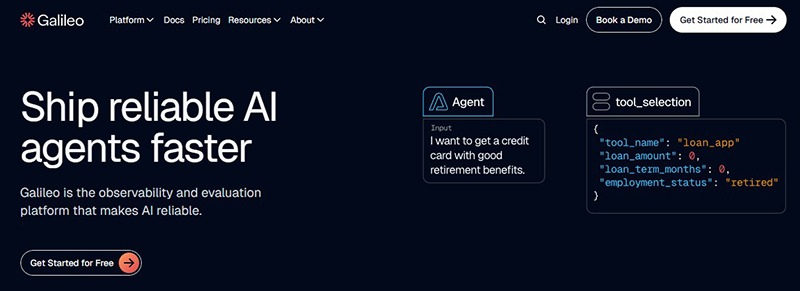
Google Stitch can generate user interfaces for mobile and web applications from natural-language instructions, screenshots, images, or rough wireframes. It can produce several visual variations and help bridge the distance between interface design and frontend implementation.
Its strongest use case is early exploration. A designer can describe a product, audience, primary task, visual direction, and device type, then compare multiple interface approaches without constructing every screen manually.
Write Prompts Like a Product Brief
A weak prompt such as “design a modern finance app” leaves the system to invent too much. A more useful direction includes:
- The user and their level of expertise.
- The primary task the screen must support.
- The information that must remain visible.
- The desired device and viewport.
- The brand tone and accessibility requirements.
- The states that need to be represented.
- The actions that must remain secondary.
Generated frontend code should be treated as an implementation starting point. Developers still need to review semantics, accessibility, responsiveness, state management, performance, security, analytics, and maintainability.
4. Locofy — Best for Converting Structured Designs Into Frontend Code
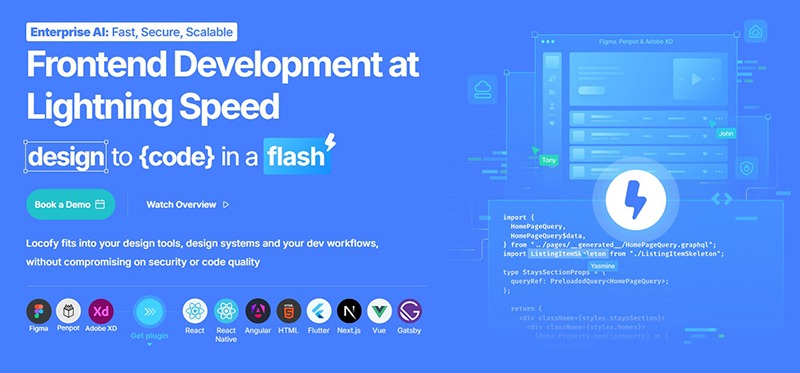
Locofy focuses on the transition from design to implementation. It can convert structured design files into responsive frontend code for common web and mobile frameworks, giving developers a code-backed starting point rather than a collection of static screenshots.
This can reduce repetitive production work, especially for landing pages, dashboards, internal tools, prototypes, and component-based interfaces. It can also expose gaps in the design file before handoff because generated code depends on clear layout relationships and reusable structure.
Design Quality Determines Code Quality
Before conversion, review the source file:
- Use clear and consistent layer names.
- Build layouts with responsive constraints and Auto Layout.
- Use components for repeated interface patterns.
- Separate content from decoration.
- Define hover, focus, loading, error, empty, and disabled states.
- Avoid using flattened images for interactive controls.
- Document the expected behavior of complex components.
Locofy should support collaboration between design and engineering, not remove engineering from the process. The generated result still needs code review, testing, refactoring, accessibility validation, and integration with real application data.
5. Attention Insight — Best for Predictive Visual-Attention Analysis
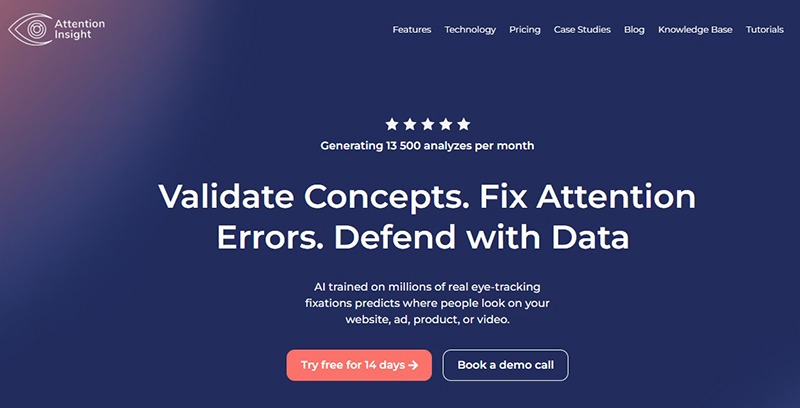
Attention Insight produces AI-generated attention maps that estimate which visual areas people are likely to notice first. Unlike analytics heatmaps based on clicks, scrolling, or cursor behavior, predictive maps can be used before the product receives traffic.
This makes the platform useful for comparing hero sections, dashboards, checkout screens, landing pages, advertisements, and other layouts where visual hierarchy strongly affects comprehension.
Questions a Predictive Heatmap Can Help Explore
- Does the headline attract enough initial attention?
- Is the primary call to action visible?
- Does an image compete with critical information?
- Are several elements fighting to become the focal point?
- Is important supporting copy effectively invisible?
What the Heatmap Cannot Prove
Attention is not comprehension, trust, accessibility, task completion, or conversion. A user may immediately notice a button and still misunderstand what it does. A visually prominent price may attract attention while reducing confidence.
Use predictive attention analysis to identify hypotheses. Validate important decisions with real behavior, usability testing, analytics, interviews, and accessibility review.
6. Maze — Best for Continuous UX Research and Automated Analysis
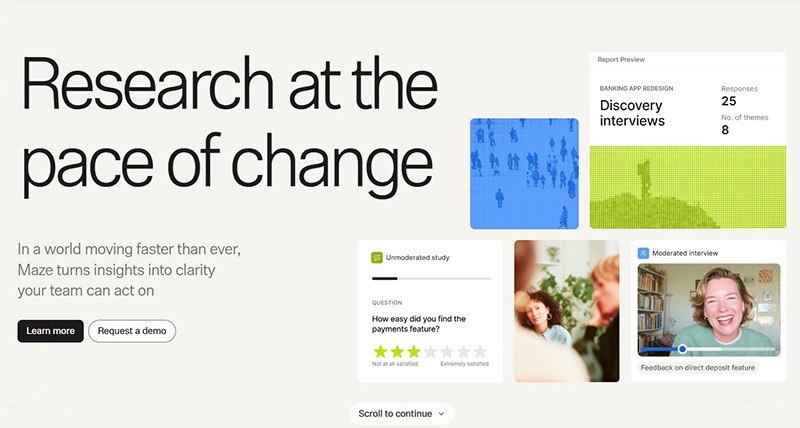
Maze is an AI-first research platform that supports prototype testing, surveys, card sorting, tree testing, interviews, and automated analysis. It is useful for product teams that want research to become a regular part of delivery rather than a large occasional project.
Designers can test early prototypes, examine where participants abandon a flow, compare task outcomes, and gather qualitative comments. AI can help organize the resulting material, identify patterns, prepare summaries, and reduce the time spent processing repetitive research data.
Keep AI Findings Traceable
AI-generated themes should remain connected to the original evidence. Before presenting a conclusion:
- Open the sessions or responses behind the theme.
- Check whether the summary ignores contradictory evidence.
- Separate repeated usability problems from isolated preferences.
- Review the participant profile and sample limitations.
- Avoid turning a small directional study into a universal claim.
The value of Maze is not that AI can make decisions for the team. It is that the team can reach the evidence faster and spend more time deciding what the evidence means.
7. Stark — Best for Accessibility Checks From Design to Production

Stark provides integrated accessibility tools for designers, developers, and product teams. Its capabilities include contrast checking, typography analysis, vision simulation, focus order, landmarks, color suggestions, and automated issue scanning.
Its AI-assisted Sidekick can scan design files and suggest ways to address accessibility problems before they reach development. That is valuable because many expensive accessibility issues begin as early design decisions: insufficient contrast, unclear hierarchy, missing focus logic, small touch targets, or communication that depends entirely on color.
Accessibility Requires More Than Passing a Scan
Automated tools are good at detecting measurable issues. They are less capable of judging whether:
- A heading structure communicates the page meaningfully.
- Alternative text conveys the correct purpose.
- A keyboard user can complete a complex task comfortably.
- An error message helps the user recover.
- Animation creates cognitive or motion-related barriers.
- Screen-reader announcements arrive in a useful order.
- The interface remains understandable at high zoom.
Use Stark throughout design and development, then complement it with manual review and testing involving people who use assistive technologies.
8. FlowMapp — Best for AI Sitemaps and Information Architecture
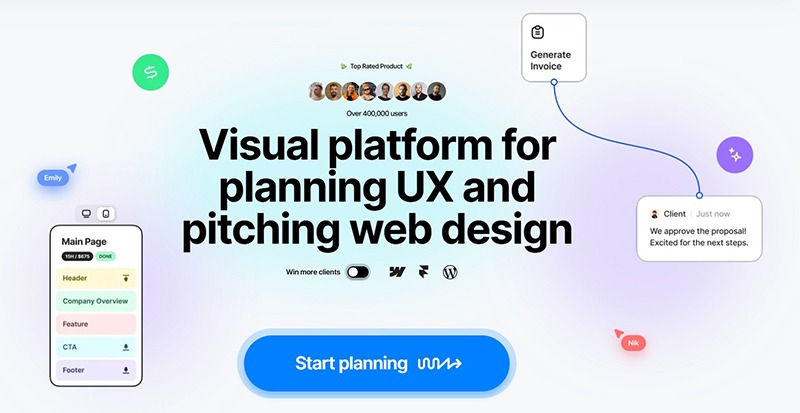
FlowMapp helps teams plan website structures, sitemaps, user flows, wireframes, content, estimates, and project proposals. Its AI generator can create an initial sitemap from a written description or existing website information, giving teams a faster starting point for information-architecture discussions.
This is especially useful for agencies and freelancers. Instead of opening Figma immediately and designing a homepage before the content structure is understood, the team can first define which pages exist, how they connect, which conversion paths matter, and what information belongs on each page.
Do Not Let AI Invent the Business Structure
Review the generated sitemap against:
- Actual services and products.
- Search intent and content requirements.
- User vocabulary.
- Navigation depth.
- Legal and regional requirements.
- Different audience groups.
- The expected conversion journey.
- Content the organization can realistically maintain.
A large sitemap may appear comprehensive while creating unnecessary pages and maintenance costs. Information architecture should reduce cognitive effort, not demonstrate how much content AI can generate.
9. Userbrain — Best for AI-Assisted Testing With Real Users
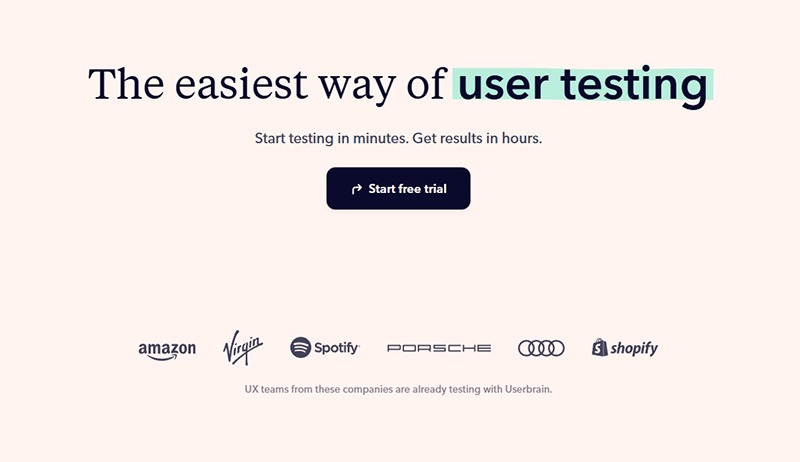
Userbrain focuses on watching real people use a live website, application, or prototype. Participants complete realistic tasks while recording their screen and voice, allowing product teams to observe confusion, hesitation, unexpected behavior, and workarounds that analytics alone cannot explain.
AI can assist by generating test tasks, processing recordings, identifying recurring issues, and preparing reports. The important distinction is that AI supports the analysis while the behavioral evidence still comes from real participants.
Write Tasks That Do Not Reveal the Answer
A weak task says:
“Click Pricing and choose the annual Pro plan.”
A stronger task provides context:
“You manage a five-person design team and need shared projects, but your budget is limited. Find the most suitable plan and explain what you would choose.”
The second version allows the team to observe navigation, interpretation, comparison, confidence, and decision-making rather than simply confirming that a button works.
Review More Than the AI Summary
Watch key recordings yourself. Tone of voice, pauses, repeated reading, accidental success, and visible frustration can carry meaning that a written summary may compress or miss.
10. Relume — Best for AI Website Sitemaps, Wireframes, and Style Guides
Relume is built primarily for professional website workflows. Its AI Site Builder can generate a sitemap from a project description, turn that structure into wireframes, suggest page content, and help designers develop a coordinated style direction.
Projects can then move into tools such as Figma or Webflow, while supported export workflows can also assist with React and HTML-based production. This makes Relume particularly useful for agencies, freelancers, Webflow specialists, and teams building marketing websites at scale.
Where Relume Saves the Most Time
- Preparing a first sitemap for a client discussion.
- Turning approved page structure into low-fidelity wireframes.
- Creating initial copy blocks for layout planning.
- Comparing several visual directions through style guides.
- Applying a coordinated design language across multiple pages.
- Moving structured website concepts into production tools.
Do Not Confuse Components With Strategy
A component library can accelerate page production, but it cannot determine the correct message, proof, offer, hierarchy, or conversion argument. Replace generic generated copy with researched content and adapt each page to the real customer journey.
Relume is strongest when AI creates the reusable foundation and the designer remains responsible for positioning, storytelling, visual distinction, and final quality.
Bonus Tool: Overflow for Interactive User-Flow Presentations
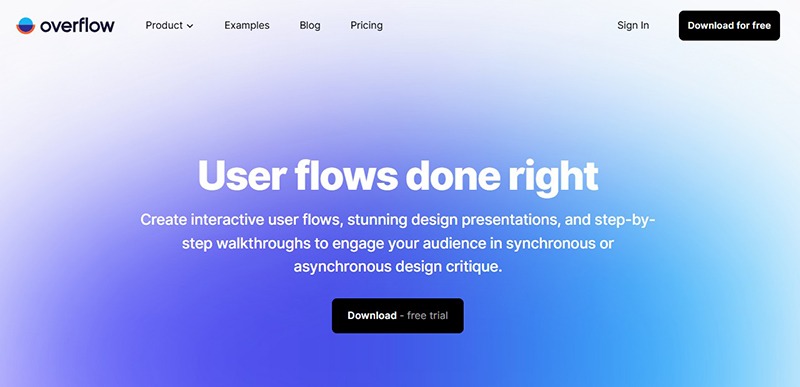
Overflow is not included in the top ten as an AI-first platform, but it remains valuable for turning interface screens into interactive user-flow diagrams and presentation-ready design stories.
Designers can sync screens from design tools, connect them into journeys, add annotations, create walkthroughs, and present the flow to developers, clients, or product stakeholders. This is especially useful when a collection of individual screens does not clearly communicate the relationship between decisions, branches, and alternative paths.
Use Overflow after the major journey is understood and before handoff or approval. A visual flow can expose missing screens, unclear transitions, dead ends, and inconsistent decisions that are difficult to notice while reviewing screens individually.
A Practical AI-Assisted UI/UX Workflow for 2026
1. Define the Problem Before Generating Screens
Document the user, context, business goal, evidence, constraints, success criteria, and unanswered questions. Do not ask an AI UI generator to solve a problem the team has not defined.
2. Plan the Structure
Use FlowMapp or Relume to create a first sitemap, content outline, or website structure. Remove unnecessary pages and validate the terminology with stakeholders and users.
3. Explore Early Interface Directions
Use Uizard or Google Stitch to turn the brief, sketch, or reference into editable interface concepts. Compare structural approaches rather than choosing the first visually attractive result.
4. Build the Product System in Figma
Move the approved structure into Figma. Connect it to the real component library, content model, variables, responsive behavior, interaction patterns, and naming conventions.
5. Review Hierarchy and Accessibility
Use Attention Insight for an early attention hypothesis and Stark for accessibility checks. Correct obvious problems before recruiting participants.
6. Test With Real Users
Run prototype studies in Maze or Userbrain. Observe whether users understand the interface and can complete meaningful tasks. Review the source evidence behind AI-generated findings.
7. Document the Flow
Use FlowMapp or the bonus tool Overflow to communicate the approved paths, decisions, branches, and screen relationships.
8. Prepare the Handoff
Use Locofy when code generation fits the project. Developers should review and integrate the output rather than treating it as automatically production-ready.
9. Continue Testing After Launch
Compare real analytics, support requests, behavior, and user feedback with the assumptions made during design. AI-assisted production does not eliminate the need for continuous learning.
How to Prompt AI UI Generators More Effectively
A productive UI prompt should describe behavior and context, not only visual style.
Weak Prompt
Create a modern dashboard for a fitness app.
Stronger Prompt
Create a mobile dashboard for adults following a four-week beginner strength program. The primary task is starting today’s workout. Show current progress, the next scheduled session, recovery status, and one secondary link to exercise history. Use large touch targets, clear contrast, concise language, and a calm premium visual style. Include loading, empty, completed, and missed-workout states.
Useful Prompt Components
- User: who is completing the task?
- Goal: what should they accomplish?
- Context: where and under what conditions?
- Priority: which action must remain dominant?
- Content: what information must be present?
- Constraints: device, brand, technical, legal, or accessibility requirements.
- States: empty, loading, success, error, offline, disabled, or permission-related conditions.
- Exclusions: patterns or elements the system should avoid.
After generation, do not continue prompting indefinitely. Move to direct design editing when manual control becomes more efficient.
Quality-Control Checklist for AI-Generated Interfaces
Information Architecture
- Does the navigation match the user’s mental model?
- Are labels understandable without internal company knowledge?
- Is important information located where users expect it?
- Are unnecessary pages or steps present?
Interaction Design
- Are all controls visibly interactive?
- Are hover, focus, selected, loading, disabled, error, and success states defined?
- Can the user recover from mistakes?
- What happens when content is longer, missing, delayed, or unavailable?
Content
- Is the copy realistic rather than generic placeholder text?
- Does each button describe the resulting action?
- Are instructions concise and placed at the correct moment?
- Do generated names, statistics, and examples need factual review?
Visual System
- Are typography, spacing, radii, icons, and colors consistent?
- Does the design use approved components?
- Is the hierarchy visible without relying on color alone?
- Does the interface still work with longer translated content?
Accessibility
- Is text contrast sufficient?
- Are touch targets large enough?
- Can the interface be navigated by keyboard?
- Is focus order logical?
- Are form fields labelled clearly?
- Does animation respect reduced-motion preferences?
Technical Feasibility
- Can the proposed component be implemented reliably?
- Does the design depend on unavailable data?
- Are responsive rules defined?
- Are performance and loading constraints considered?
- Has the developer reviewed the generated implementation?
Predictive AI Is Not a Replacement for User Research
AI can identify patterns in existing information, predict visual attention, simulate interface directions, organize feedback, and summarize recordings. Those capabilities can help a team prepare better studies and analyze material more quickly.
They do not replace the unexpected behavior of a real person using a real product.
A synthetic response may suggest that a navigation label is clear. A real participant may interpret it differently because of regional language, previous experience, stress, device constraints, disability, or the specific task they are trying to complete.
Use AI predictions to ask better questions. Use real research to decide whether the prediction survives contact with users.
Privacy and Ethical Questions to Review
Before Uploading Design Material
- Does the file contain unreleased products or confidential strategy?
- Are real customer details visible?
- Does the platform use uploaded material for model improvement?
- Can the organization disable data retention or training?
- Has the client approved the use of an external AI service?
Before Using AI in Research
- Did participants consent to recording, transcription, and AI processing?
- Where is the research data stored?
- Can sensitive information be removed?
- Are AI-generated themes traceable to source evidence?
- Could the model amplify bias in the sample?
Before Shipping an AI-Generated Interface
- Does the interface encourage manipulation or unwanted disclosure?
- Are recommendation and personalization systems understandable?
- Can users correct automated decisions?
- Is there a clear path to human assistance?
- Does the product communicate when AI is materially involved?
Common Mistakes UI/UX Designers Make With AI
1. Generating Screens Before Understanding the User
AI can fill the canvas quickly, but it cannot repair an undefined product problem. Begin with evidence and context.
2. Selecting the Most Polished Output
Visual completeness can create false confidence. Compare task flow, content hierarchy, accessibility, and technical feasibility before aesthetic refinement.
3. Letting AI Invent the Design System
Repeated generation may produce slightly different buttons, cards, spacing, and interaction rules. Connect the output to approved components and tokens.
4. Treating Predictive Heatmaps as User Testing
A predicted focal point cannot explain why users hesitate, misunderstand a label, distrust a price, or abandon a task.
5. Accepting AI Research Summaries Without Reviewing Evidence
Open the sessions, transcripts, and responses behind important themes. Summaries can omit minority experiences or contradictory findings.
6. Sending Generated Code Directly to Production
Generated frontend work requires review for semantics, accessibility, maintainability, security, responsiveness, and performance.
7. Using AI as an Excuse to Skip Accessibility
Faster production increases the amount of material that must be checked. Accessibility should enter the workflow earlier, not become a final automated scan.
8. Subscribing to Too Many Overlapping Tools
A strong workflow usually needs fewer platforms than a long AI-tools list suggests. Choose one tool for each clearly defined job.
Frequently Asked Questions
What are the best AI tools for UI/UX designers in 2026?
Figma AI is strong for design-system workflows, Uizard and Google Stitch support rapid UI generation, Locofy assists with design-to-code handoff, Attention Insight predicts visual attention, Maze and Userbrain support research, Stark checks accessibility, while FlowMapp and Relume accelerate website structure and wireframing.
Can AI generate a complete UI design?
AI can generate visually complete screens and prototypes, but the result still requires validation of user needs, content, states, accessibility, technical feasibility, design-system consistency, and usability.
What happened to Galileo AI for UI design?
The former Galileo AI interface-generation product continued as Google Stitch. The current Galileo website represents a different AI evaluation and observability platform, so the old link should not be used in a current UI-design tools article.
Is Figma AI enough for the entire UX process?
No single tool covers the whole process. Figma can support design and prototyping, but teams still need research, accessibility checks, analytics, usability testing, technical collaboration, and post-launch learning.
Can predictive heatmaps replace eye tracking or usability tests?
No. They can help identify likely attention patterns before launch, but they do not show actual comprehension, behavior, trust, accessibility, or task completion.
Can AI replace UX researchers?
AI can accelerate planning, transcription, analysis, and reporting. Researchers are still needed to frame questions, choose methods, evaluate evidence quality, recognize bias, and turn findings into responsible product decisions.
Can AI-generated frontend code be used in production?
It can provide a useful starting point, but experienced developers should review, test, refactor, and integrate it into the actual application architecture.
Which AI tool is best for website information architecture?
FlowMapp is useful for visual sitemaps, user flows, wireframes, and broader project planning. Relume is particularly strong for AI-assisted marketing website sitemaps, wireframes, style guides, and production exports.
Which AI tool is best for accessibility?
Stark provides accessibility checks across design and development, including contrast, typography, focus order, vision simulation, and automated issue scanning. Manual testing remains necessary.
How many AI tools does a UI/UX designer need?
Usually only a small stack: one primary design environment, one structure or generation tool, one research platform, one accessibility tool, and a handoff solution when required. Adding tools without assigning clear responsibilities creates more friction than speed.
Final Thoughts
The best AI tools for UI/UX designers in 2026 do not remove designers from the product process. They change where designers spend their time.
Figma AI reduces friction inside the design environment. Uizard and Google Stitch make early interface directions visible. FlowMapp and Relume help structure websites before detailed production begins. Attention Insight supports early visual-hierarchy analysis. Maze and Userbrain shorten the path from research data to actionable findings. Stark brings accessibility checks closer to the design stage. Locofy helps structured files move toward implementation.
The common advantage is not automatic creativity. It is a lower cost of iteration.
That advantage becomes meaningful only when teams use the saved time to ask better questions, review evidence, test with real people, improve accessibility, document edge cases, and refine the final experience.
AI can generate the next screen. A designer must still decide whether that screen belongs in the product.
For more practical AI workflows, interface-design guidance, research tools, and resources for modern product teams, continue exploring DesignRise.
Discover more from DesignRise
Subscribe to get the latest posts sent to your email.