





Procreate shape brushes are one of the fastest ways to add structured decorative elements to digital artwork without redrawing the same form repeatedly. Unlike traditional painting brushes, many shape brushes behave like stamps: one tap can place a geometric figure, arrow, feather, ornament, symbol, frame, or complete decorative element directly onto the canvas.
That simplicity makes them useful, but it can also be misleading. A shape brush is not automatically a finished design. When every stamp is used at its default size, angle, and opacity, the result can feel repetitive and obviously brush-based. The real creative value appears when the artist treats each impression as editable material — rotating it, masking it, recoloring it, combining it with typography, placing it inside a clipping mask, or building it into a larger visual system.
This curated collection includes free and premium shape brushes for Procreate, including handmade patterns, arrows, geometric stamps, feathers, decorative symbols, outline shapes, and larger stamp libraries. Some resources are designed for quick embellishment, while others can support more complex workflows such as pattern design, branding, lettering, journaling, editorial illustration, social media graphics, and printable artwork.
The guide goes beyond the download links. You will also learn how different types of Procreate stamp brushes work, how to choose the right set, how to build balanced compositions, how to avoid repetitive results, and how to organize a growing brush library without turning the Procreate Brush Library into an endless list of unnamed folders.
Some resources are free, while others are sold through marketplaces such as Creative Market, Envato Elements, Creative Fabrica, or Gumroad. Prices, licenses, and availability may change, so always review the original source page before using a brush in client work, merchandise, print-on-demand products, templates, or commercial illustration.
Explore More DesignRise Resources:
- Best Procreate Watercolor Brushes
- Calligraphy Brushes for Procreate
- Free Procreate Brushes — Ready to Download
- Best Free Procreate Brushes for Digital Artists
What Are Procreate Shape Brushes?
A Procreate shape brush is a brush preset built around a defined form rather than a traditional painted stroke. Depending on the settings, the brush may place a single shape with one tap, repeat the shape along a stroke, rotate it according to the direction of the Apple Pencil, or scatter multiple impressions across the canvas.
Shape brushes are often described as stamp brushes because many of them behave like digital stamps. Instead of drawing an arrow manually, you tap once and receive a clean arrow. Instead of constructing a repeated geometric motif, you can use a brush that places a consistent shape every time.
Common Types of Shape Brushes
- Single stamp brushes: place one complete object with each tap.
- Pattern brushes: repeat a motif along a continuous stroke.
- Geometric brushes: create circles, triangles, grids, lines, polygons, and abstract forms.
- Decorative brushes: include ornaments, stars, arrows, leaves, feathers, frames, and flourishes.
- Outline brushes: create clean line-based shapes that can be filled or recolored.
- Texture stamps: place irregular marks, grain, handmade patterns, or distressed details.
When Shape Brushes Are More Useful Than Regular Brushes
A standard Procreate brush is usually designed to simulate a medium such as pencil, ink, paint, charcoal, watercolor, or chalk. A shape brush solves a different problem: it creates consistency.
If an illustration requires twenty matching stars, drawing each one manually may introduce unnecessary variation. A stamp brush can create the base forms instantly, leaving the artist free to change the scale, rotation, color, and placement.
That makes shape brushes especially useful for production-heavy projects where the same visual language needs to appear across several assets.
Typical Uses
- Building decorative borders around lettering.
- Creating repeat patterns for fabric or wallpaper.
- Adding arrows and notes to digital planners.
- Constructing geometric poster backgrounds.
- Decorating social media stories and promotional graphics.
- Creating icon-like elements for infographics.
- Building botanical or feather compositions.
- Adding structured embellishments to invitations.
- Creating frames for quotes and hand lettering.
- Developing printable stickers and journal elements.
Quick Guide to Choosing the Right Procreate Shape Brush
How to Install Shape Brushes in Procreate
Most Procreate brushes are supplied as individual .brush files or complete .brushset packages. Some downloads are delivered inside ZIP archives, which must be extracted before installation.
Installing a Brushset
- Download the brush package to the Files app on your iPad.
- Open the ZIP file if the download is compressed.
- Tap the .brushset file.
- Procreate should open and import the set automatically.
- Open the Brush Library and look for the new folder near the top.
Installing a Single Brush
- Download the .brush file.
- Tap the file inside the Files app.
- Select Procreate if the app does not open automatically.
- The brush will usually appear inside the Imported folder.
- Move it into a clearly named custom set if you plan to use it regularly.
Organize Brushes Immediately
Avoid leaving every imported brush inside one enormous Imported folder. Create sets such as:
- Geometric Shapes
- Arrows and Symbols
- Decorative Stamps
- Pattern Brushes
- Frames and Borders
- Botanical Shapes
- Commercial Projects
Best Procreate Shape Brushes for Decorative Design
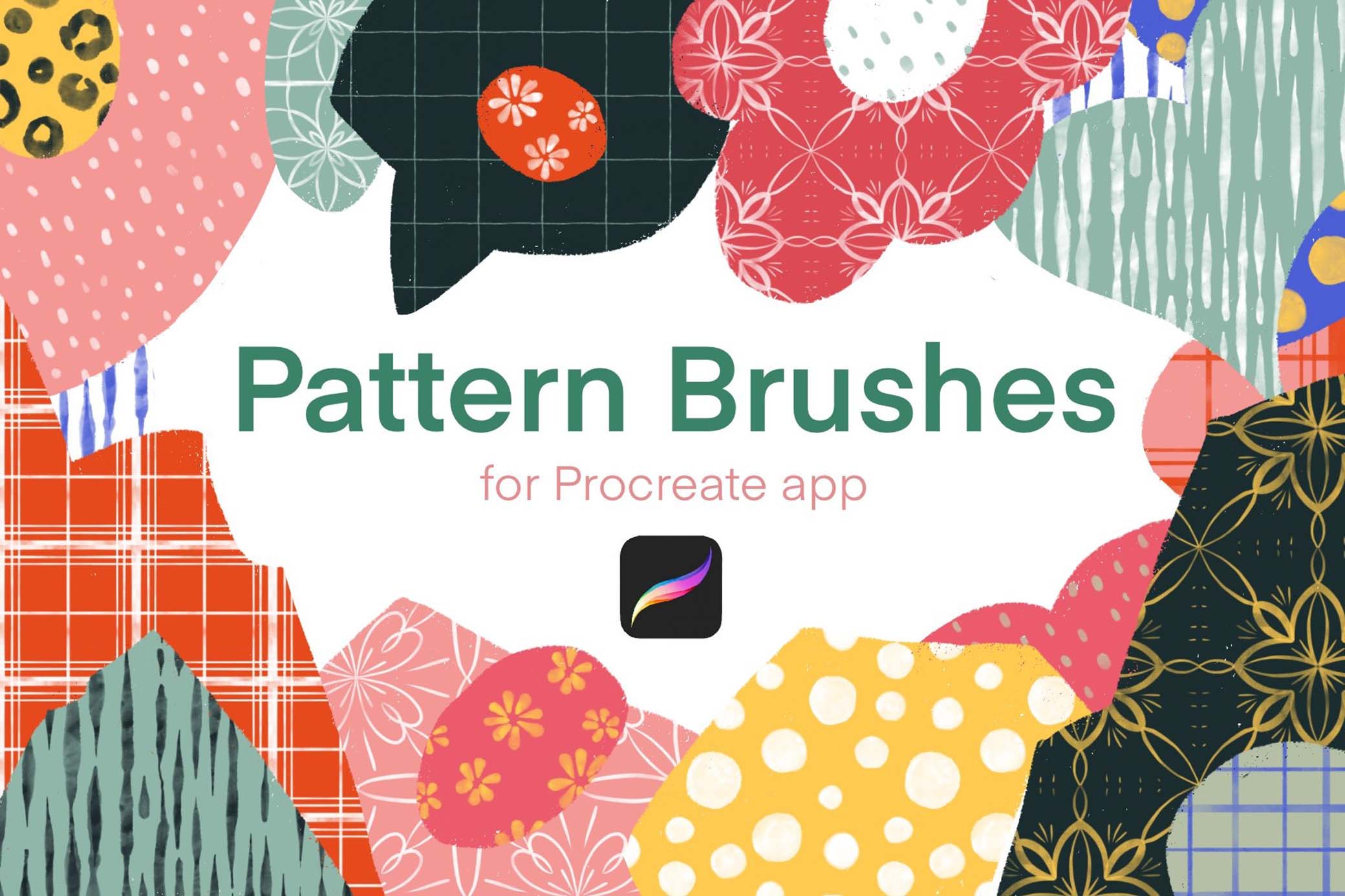
1. Handmade Procreate Pattern Brushes
Best for: handmade backgrounds, packaging, illustrated textures, digital collage, stationery, and repeating decorative details.
This free pattern collection offers a more organic alternative to perfectly geometric digital patterns. Handmade irregularity can make a layout feel warmer, more tactile, and less dependent on clean vector shapes.
These brushes can be useful for filling large areas, but they are often more effective when used selectively. Apply a pattern behind a headline, inside a clipping mask, or around the edges of a composition rather than covering the entire canvas at full opacity.
Practical Workflow Tip
Place the pattern on a separate layer and test several blending modes. Reducing opacity or clipping it inside a large shape can make the handmade texture feel integrated rather than pasted over the artwork.
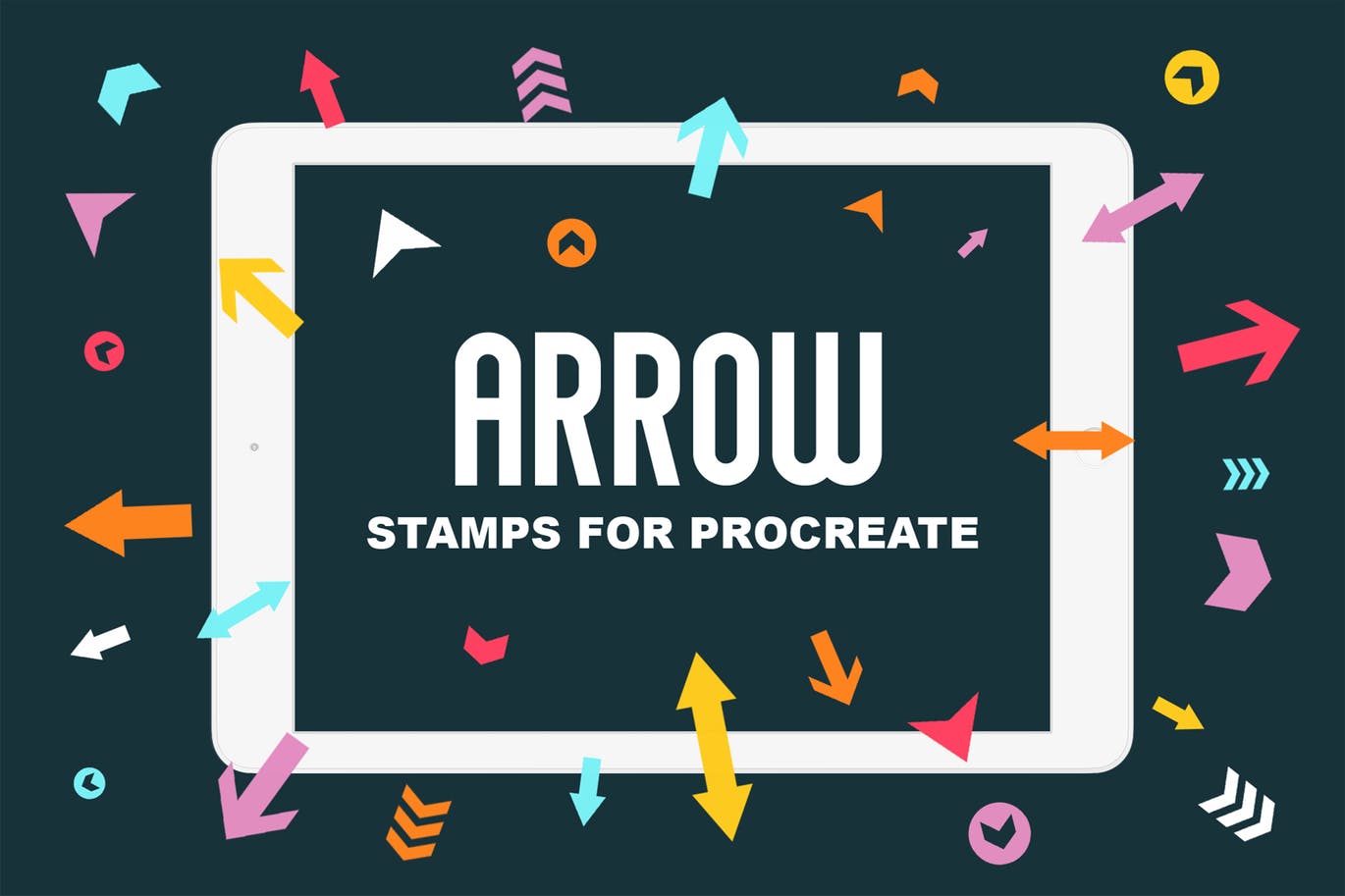
2. Procreate Arrow Stamp Brushes
Best for: digital planners, note-taking, infographics, educational graphics, lettering, presentations, and social media callouts.
Arrow brushes solve a simple but common problem: creating consistent directional marks quickly. A set with different arrow styles can support both practical annotation and decorative composition.
Arrows naturally attract attention, so their placement should have purpose. Use them to direct the viewer toward a call to action, explain the order of a process, connect two visual elements, or create movement around a lettering composition.
Practical Workflow Tip
Do not use every arrow style in one layout. Choose one visual family — clean, hand-drawn, bold, or decorative — and repeat it consistently throughout the project.
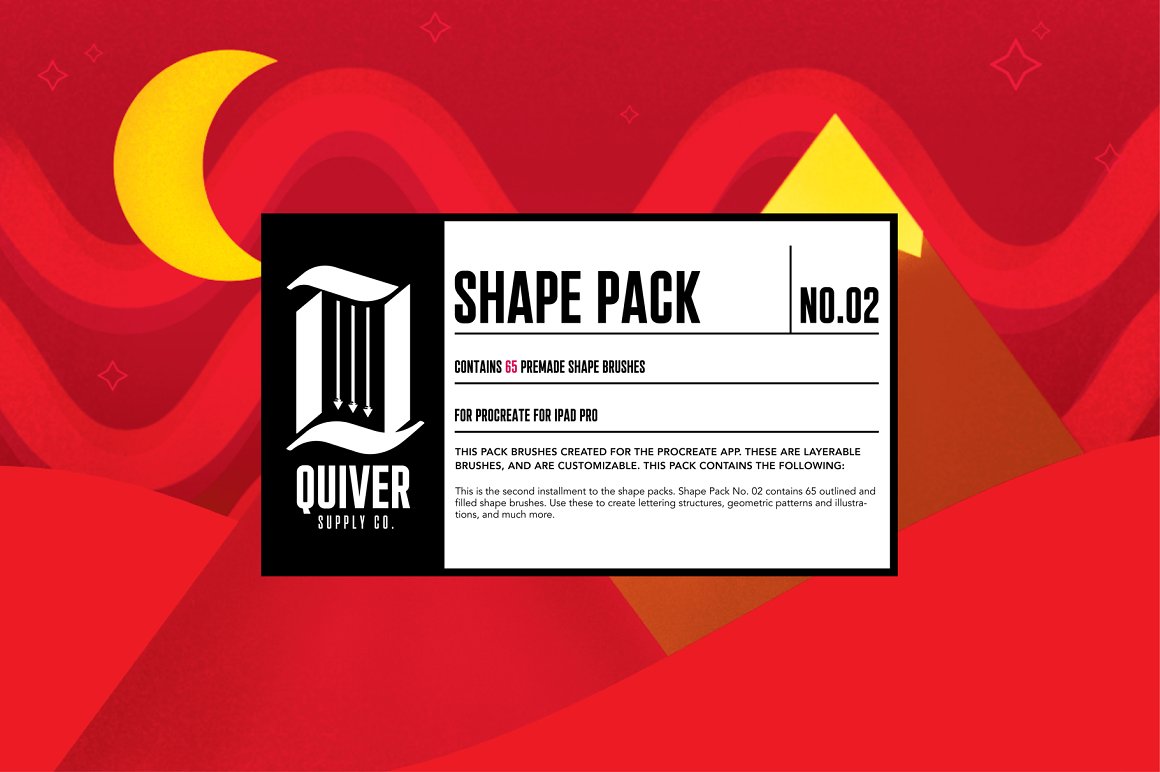
3. Procreate Shape Brush Pack 02
Best for: abstract compositions, poster design, modern illustration, branding exploration, and experimental layouts.
This premium shape pack provides a broader library of ready-made forms that can be used as graphic building blocks. Instead of treating each brush as an isolated decoration, combine several shapes into a structured composition.
Shape packs are particularly useful for designers who enjoy working with bold silhouettes. A large form can anchor the composition, while smaller stamps create rhythm and visual movement.
Practical Workflow Tip
Create the entire composition in black and white first. When the hierarchy feels balanced, add color, texture, gradients, or clipping masks. This prevents attractive colors from hiding a weak arrangement.
4. 250+ Free Procreate Shapes Brush Set
Best for: extensive stamp libraries, visual brainstorming, graphic composition, patterns, journaling, and decorative illustration.
A collection with more than 250 shapes gives artists a large visual vocabulary. It can be useful during exploration because you can compare many different forms before choosing the ones that support the final direction.
The disadvantage of a very large brush library is inconsistency. Not every shape will belong in the same design. Build a small project-specific selection instead of moving randomly through hundreds of stamps.

Practical Workflow Tip
Duplicate the original brush set and move ten to fifteen favorite shapes into a new project folder. Working with a limited selection usually produces a more coherent design.
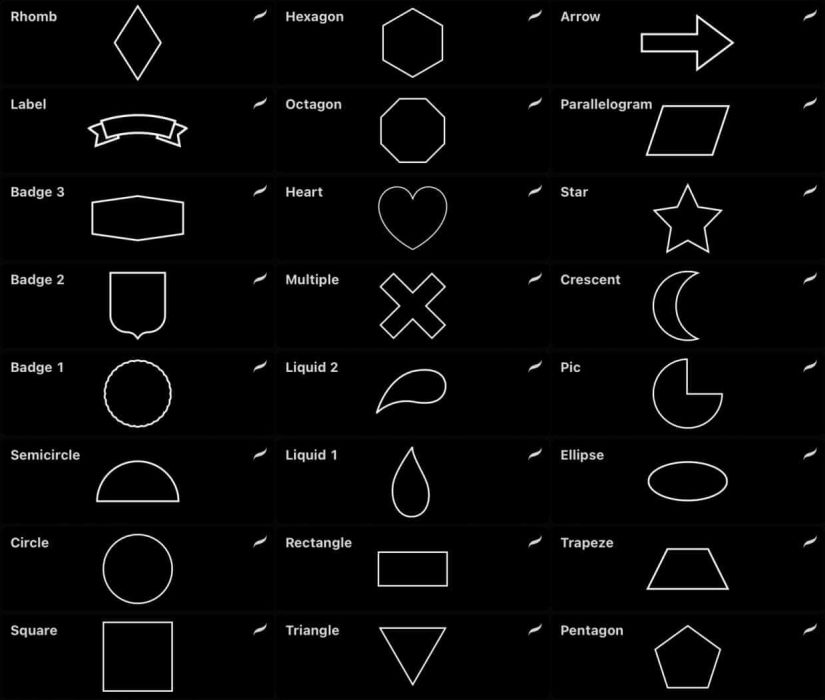
5. Procreate Shape Brushes Pack
Best for: decorative stamps, modern layouts, abstract artwork, quick embellishment, and mixed-media compositions.
This shape pack offers ready-made stamps that can be adapted to different visual styles through scale, color, texture, and layer effects. It is especially useful for artists who want to move beyond traditional drawing brushes and experiment with graphic form.
The original preview image contains an unhelpful technical alt description, so it has been replaced with clear descriptive text in the cleaned HTML.
Practical Workflow Tip
Stamp the same shape several times on separate layers, then change the scale and crop each copy differently. This can create a visual family without making the repetition too obvious.
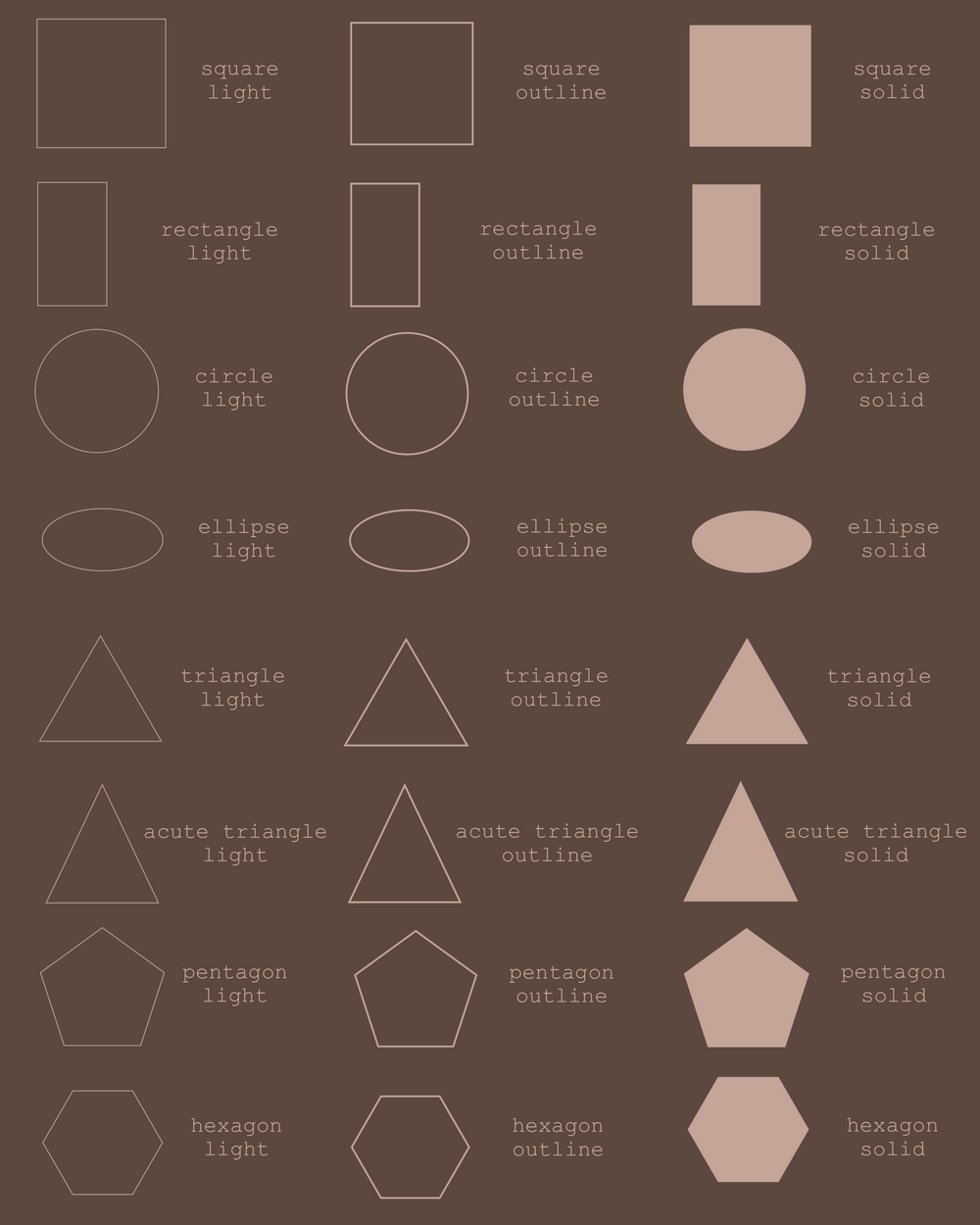
6. Basic Geometric Shape Stamp Brushes for Procreate
Best for: geometric compositions, pattern design, educational graphics, minimalist posters, icons, and layout planning.
Basic geometry is one of the most flexible ingredients in digital design. Circles, squares, triangles, lines, and polygons can become abstract art, structured backgrounds, diagrams, frames, or visual accents.
These brushes can also speed up rough composition work. Instead of opening a separate vector app, you can test shapes directly inside Procreate and decide whether the final artwork should remain hand-drawn or be rebuilt more precisely elsewhere.
Practical Workflow Tip
Activate Drawing Guide or Symmetry when arranging geometric stamps. The brushes create the forms, while the guides help maintain alignment, spacing, and balance.
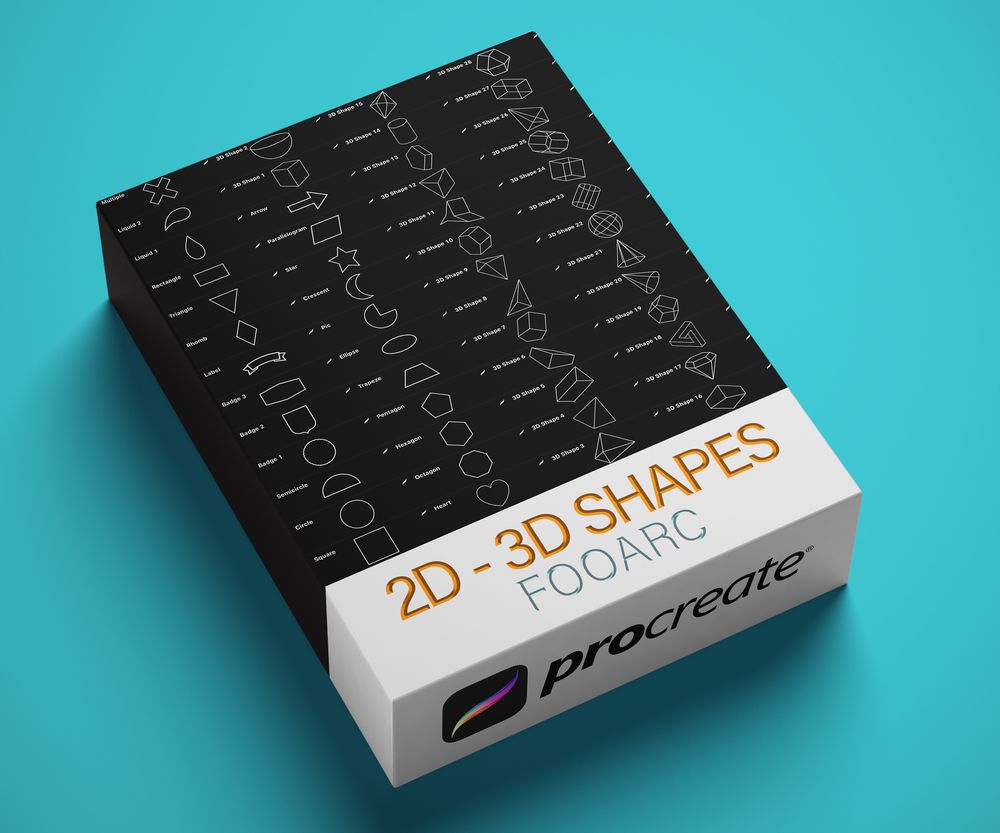
7. Free 2D Shape Brushes for Procreate
Best for: outline compositions, diagrams, sticker design, minimal illustration, pattern construction, and digital planning.
This free set focuses on simple two-dimensional outline shapes. Clean outlines are useful because they can remain unfilled, be painted manually, or become boundaries for clipping masks and selections.
The brushes are especially practical for beginners because the forms are easy to understand and combine. Advanced users can treat them as scaffolding for more detailed illustration.
Practical Workflow Tip
Place an outline stamp on one layer, create a new layer beneath it, and paint the fill separately. This keeps the outline clean while allowing color and texture to be changed later.
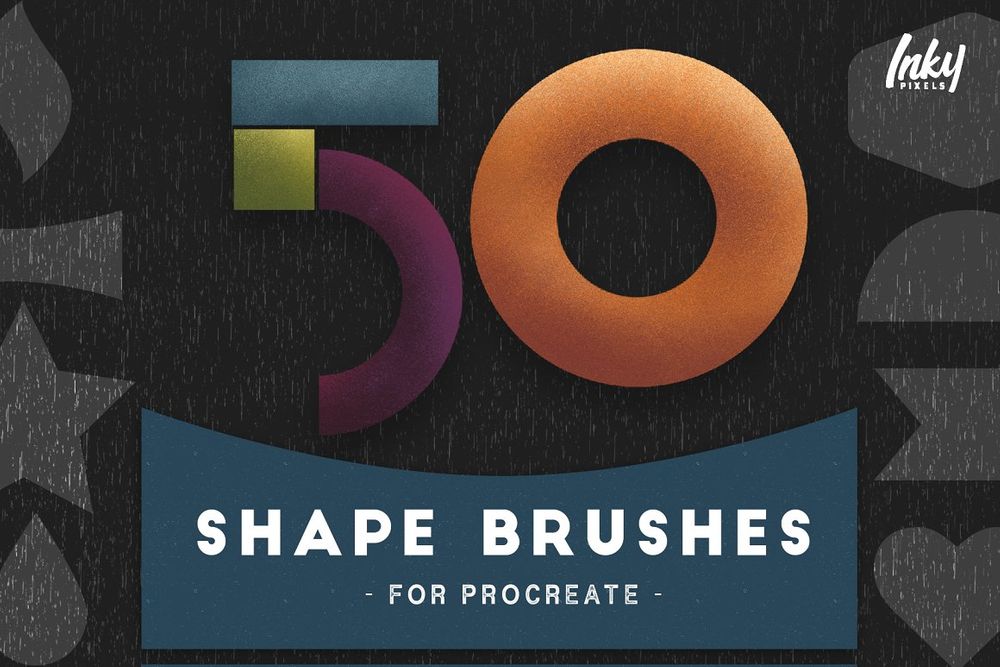
8. 50 Shape Brushes for Procreate
Best for: decorative compositions, pattern building, lettering, posters, social graphics, and creative experimentation.
This premium collection contains 50 brushes that act as individual shape stamps. Each one can be resized, recolored, rotated, mirrored, and positioned independently.
A medium-sized set like this can be easier to work with than a library containing hundreds of brushes. There is enough variety for experimentation without making every brush-selection decision feel overwhelming.
Practical Workflow Tip
After stamping a shape, use Transform to experiment with Freeform and Distort. Slightly altering the original stamp can make repeated shapes feel less mechanical.
9. 12 Procreate Feather Stamp Brushes
Best for: bohemian graphics, wedding stationery, botanical layouts, dream-inspired artwork, journaling, and decorative lettering.
Feather stamps can add softness and movement to a design. Their long curved silhouettes make them useful for filling narrow spaces around lettering or creating a directional flow through a composition.
Because feathers contain recognizable fine detail, they often work best at medium or large sizes. At very small dimensions, the internal texture may disappear and leave an unclear silhouette.

Practical Workflow Tip
Use two or three feather shapes with different sizes rather than placing a large number of identical stamps. Slight overlaps and partial cropping can create a more natural arrangement.
How to Build a Strong Composition With Shape Brushes
The brush determines the form, but the composition determines whether the design feels professional. Before adding color or texture, decide how the viewer should move through the artwork.
Start With One Dominant Shape
Choose one large form as the visual anchor. It may sit behind the headline, frame the main illustration, or create a strong asymmetrical silhouette. Smaller shapes should support it rather than compete for attention.
Create Three Levels of Scale
A useful system is:
- One or two large shapes.
- Several medium supporting forms.
- A small number of tiny details.
When every stamp has the same size, the design lacks hierarchy and begins to resemble a repeated pattern even when repetition was not intended.
Leave Intentional Empty Space
Decorative brushes often encourage artists to fill every gap. Resist that instinct. Empty space helps lettering remain readable and gives the stamped elements more visual importance.
Use Cropping
A brush does not have to be completely visible. Move part of the shape beyond the canvas edge or hide sections behind another object. Cropping often creates a more confident and less decorative composition.
Separate Shapes Across Layers
Stamping every element onto one layer removes much of the flexibility that makes digital design useful. Place important shapes on separate layers so you can edit opacity, scale, color, and masking independently.
Five Creative Workflows for Procreate Shape Brushes
1. Decorative Lettering Composition
- Create the lettering first.
- Identify empty areas around the words.
- Add one or two large decorative stamps.
- Use smaller arrows, feathers, or stars to guide the eye.
- Keep important letterforms unobstructed.
- Apply one unified color treatment to the final composition.
2. Seamless Geometric Pattern
- Choose three to five compatible geometric stamps.
- Create a square canvas.
- Build one balanced central cluster.
- Duplicate and move edge elements to the opposite side.
- Test the repeat before adding texture.
- Export the finished tile for fabric, wallpaper, or packaging mockups.
3. Social Media Quote Graphic
- Choose a short quote and create clear typography.
- Add a large abstract shape behind the text.
- Use a smaller pattern or stamp at low opacity.
- Check readability at phone size.
- Adapt the design into square and vertical formats.
4. Digital Planner Sticker Sheet
- Select functional stamps such as arrows, circles, labels, and checkmarks.
- Keep each shape on a separate layer.
- Use a consistent outline thickness.
- Add color without reducing small-scale readability.
- Export the sticker elements with transparent backgrounds.
5. Mixed-Media Editorial Illustration
- Draw the main subject manually.
- Add handmade or geometric stamps behind the subject.
- Use clipping masks to place texture inside larger shapes.
- Allow some stamps to pass behind and in front of the illustration.
- Finish with grain or limited color to unify the elements.
How to Make Shape Brushes Look Less Repetitive
Change the Angle
Rotate repeated stamps so they do not all face the same direction. For patterns, use controlled rotation intervals. For organic compositions, use more irregular variation.
Change the Scale
Even a small difference in scale can make repeated forms feel less mechanical. Avoid reducing detailed stamps so far that their internal shapes disappear.
Use Layer Masks
Masks allow one stamp to appear behind another object without permanently erasing it. This creates depth and makes simple shapes feel more integrated.
Combine Solid and Outline Versions
Duplicate a stamp and use one copy as a solid form while keeping another as an outline. This can create contrast while preserving a consistent visual language.
Add Texture Inside the Shape
Create a new layer above the stamp, enable Clipping Mask, and paint texture inside it. One geometric brush can produce many different results depending on the texture applied.
Distort Selectively
Use Transform tools to stretch, skew, or distort selected shapes. Small modifications can make a stock stamp feel more customized, but excessive distortion may reduce quality.
How to Create Your Own Procreate Shape Brush
Creating a custom stamp brush is useful when you need a repeated logo element, icon, signature, ornament, or shape that matches your own visual style.
Step 1: Create the Shape
Make a square canvas and draw the shape in black against a white background. Keep the form clean and centered. A black shape usually becomes the printable part of the stamp after inversion inside the Brush Studio.
Step 2: Copy the Canvas
Open the Actions menu, choose Add, and select Copy Canvas.
Step 3: Create a New Brush
Open the Brush Library, choose a suitable folder, and tap the plus icon to open Brush Studio.
Step 4: Import the Shape
Open the Shape section, tap Edit, choose Import, and select Paste. Invert the shape if necessary so the correct area becomes active.
Step 5: Adjust Stroke Settings
Increase spacing when you want individual stamps rather than a repeating line. For a one-tap stamp, the spacing should be high enough that the brush does not create a continuous trail.
Step 6: Test Rotation and Size
Decide whether the stamp should follow the direction of the stroke or remain fixed. Test it at several sizes and inspect the edges for blur or unwanted texture.
Step 7: Save a Duplicate
Duplicate the brush before making experimental changes. This gives you a clean original to return to later.
Common Mistakes When Using Procreate Shape Brushes
1. Using Every Brush in the Set
A collection may contain hundreds of shapes, but a single project usually needs only a small selection. Too many unrelated forms make the design feel visually inconsistent.
2. Stamping Everything on One Layer
This prevents easy repositioning, recoloring, and masking. Use separate layers for the important elements.
3. Keeping Every Stamp at the Default Angle
Identical direction makes repetition obvious. Rotate and reflect shapes when appropriate.
4. Making Decorations More Important Than the Message
Arrows, patterns, feathers, and ornaments should support the headline, illustration, or information. They should not reduce readability.
5. Ignoring Edge Quality
Some stamps look clean at small sizes but become visibly soft when enlarged. Test the brush at the final output size.
6. Using Too Many Colors
Shape-based artwork can become chaotic quickly. Begin with a limited palette and expand only when the composition genuinely needs more contrast.
7. Forgetting the License
A free download does not always permit commercial use. Check whether the brush may be used in client projects, merchandise, templates, logos, or print-on-demand products.
Licensing Checklist for Procreate Brushes
Before using any brush professionally, record:
- The original download page.
- The brush creator or marketplace.
- The date of download.
- Whether the brush is free or premium.
- Whether commercial use is allowed.
- Whether attribution is required.
- Whether the brush can be used in logos.
- Whether it can be used in merchandise or print-on-demand products.
- Whether the original brush file may be shared or redistributed.
Using a brush inside a flattened illustration is different from reselling the brush file or distributing an editable template that makes the original stamp easy to extract.
Frequently Asked Questions About Procreate Shape Brushes
What are Procreate shape brushes used for?
Procreate shape brushes are used to place consistent forms such as geometric figures, arrows, ornaments, patterns, feathers, frames, and symbols. They are useful for lettering, digital planning, illustration, pattern design, social media graphics, and decorative compositions.
Are shape brushes the same as stamp brushes?
Many shape brushes are stamp brushes because one tap places one complete form. However, some shape brushes repeat a shape along a stroke or create continuous patterns.
Can I recolor a Procreate stamp brush?
Yes. Select the desired color before stamping, or use Alpha Lock, clipping masks, layer blending modes, or adjustments to recolor the shape afterward.
How do I rotate a shape brush?
Stamp the shape on its own layer, open the Transform tool, and rotate it manually. Some brushes may also rotate automatically depending on their Brush Studio settings.
Can I use shape brushes to create seamless patterns?
Yes. Single stamps are useful for constructing pattern tiles. The artist must still arrange edge elements correctly so the tile repeats without visible seams.
Can Procreate shape brushes be used for logos?
They can support early logo exploration, but publicly available stamps may reduce originality. Check the license and significantly modify the shape before considering it for a professional brand identity.
Are premium Procreate brushes better than free brushes?
Not automatically. Premium collections may offer more shapes, better organization, stronger documentation, or broader licenses. A well-made free brush can still be more useful when it fits the project.
Why does my stamp brush look blurry?
The original shape source may be too small, or the stamp may have been enlarged beyond its effective resolution. Test the brush at the final canvas dimensions and avoid excessive scaling.
Final Thoughts
Procreate shape brushes can dramatically speed up decorative design, but their real value is not the ability to place a ready-made form with one tap. Their value lies in how easily those forms can be combined, transformed, masked, recolored, and repeated.
The handmade pattern brushes are useful for tactile backgrounds. Arrow stamps support planning and information design. Geometric sets help build structured compositions. Large shape libraries offer broad experimentation. Feather brushes add softer ornamental detail. Outline stamps can become frameworks for color, texture, and custom illustration.
Choose a small visual family for each project. Keep important shapes on separate layers. Vary scale and rotation. Leave enough negative space. Add custom drawing or texture so the result does not look like an untouched brush preview.
The brush may create the shape, but the artist still creates the composition.
For more Procreate brush collections, digital art tools, textures, and practical resources for creative workflows, continue exploring DesignRise.
Discover more from DesignRise
Subscribe to get the latest posts sent to your email.


Thanks)