






Free pencil brushes for Procreate are some of the most useful tools you can add to your digital art workflow. Before color, texture, lighting, and final rendering, almost every strong illustration begins with a sketch. A good pencil brush helps you capture ideas quickly, build structure, explore shapes, shade naturally, and keep the handmade feeling of traditional drawing on your iPad.
Procreate already includes solid default brushes, but many artists eventually want a more realistic pencil feel: grainy graphite texture, soft shading, rough construction lines, colored pencil effects, pressure-sensitive strokes, and brushes that respond naturally to Apple Pencil movement. That is where custom Procreate pencil brushes become valuable.
The right brush can make digital sketching feel less flat and more alive. It can help you create light thumbnail sketches, expressive character concepts, realistic portraits, rough storyboards, fashion drawings, concept art, product sketches, lettering drafts, and polished shaded illustrations. Instead of fighting with a brush that feels too smooth or too digital, you can work with tools designed to imitate real pencil marks.
This guide brings together a curated collection of realistic pencil brushes for Procreate, including free sketching brushes, graphite-style brushes, colored pencil brushes, shading tools, and pencil packs for different creative styles. You will also learn how to choose the right pencil brush, how to install brush sets, how to use them for realistic shading, and how to avoid the most common digital sketching mistakes.
Explore More DesignRise Resources:
- How to Add Fonts to Procreate
- Best Procreate Color Palettes
- Best Procreate Watercolor Brushes
- Professional Calligraphy Procreate Brushes for Script Art
Why Pencil Brushes Matter in Procreate
Sketching is not just the first step before “real” artwork begins. For many artists, sketching is where the most important decisions happen. This is where you explore proportion, pose, mood, composition, rhythm, silhouette, light direction, and the overall energy of the piece.
A weak pencil brush can make this stage feel uncomfortable. If the brush is too smooth, too dark, too slippery, or too uniform, it may be harder to sketch naturally. A good digital pencil brush should feel responsive and flexible. It should allow both loose construction lines and controlled detail work.
What Good Procreate Pencil Brushes Can Help With
- Natural sketching: create rough lines that feel closer to real graphite or colored pencil.
- Line variation: use Apple Pencil pressure to move from light marks to darker strokes.
- Realistic shading: build depth with soft texture, grain, and layered strokes.
- Concept development: quickly explore ideas before committing to final art.
- Portrait drawing: sketch facial structure, hair, shadows, and fine details.
- Character design: test poses, expressions, costumes, and silhouettes.
- Hand-drawn style: keep digital art from looking too clean or artificial.
- Workflow speed: sketch, revise, erase, duplicate, and refine faster than on paper.
For beginners, pencil brushes make Procreate feel more familiar. For experienced artists, they provide more control and texture during the early design process.
How to Choose the Best Free Pencil Brushes for Procreate
Not every pencil brush is useful for every artist. Some brushes are better for quick sketching, while others are better for clean linework, soft shading, rough graphite texture, or colored pencil effects. A brush that works beautifully for loose figure drawing may not be the best choice for realistic portrait shading.
Before downloading a large brush pack, think about how you actually draw. Do you prefer light construction lines? Do you shade with soft pressure? Do you like rough grain? Do you need brushes for clean outlines? Do you want a pencil that works like a traditional 2B, 4B, mechanical pencil, colored pencil, or charcoal-style sketch tool?
Key Features to Look For
- Pressure sensitivity: the brush should respond well to light and heavy Apple Pencil pressure.
- Texture: realistic grain helps strokes feel less digital.
- Opacity control: good pencils allow gradual buildup instead of instantly dark marks.
- Tilt response: some brushes create broader shading strokes when you tilt the pencil.
- Clean edges: useful if you need sharper sketch lines or detailed drawing.
- Shading behavior: the brush should layer naturally without becoming muddy too quickly.
- Brush variety: a strong set often includes sketching, shading, detail, and texture brushes.
- Commercial license: always check the creator’s license before using brushes in client or product work.
Quick Comparison: Which Pencil Brush Set Should You Try?
This table gives you a quick way to compare the brush sets in this guide and choose the best one for your project.
How to Install Pencil Brushes in Procreate
Most Procreate pencil brushes come as either a .brush file or a .brushset file. A .brush file usually imports one brush, while a .brushset file imports a full brush folder.
Installation Steps
- Download the brush file from the creator’s page.
- Save the file to your iPad, iCloud Drive, Downloads folder, or Files app.
- Tap the .brush or .brushset file.
- Procreate should open automatically and import the brush.
- Open the Brush Library and look for the new set near the top.
- Create a test canvas and try different brush sizes, pressure levels, and opacity settings.
Before You Use a Brush in a Final Project
Always test a new brush before using it in finished artwork. Draw light lines, dark lines, fast lines, slow lines, tilted shading strokes, and layered shadows. This helps you understand how the brush behaves and prevents surprises later.
Best Free Pencil Brushes for Procreate
Below are some of the best free pencil brushes for Procreate and pencil-style brush packs for sketching, shading, graphite effects, colored pencil texture, and mixed media drawing.
1. Pencil Sketching Procreate Brush
Best for: simple sketching, rough ideas, thumbnails, and first drawing drafts.
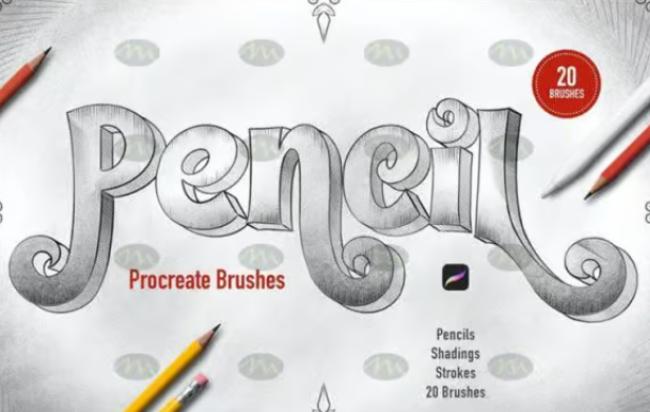
This Pencil Sketching Procreate Brush is a good starting point if you want a natural pencil feel without building a custom brush from scratch. It can be useful for early concept sketches, quick studies, planning compositions, and drawing construction lines before moving into cleaner details.
Because this type of brush is focused on sketching, it works best when you use it lightly at first and build darker lines gradually. Try lowering opacity or using a separate sketch layer if you want a cleaner workflow.
Why Try It?
- Good for quick pencil-style sketching.
- Useful for beginners building a Procreate brush library.
- Works well for rough layouts and composition planning.
- Helps digital sketches feel less flat and more hand-drawn.
Download Pencil Sketching Procreate Brush
2. Ultimate Procreate Pencil Pack
Best for: artists who want a more complete pencil pack for everyday sketching.
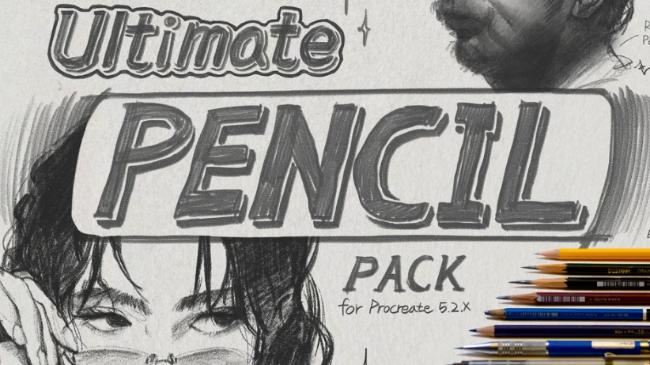
The Ultimate Procreate Pencil Pack is useful if you want more than one pencil texture in your workflow. A larger pencil pack gives you room to test different drawing styles: rough sketching, cleaner linework, softer shading, and more textured strokes.
This type of pack is especially helpful for artists who sketch daily. Instead of relying on one all-purpose pencil, you can choose the brush that fits the stage of your drawing: loose planning, structure, details, or tonal buildup.
Best Uses
- Daily sketchbook work.
- Character concept sketches.
- Illustration planning.
- Layered pencil shading.
- Testing different graphite textures.
Download Ultimate Procreate Pencil Pack
3. Mini Brush Set for Procreate
Best for: artists who prefer a small, focused brush set instead of a huge library.
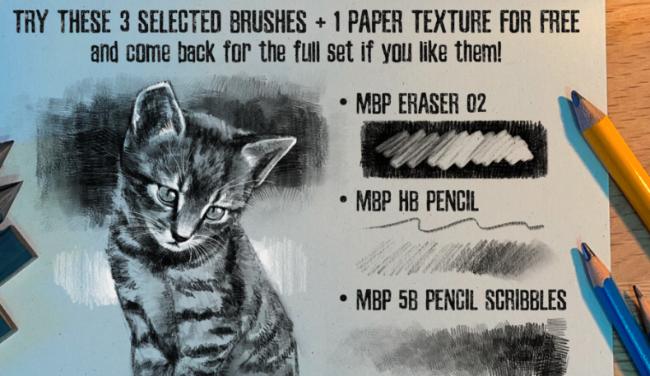
A mini brush set can be surprisingly useful because it keeps your workflow simple. Instead of switching between dozens of similar brushes, you can focus on drawing. This is especially helpful for beginners who often collect too many brushes and then feel overwhelmed.
The Mini Brush Set for Procreate is a nice option if you want a compact pencil-style toolset for sketching, rough shading, and simple handmade texture.
Why a Small Set Can Be Better
- Less time spent choosing brushes.
- More consistency across one artwork.
- Easier learning curve for beginners.
- Better focus on drawing fundamentals.
Download Mini Brush Set for Procreate
4. Realistic Pencil Procreate Brushes
Best for: traditional pencil texture, realistic sketch lines, and natural drawing effects.
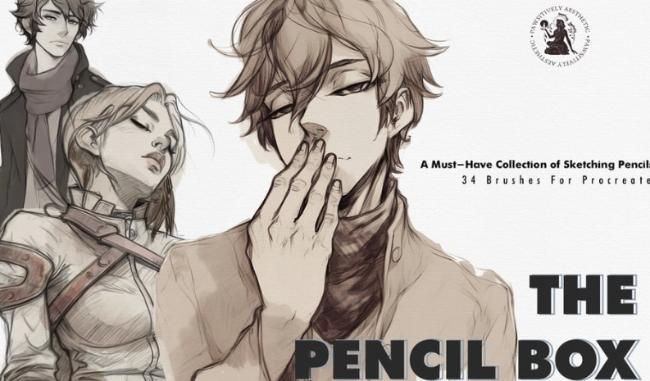
Realistic Pencil Procreate Brushes are designed for artists who want their digital sketches to look closer to traditional pencil drawings. This kind of brush is useful when you want visible grain, soft edges, and natural pressure variation.
Use these brushes for portraits, character art, figure studies, object sketches, and visual notes. They can also work well as a base layer before painting over the sketch with ink, watercolor, gouache, or digital painting brushes.
Best Uses
- Realistic pencil sketches.
- Portrait construction.
- Character studies.
- Light-to-dark line variation.
- Traditional drawing style in Procreate.
Download Realistic Pencil Procreate Brushes
5. Graphite Pencil Effect Procreate Brushes
Best for: graphite shading, tonal studies, realistic portraits, and traditional sketch effects.
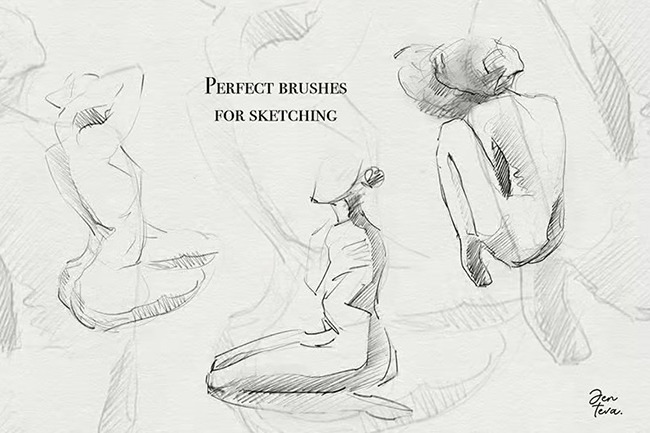
Graphite-style brushes are especially useful when you want your Procreate work to feel like pencil on paper. These brushes can help build soft values, darker shadows, and textured shading without making the artwork look too smooth.
If you draw portraits, figure studies, still life, or concept sketches, graphite brushes are worth testing. They allow you to build form gradually, just like traditional pencil drawing.
Tips for Graphite Shading
- Use low pressure first and build values slowly.
- Keep highlights clean by drawing around them or using masks.
- Use separate layers for rough sketch, shading, and final details.
- Add a paper texture layer for a more realistic finish.
Download Graphite Pencil Effect Brushes
6. Realistic Pencil Effect Procreate Brushes
Best for: artists who want a realistic pencil look for both sketching and shading.
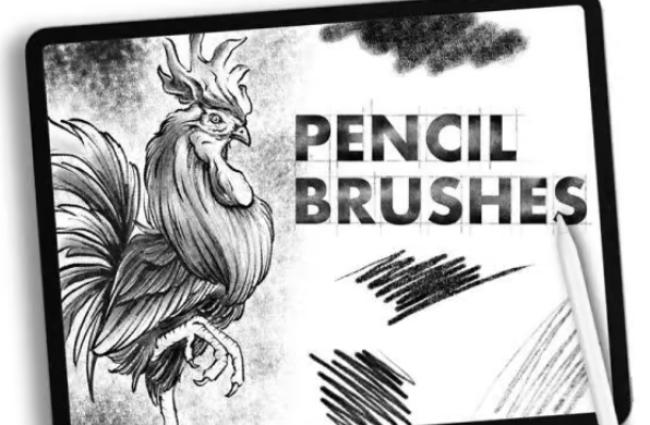
Realistic Pencil Effect Procreate Brushes are useful when you want one brush set that can support multiple stages of drawing. You can use them for loose sketching, darker construction lines, refined details, and light shading.
This type of brush is especially good for artists who want a familiar pencil feel while still enjoying the flexibility of digital layers, undo, resizing, and editing.
Why It Works Well
- Good for natural sketch lines.
- Useful for layered shading.
- Can make digital drawings feel more organic.
- Works well for practice sketches and finished studies.
Download Realistic Pencil Effect Brushes
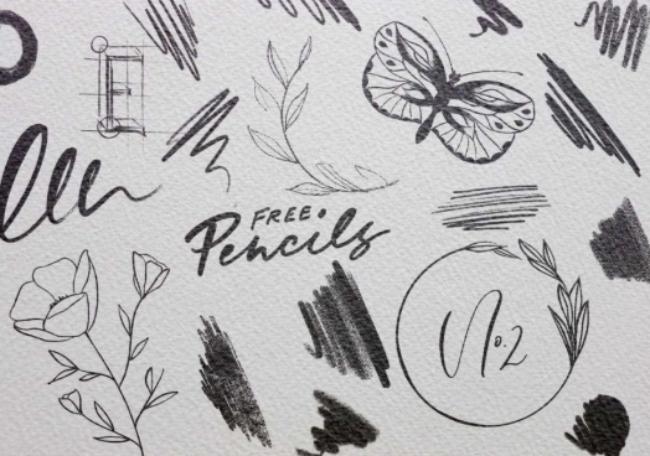
7. Free Pencil Procreate Brushes
Best for: building a free pencil brush library for daily drawing.
This free pencil brush set is a practical choice if you want more pencil options without paying for a premium pack. It can be useful for sketchbook-style drawing, warm-up sketches, studies, and concept exploration.
Free brush packs are also helpful for discovering your preferences. After testing a few pencils, you may realize you prefer rough texture, smooth graphite, darker strokes, or soft shading behavior.
Best Uses
- Daily Procreate sketching.
- Simple pencil studies.
- Rough concept thumbnails.
- Testing different pencil textures.
Download Free Pencil Procreate Brushes
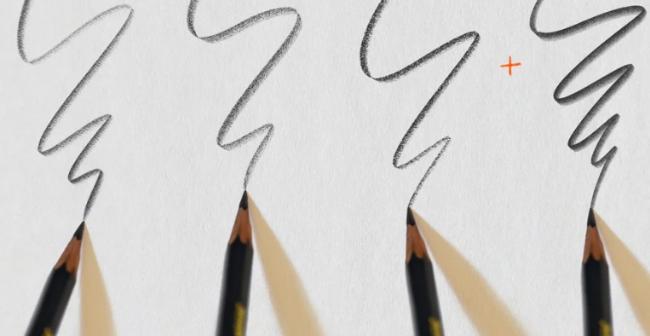
8. Free Pencil Set Procreate
Best for: artists who want a clean free pencil set for basic sketching and drawing practice.
The Free Pencil Set Procreate is another useful option for artists who want to expand their brush library without spending money. It can work well for beginner practice, casual drawing, studies, and rough creative planning.
When using a free pencil set, spend time testing each brush instead of assuming they all do the same thing. Some may work better for outlines, while others may be better for soft buildup or rough texture.
Why Try It?
- Good for beginner sketching practice.
- Simple way to test pencil-style drawing in Procreate.
- Useful for studies, thumbnails, and idea exploration.
- Can be combined with graphite or shading brushes.
Download Free Pencil Set Procreate
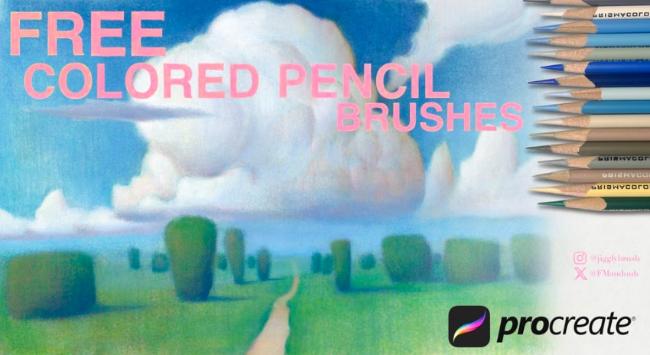
9. Colored Pencil Procreate Brushes
Best for: colored sketching, textured illustration, children’s book style, and handmade digital art.
Colored pencil Procreate brushes are useful when you want a softer, more playful, or more illustrative look. They can help create textured color buildup, rough edges, and a traditional colored pencil effect.
This type of brush is great for artists who want to create charming illustrations, stickers, greeting cards, educational graphics, children’s book concepts, fashion sketches, or warm editorial artwork.
Best Uses
- Colored pencil illustration.
- Soft textured shading.
- Children’s book artwork.
- Playful character sketches.
- Handmade-style digital graphics.
Download Colored Pencil Procreate Brushes
10. The FABER-CASTELL Polychromos Pencil & STAEDTLER
Best for: artists who love traditional pencil brands and want a familiar drawing feel in Procreate.
This brush resource is inspired by traditional pencil tools such as FABER-CASTELL Polychromos and STAEDTLER-style pencil effects. It can be useful for artists who want to imitate the feeling of recognizable drawing materials while working digitally.
Brushes inspired by real pencils can be helpful because they give digital drawing a more familiar texture. They can also support a mixed-media look when combined with paper texture, colored pencil layers, or soft shading brushes.

Useful For
- Traditional colored pencil style.
- Sketchbook-style digital art.
- Mixed media effects.
- Artists who want a more familiar pencil feel.
Download FABER-CASTELL Polychromos Pencil & STAEDTLER Brush
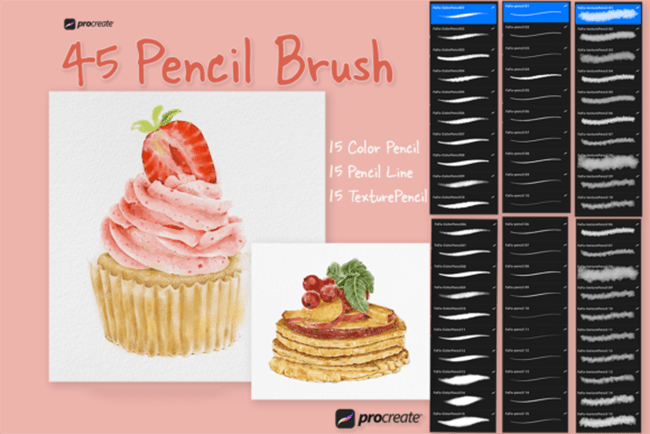
11. 45 Pencil Brushes for Procreate
Best for: artists who want a large pencil brush collection for different sketching and shading styles.
A larger pack like 45 Pencil Brushes for Procreate can be helpful if you want many pencil effects in one place. This kind of set may include different textures, hardness levels, shading brushes, line brushes, and sketching tools.
However, large sets work best when you organize them. Pick a few favorites for sketching, a few for shading, and a few for final texture. If you use too many brushes in one artwork, the result can feel inconsistent.
Best Uses
- Building a complete pencil brush library.
- Testing multiple pencil textures.
- Sketching, shading, and detail work.
- Artists who like variety and experimentation.
Download 45 Pencil Brushes for Procreate
12. Free Pencil and Oil Pastels Brushes for Procreate
Best for: mixed media effects, soft texture, expressive sketching, and pastel-style drawing.
This set combines pencil and oil pastel-style brushes, making it useful for artists who want more than a standard graphite look. It can help create a warmer, softer, more expressive drawing style with textured edges and handmade marks.
Pencil and pastel brushes work especially well for expressive illustration, art journaling, character sketches, children’s illustration, fashion drawing, and creative studies where you want color and texture to feel natural.

Why Try It?
- Combines pencil and pastel texture.
- Good for expressive digital artwork.
- Useful for soft shading and rough color buildup.
- Helps create a less polished, more handmade look.
Download Free Pencil and Oil Pastels Brushes
How to Use Pencil Brushes for Realistic Sketching
A realistic pencil look does not come only from the brush itself. It also comes from how you draw. Traditional pencil drawings have variation: light construction lines, darker final strokes, uneven texture, soft shading, erased areas, visible pressure changes, and paper grain.
Start With Light Construction Lines
Use a light pencil brush on a separate layer to plan the structure. Keep the opacity low and avoid pressing too hard too early. This makes it easier to refine the drawing without creating messy dark lines.
Build Form With Layers
Create separate layers for rough sketch, refined sketch, shading, and details. This gives you more control. You can lower opacity, erase selectively, or adjust one stage without damaging the entire drawing.
Use Pressure Variation
Let your Apple Pencil pressure create natural line weight. Press lightly for construction lines and harder for emphasis, shadows, and important edges. Avoid making every line equally dark.
Add Paper Texture
A subtle paper texture layer can make pencil brushes look much more realistic. Try placing a paper texture above the drawing and experimenting with blend modes such as Multiply, Overlay, or Soft Light.
Keep Some Imperfection
Real pencil drawings are not perfectly smooth. Let some roughness stay visible. Grain, uneven edges, and small texture changes help the sketch feel more natural.
How to Use Pencil Brushes for Shading
Shading with Procreate pencil brushes is about gradual value building. The goal is to create depth without making the artwork muddy or overly dark too quickly.
Use Low Opacity and Build Slowly
Start with soft shading and build up darker values over time. This gives you more control and creates a more traditional graphite effect.
Follow the Form
Shade in the direction of the object’s form. For example, curved strokes can help describe round objects, while straight strokes can support planes and edges.
Use Different Brushes for Different Shading Jobs
- Use a soft graphite brush for broad shadows.
- Use a sharper pencil for edges and details.
- Use a texture brush for rough areas.
- Use a blending or smudge tool carefully if needed.
Do Not Overblend
Overblending can remove the pencil texture and make the drawing look too digital. Keep some visible strokes so the artwork keeps its sketch quality.
Common Mistakes When Using Pencil Brushes in Procreate
1. Downloading Too Many Brushes and Using None Well
It is easy to collect hundreds of brushes, but a smaller set of brushes you truly understand is more useful. Choose a few favorites and practice with them.
2. Drawing Too Dark Too Early
Traditional sketching usually starts light and becomes darker gradually. If your first sketch layer is too dark, the drawing can become messy fast.
3. Ignoring Paper Texture
Pencil brushes look more realistic when they interact with texture. A subtle paper layer can make a big difference.
4. Using the Same Brush for Everything
One brush can do a lot, but sketching, shading, details, and texture often benefit from slightly different brush behavior.
5. Overusing Smudge
Smudging can help soften values, but too much smudge removes the pencil character. Use it lightly and keep some visible strokes.
6. Forgetting to Check Licensing
Some free brushes are free for personal use only. Always check the original download page before using brushes for commercial projects, client work, products, or print-on-demand designs.
Which Free Pencil Brush Should You Start With?
If you are not sure where to begin, start with your main goal. Different artists need different pencil textures.
Final Thoughts
Free pencil brushes for Procreate are a simple but powerful way to improve your digital sketching workflow. They help you recreate the feeling of traditional pencil drawing while keeping the flexibility of digital tools: layers, undo, resizing, masking, color adjustments, and quick export options.
Whether you are sketching character concepts, shading portraits, planning illustrations, creating colored pencil artwork, or building rough layouts, the right brush can make the drawing process feel more natural and controlled. Start with a few free brush sets, test them carefully, and build a small collection of favorites that match your style.
Remember that brushes do not replace drawing fundamentals. A great pencil brush can help, but strong artwork still depends on observation, line quality, composition, values, anatomy, perspective, and practice. The brush is only the tool. Your decisions give the sketch life.
The best Procreate pencil brush is the one that lets you stop thinking about the tool and start focusing on the drawing.
For more Procreate resources, creative brushes, digital art tools, and design assets for illustrators, continue exploring DesignRise.
Discover more from DesignRise
Subscribe to get the latest posts sent to your email.


