








Natural brushes for Adobe Photoshop can help designers build convincing environments, organic textures, weather effects, botanical compositions, and seasonal atmospheres without painting every leaf, snowflake, branch, or drop of water individually.
Their real value, however, is not simply speed. A well-chosen nature brush can make a digital composition feel more believable by introducing the small irregularities that are difficult to reproduce with perfectly clean vector shapes. Leaves overlap at unpredictable angles. Rain changes visibility across different parts of a scene. Snow gathers on horizontal surfaces rather than covering everything equally. Grass grows in clusters, water breaks into droplets, and distant trees lose detail as they recede into atmospheric perspective.
These are the details that separate a convincing landscape or environmental composite from a design that merely contains several nature-themed stamps.
This collection includes free and premium Photoshop nature brushes for watercolor leaves, plants, foliage, landscape painting, rain, water splashes, snow, flowers, grass, trees, and natural silhouettes. Some sets are best suited to illustration, while others are more useful for photo manipulation, seasonal advertising, website backgrounds, packaging, editorial design, and social media campaigns.
The guide also explains how to combine natural brushes with photography, how to create depth through environmental layering, how to make rain and snow respond to the scene, and how to avoid the repeated stamped appearance that often makes downloaded brushes look artificial.
Prices, download availability, and usage licenses can change. Always check the original resource page before using any brush in commercial advertising, branding, merchandise, client work, templates, or print-on-demand products.
Explore More DesignRise Resources:
- New Collection of Free Floral Brushes for Photoshop
- An Extravagant Collection of Floral Patterns for Design Needs
- Seamless Bamboo Textures for Natural Design Projects
- Explore More Photoshop Brush Collections
What Makes a Nature Brush Useful?
A nature brush should do more than place a recognizable object onto the canvas. It should provide material that can be scaled, layered, recolored, masked, repeated, and integrated into a larger environment.
The strongest brushes usually perform one of four functions:
Environmental Structure
Trees, grass, foliage, and landscape brushes help establish the physical structure of a scene. They can define the foreground, suggest a horizon, create a forest edge, or fill empty areas around a building or character.
Seasonal Atmosphere
Rain and snow brushes immediately communicate weather, temperature, and mood. They can turn the same photograph into an autumn storm, winter campaign, cinematic night scene, or quiet seasonal illustration.
Surface Movement
Water splashes, leaves, and loose floral elements introduce movement. Their shapes can direct the viewer toward a product, title, person, or call to action.
Organic Detail
Small leaves, branches, grass silhouettes, and flowers help break the mechanical appearance of digital layouts. They are particularly useful in packaging, editorial design, eco-conscious branding, and lifestyle content.
Choose Natural Brushes by Their Role in the Composition
How to Install Natural Brushes in Adobe Photoshop
Most Photoshop brushes are supplied as .ABR files. The installation process is quick, but organizing the sets immediately will make them much easier to use.
Import Through the Brushes Panel
- Download the brush package.
- Extract the ZIP archive if the files are compressed.
- Open Adobe Photoshop.
- Select Window → Brushes.
- Open the Brushes panel menu.
- Choose Import Brushes.
- Select the downloaded .ABR file.
Create Clear Brush Folders
Instead of leaving every set in the Imported folder, organize the library into practical groups:
- Leaves and plants
- Trees and grass
- Landscape painting
- Rain and storms
- Snow and winter
- Water splashes
- Flowers and botanical stamps
Keep the original download files in a separate folder with the source link and license information. This is useful when a client returns months later and asks how an asset was created.
12 Natural Brushes for Adobe Photoshop
The collection below contains both free and premium resources. Each title links directly to the original source page. No separate duplicate download link is repeated beneath the image.
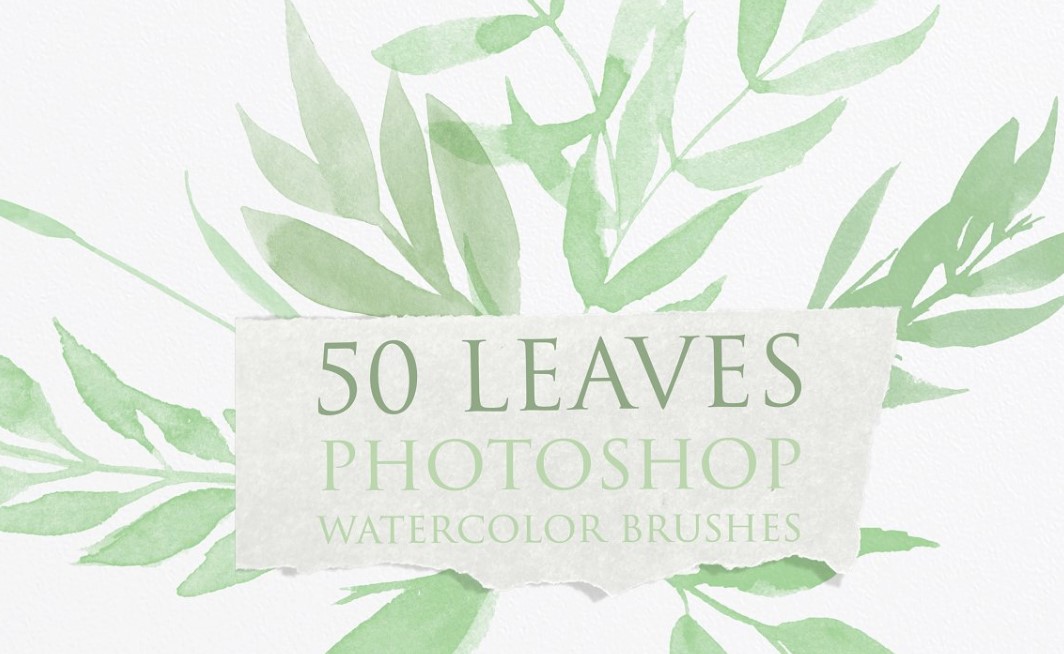
1. Watercolor Leaves Photoshop Brushes
Best for: invitations, lifestyle branding, stationery, social media design, botanical logos, and decorative compositions.
This set contains leaf-shaped stamp brushes created in a watercolor style. The original artwork was scanned, allowing the impressions to preserve irregular pigment, soft edges, and subtle tonal variation.
Watercolor leaf stamps are useful when a project needs natural softness without the precision of clean vector artwork. They can frame lettering, create loose wreaths, support packaging layouts, or add a handmade atmosphere to social graphics.
The brush impression should not necessarily remain in its default color. Try pale olive, muted burgundy, dusty blue, charcoal, or monochrome combinations depending on the project. Applying each leaf on a separate layer makes it easier to vary scale, rotation, and transparency.
Design Tip
Begin with one large leaf cluster and then add smaller supporting leaves. Avoid building a perfectly symmetrical arrangement unless the project intentionally needs a formal emblem or wreath.
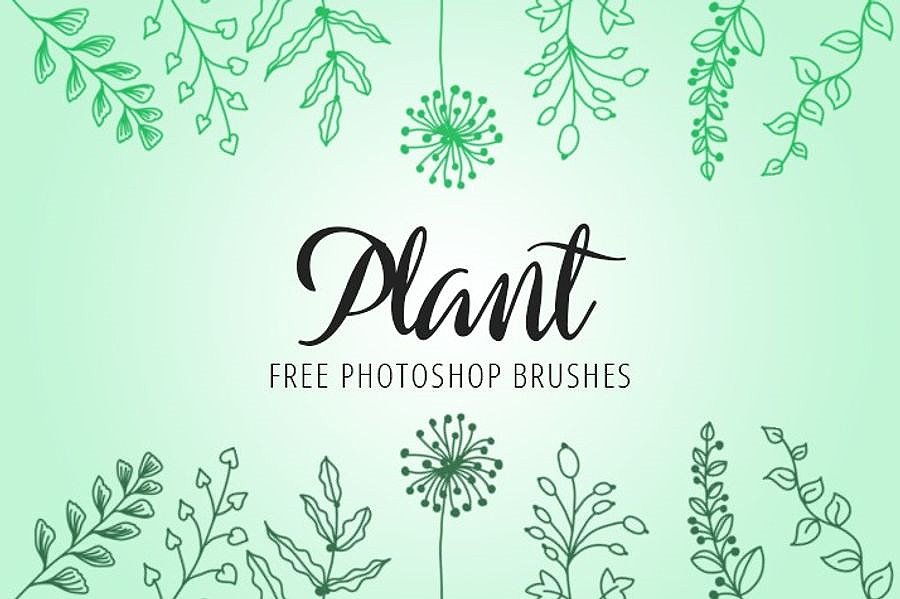
2. Free Photoshop Plant Brushes
Best for: botanical collages, nature posters, garden graphics, environmental branding, and landscape details.
This free collection includes ten plant brushes featuring grasses, flowers, branches, leaves, and other botanical forms. The range makes it useful for building small natural scenes rather than relying on one repeated plant.
When combining several plant silhouettes, pay attention to their line weight and level of detail. A delicate branch may look disconnected beside a very heavy grass stamp. Keep the visual density consistent or use differences intentionally to establish foreground and background layers.
Design Tip
Use lighter, less saturated plants in the distance and darker, more detailed forms in the foreground. This simple adjustment creates depth even when all the elements originate from stamp brushes.
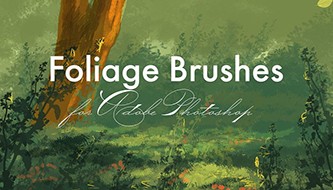
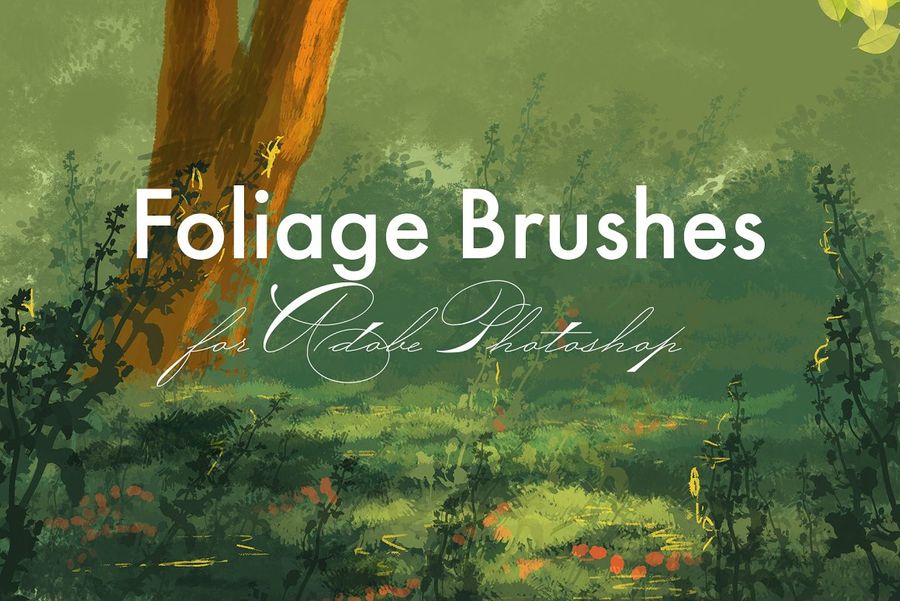
3. Foliage Brushes for Adobe Photoshop
Best for: digital landscapes, forest painting, concept art, environmental illustration, and architectural visualization.
Foliage brushes are designed to speed up one of the most repetitive parts of environmental painting: building believable clusters of leaves. They can help artists define tree crowns, forest edges, bushes, and distant vegetation without painting every leaf separately.
A convincing tree is not created with one enormous brush impression. Begin with the overall silhouette, then add selected clusters around the outer edges. Keep the interior darker and less detailed, while placing lighter foliage where it receives direct light.
Design Tip
Sample colors directly from the surrounding environment instead of painting every tree with the same green. Distant foliage often shifts toward the color of the atmosphere.
4. 52 Leaves Photoshop Stamp Brushes
Best for: large botanical libraries, packaging, pattern design, autumn campaigns, and custom leaf compositions.
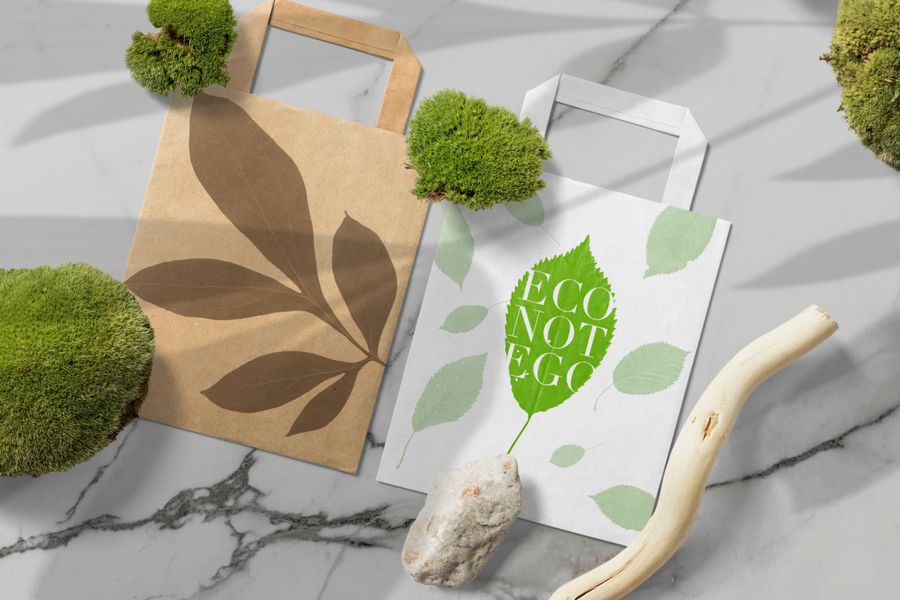
This premium collection includes 52 leaf stamps created from real dried and fresh leaves. The variety gives designers more control over species, silhouette, edge texture, and visual rhythm.
A large leaf collection is especially useful for seasonal work. The same brushes can support a fresh spring palette, saturated summer campaign, warm autumn composition, or monochrome winter pattern simply through changes in color and texture.
Design Tip
Select five to eight compatible leaves for each project rather than using all 52. A smaller project-specific group will create a more coherent botanical language.
5. 100 Snow Photoshop Brushes
Best for: winter advertising, holiday graphics, seasonal photography, fantasy scenes, and cinematic composites.
This extensive set contains 100 snow effects that can help create falling snow, drifting particles, and winter atmosphere. A large library is valuable because snowfall changes dramatically depending on distance, wind, camera focus, and temperature.
Small distant flakes should be less visible and more densely distributed. Midground snow can remain reasonably sharp. Large foreground flakes may be blurred because they sit outside the camera’s focal plane.

Design Tip
Falling snow alone rarely creates a complete winter scene. Add cool color grading, lower atmospheric contrast, subtle ground accumulation, and soft highlights on upward-facing surfaces.
6. 15 Free Rain Brushes for Photoshop
Best for: dramatic portraits, cinematic scenes, storm photography, moody posters, and weather-based photo manipulation.
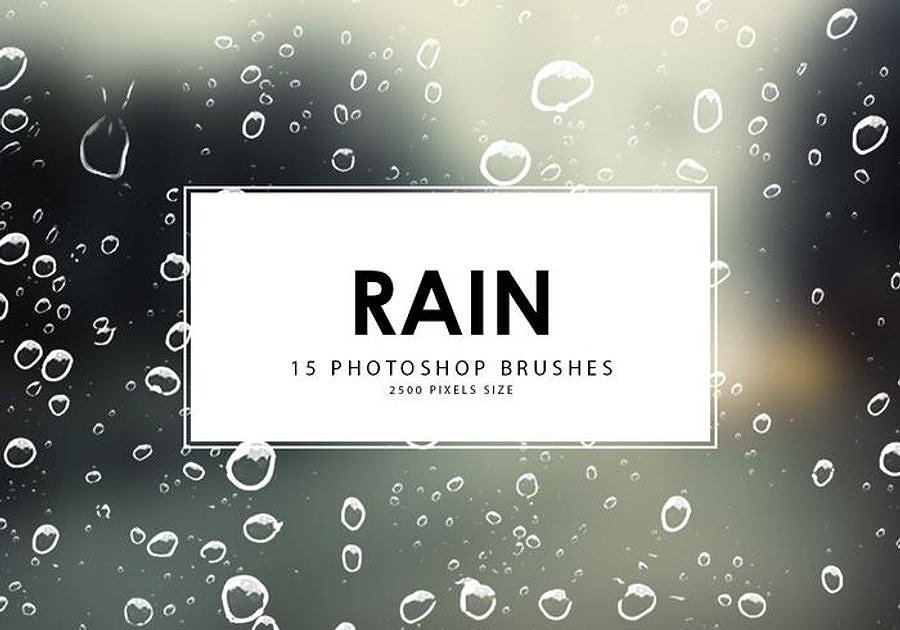
These free rain brushes help add visible raindrops and streaks to photographs or digital illustrations. Rain can create tension, movement, melancholy, or cinematic atmosphere, but it must interact with the scene to look convincing.
The direction of rain should remain reasonably consistent with the wind. Foreground drops can appear longer and brighter, while background rain should be finer and less visible. If a light source sits behind the subject, nearby drops should catch that light.
Design Tip
Add subtle wet reflections, darker clothing, lowered saturation, or mist near the ground. Rain that does not affect any surface will often look like an overlay rather than part of the environment.
7. 11 Free Water Splash Photoshop Brushes
Best for: beverage campaigns, sports advertising, summer graphics, beauty products, and dynamic photo composites.
Water splashes can create strong movement around bottles, cosmetics, athletes, fruit, or other objects. Their curved forms help frame a subject while adding energy and freshness.
The splash must respond to gravity and the movement of the object. A horizontal splash behind a stationary product may feel decorative, while water that wraps around the product can create a more convincing interaction.

Design Tip
Use Screen mode only when it genuinely improves the result. Water often contains dark reflections as well as bright highlights, so preserving part of the original tonal range can create more realistic depth.
8. Free Photoshop Landscape Brushes
Best for: concept art, environment painting, matte painting, visual development, and scenic illustration.
This free landscape set is designed to speed up the construction of environmental artwork. Landscape brushes can help create vegetation, terrain, clouds, distant structures, or other natural details depending on the included presets.
The best way to use a landscape brush is as a foundation rather than a final answer. Establish the major value shapes first, then use the brush to add selected detail. Painting texture before the composition is resolved often creates a technically busy but visually weak scene.

Design Tip
Zoom out frequently. If the landscape only works when viewed at 200%, the large shapes and focal hierarchy may still need improvement.
9. Free Watercolor Floral Brushes for Photoshop
Best for: wedding stationery, botanical graphics, greeting cards, lifestyle brands, and artistic social content.
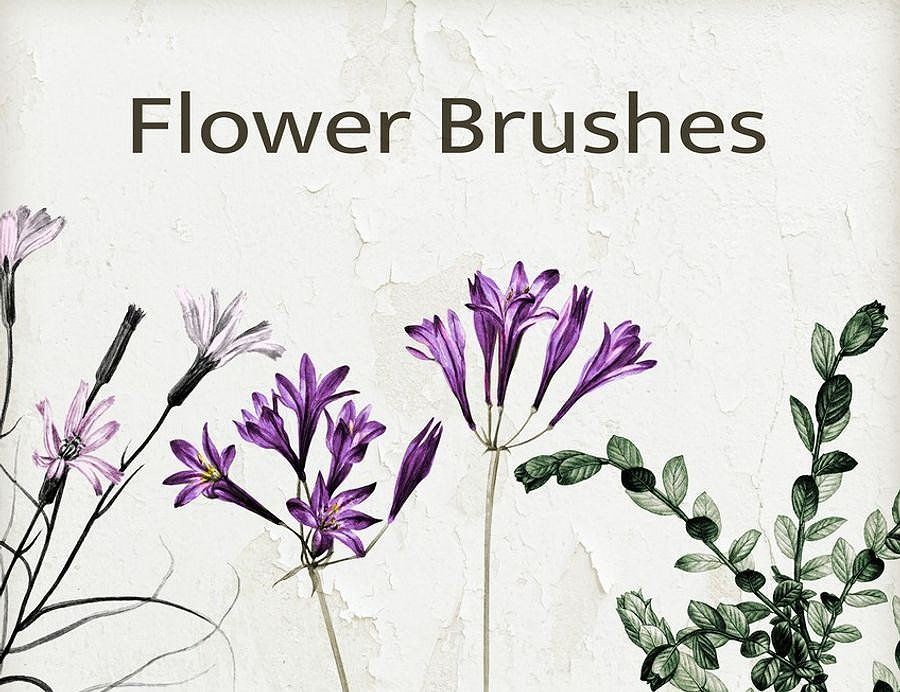
This free floral set contains wildflower-inspired watercolor elements. The organic edges and pigment variation can soften a digital composition and create a more handcrafted appearance.
Wildflowers are particularly effective in loose asymmetrical arrangements. Place several flowers around a title or photograph, but keep enough clear space for the main content. Recoloring every flower differently may weaken the visual system, so begin with a restrained palette.
Design Tip
Combine large flowers with thinner stems and smaller supporting details. This creates hierarchy and prevents the arrangement from looking like evenly spaced clip art.
10. 25 High-Resolution Snow Brushes for Photoshop
Best for: detailed winter scenes, holiday campaigns, frosted photography, and seasonal advertising.
This premium set contains 25 high-resolution snow brushes, including effects associated with falling snow, snowdrifts, icicles, and winter precipitation.
Compared with a very large general snow library, a focused collection can be easier to manage when a project needs several distinct types of winter detail. Falling snow establishes atmosphere, while drifts and icicles help show how the weather affects physical surfaces.

Design Tip
Place accumulated snow only on surfaces where it could realistically settle. Use masks to remove it from vertical areas and add subtle shadows beneath thicker snow.
11. 19 Nature Silhouette Brushes with Trees and Grass
Best for: landscape silhouettes, sunset scenes, posters, environmental graphics, and simple natural backgrounds.
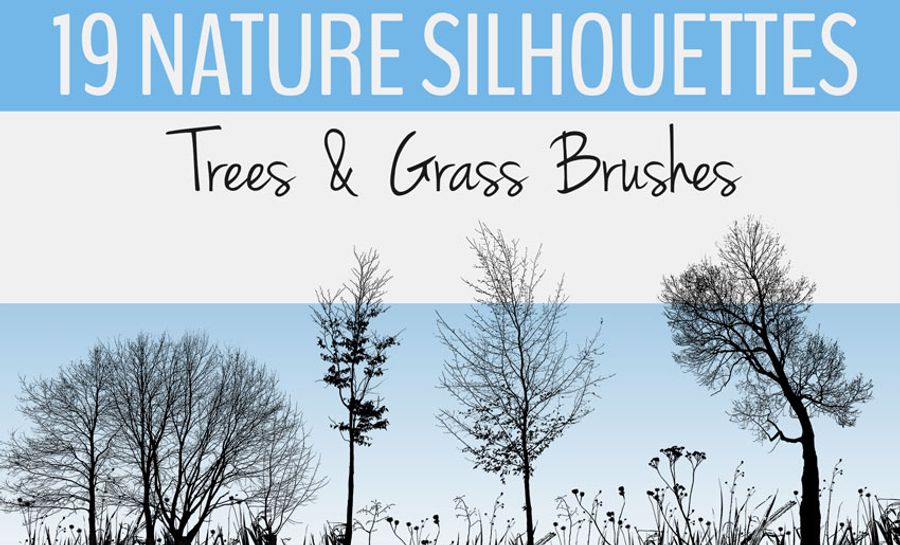
This free collection includes silhouettes of trees, grasses, wildflowers, and other natural elements. Silhouette brushes are particularly useful because they do not depend on internal color or texture. They can be adapted to flat design, photography, digital painting, or monochrome graphics.
In a sunset composition, use the darkest silhouettes in the foreground and progressively lighter values behind them. This creates atmospheric depth without requiring detailed painting.
Design Tip
Avoid repeating the same tree at identical size and spacing. Mirror selected forms, overlap them, and hide sections behind terrain or other vegetation.
12. Free Nature Photoshop Brushes
Best for: website graphics, editorial layouts, environmental branding, digital collages, and general nature-themed design.
This free nature collection can support both web and graphic design projects. General-purpose sets are useful when a designer needs several organic elements without downloading a separate pack for every category.
The disadvantage of a mixed collection is that individual brushes may not share the same visual style. Select a smaller group with compatible detail, texture, and line weight before building the final composition.

Design Tip
Create a temporary test sheet containing the brushes you plan to use. Seeing them together makes it easier to identify visual inconsistencies before they enter the final artwork.
How to Create Depth in a Natural Environment
A convincing environment should not place every tree, leaf, and weather effect on the same visual plane. Divide the composition into three zones.
Background
Background elements should generally have:
- Less detail.
- Lower contrast.
- Less saturation.
- Softer edges.
- More influence from the atmospheric color.
Distant forests may shift toward blue, grey, or the color of the sky. Small rain and snow particles should be less prominent.
Middle Ground
The middle ground usually contains the main subject, building, product, character, or major environmental feature. Natural brushes should interact with this subject rather than completely cover it.
Use masks to place selected grass, leaves, or splashes behind the subject and other elements in front. This creates visual integration.
Foreground
Foreground leaves, grass, droplets, or snowflakes can be larger and more strongly cropped. Some may be slightly blurred because they sit close to the virtual camera.
Foreground elements are useful for creating scale, but only a small number are usually necessary.
How to Make Rain Look Realistic
Use More Than One Rain Layer
Create separate layers for distant, middle, and foreground rain. Change the brush size and opacity for each layer.
Match the Rain Direction
Rain should generally move in a consistent direction determined by gravity and wind. A few local variations are natural, but completely conflicting angles can break the illusion.
Add Environmental Interaction
A rainy scene may include:
- Darker clothing and surfaces.
- Reflections on the ground.
- Mist near distant lights.
- Water running from edges.
- Small splashes where drops hit surfaces.
- Lower overall contrast in the distance.
Let Lights Affect the Rain
Raindrops near headlights, streetlights, or windows should catch more light than drops in shadow.
How to Build a Convincing Snow Effect
Combine Different Flake Sizes
Use smaller flakes in the background and larger flakes in the foreground. Blur some of the nearest particles to simulate shallow depth of field.
Add Snow Accumulation
Snow gathers on upward-facing surfaces such as rooftops, shoulders, branches, signs, and the ground. Use masks and soft shadows to show its volume.
Change the Scene’s Color Temperature
Cooler blues and muted neutral tones can help establish winter atmosphere. However, snow itself may reflect warm sunset light, street lighting, or indoor illumination.
Reduce Distant Visibility
Heavy snowfall creates atmospheric haze. Slightly lower contrast and detail in distant parts of the image.
How to Integrate Leaves and Plants Into Branding
Plant brushes are often used in eco-conscious branding, but adding a leaf does not automatically make a brand feel natural, sustainable, or authentic.
Use Botanical Elements as a System
A botanical identity may include:
- A primary logo without decoration.
- A leaf-based secondary mark.
- A repeating botanical pattern.
- Seasonal social media elements.
- Packaging frames or dividers.
- Photography overlays.
This is usually more flexible than placing the same large leaf around every piece of text.
Keep Important Logos Distinctive
Public brush assets can appear in many unrelated designs. For a professional logo, significantly modify the shape or redraw the final botanical element manually.
Test at Small Sizes
Detailed leaves and flowers may lose their internal texture when used on labels, icons, or social profile images. Simplify them when necessary.
Five Practical Nature Brush Workflows
1. Forest Landscape Illustration
- Block in the sky, terrain, and major value shapes.
- Add distant foliage with low contrast.
- Build middle-ground tree clusters.
- Use sharper plants and grass in the foreground.
- Add light and shadow after the environment is structured.
- Paint over repeated brush shapes to make them less obvious.
2. Winter Product Advertisement
- Place the product and establish the lighting.
- Add accumulated snow around the base.
- Create distant falling snow.
- Add sharper foreground flakes.
- Reflect the scene’s light inside the snow.
- Keep the product label clear and readable.
3. Botanical Social Media Campaign
- Choose five or six compatible leaf and flower brushes.
- Create one master composition.
- Keep important text inside a clear central zone.
- Use botanical elements around the edges.
- Adapt the layout for square, vertical, and horizontal formats.
- Test every version on a phone.
4. Cinematic Rain Portrait
- Color-grade the portrait toward a cooler or moodier palette.
- Add background rain at low contrast.
- Add a sharper middle rain layer.
- Place selected drops in front of the subject.
- Add highlights where rain crosses the light source.
- Create subtle wet reflections or mist.
5. Water Splash Beverage Campaign
- Cut out the bottle or product cleanly.
- Choose a splash that supports its shape and movement.
- Place parts of the water behind the product.
- Place selected droplets in front.
- Match highlights and shadows to the studio lighting.
- Finish with a unified color grade.
How to Make Nature Brushes Look Less Repetitive
Change Scale and Rotation
Repeated leaves, trees, or flowers become immediately noticeable when every impression has the same size and direction.
Use Masks
Hide parts of repeated forms behind rocks, typography, people, packaging, or other natural elements.
Paint Over the Brush
Add custom highlights, shadows, branches, leaf edges, or texture. Even a small amount of manual painting can make a downloaded brush feel more original.
Use Different Values
Some elements should be light, some dark, and others close to the background value. Uniform contrast makes the scene feel flat.
Crop Elements at the Canvas Edge
A partially visible leaf or branch can feel more natural than a complete stamp placed neatly inside the composition.
Common Mistakes When Using Natural Photoshop Brushes
1. Using Every Natural Element at Once
Leaves, flowers, rain, snow, water, trees, and grass do not need to appear in the same composition. Choose one environment and one seasonal direction.
2. Keeping Every Brush at Full Opacity
Natural scenes contain atmospheric variation. Distant details should often be lighter, softer, or less saturated.
3. Repeating Identical Trees or Leaves
Change their scale, angle, visible area, and color. Paint over repeated silhouettes when necessary.
4. Ignoring Light Direction
Leaves, water splashes, snow, and rain should respond to the same lighting conditions as the main photograph or illustration.
5. Adding Weather Without Changing the Scene
Rain and snow affect contrast, visibility, surfaces, reflections, and color. A particle overlay alone is rarely convincing.
6. Covering Important Typography
Natural detail should frame and support the message rather than reduce readability.
7. Assuming Every Brush Is Free for Commercial Use
A free download can still be limited to personal work or require attribution. Review the original terms.
Licensing Checklist for Photoshop Nature Brushes
Before using any resource professionally, save:
- The original source URL.
- The creator or marketplace name.
- The download date.
- The current license or usage statement.
- Whether commercial use is allowed.
- Whether attribution is required.
- Whether the brush may be used in logos.
- Whether it may be used on merchandise or print-on-demand products.
- Whether the ABR file may be redistributed.
Using a brush inside a finished flattened design is different from sharing, reselling, or including the original brush file in another downloadable product.
Preparing Nature Brush Artwork for Print
Work at Final Dimensions
Build the document at the intended print size and resolution. A brush that looks sharp in a small preview may become pixelated on a poster or package.
Check Fine Details
Thin branches, small leaves, grass, rain, and snow may disappear during printing. View the design at actual size.
Soft-Proof the Colors
Bright botanical greens, deep blues, and luminous water highlights may shift when converted from RGB to CMYK.
Preserve an Editable PSD
Keep masks, separate brush layers, adjustment layers, and Smart Objects intact. Export a separate production file after approval.
Frequently Asked Questions About Natural Brushes for Adobe Photoshop
What are natural Photoshop brushes?
Natural Photoshop brushes are reusable presets created from leaves, trees, grass, flowers, water, rain, snow, landscapes, and other organic or environmental elements. They are usually supplied as .ABR files.
What can nature brushes be used for?
They can support landscape painting, botanical branding, seasonal advertising, photo manipulation, packaging, websites, social graphics, concept art, invitations, and editorial design.
Are all nature brushes free?
No. This collection includes both free and marketplace-based premium resources. Check the original page for current pricing and license information.
Can Photoshop nature brushes be recolored?
Yes. Choose a foreground color before applying the brush or recolor the layer afterward with adjustment layers, Color Overlay, Gradient Maps, or clipping masks.
How do I make tree and foliage brushes look realistic?
Use several sizes and values, reduce detail in the distance, vary the silhouette, match the lighting, and paint over repeated areas.
How can I make rain look more believable?
Use separate depth layers, maintain a consistent direction, add wet reflections, lower distant contrast, and let nearby lights affect the raindrops.
Can nature brushes be used in logos?
They may be used for exploration when the license permits, but public brush assets can reduce originality. Professional logos usually require significant modification or custom redrawing.
Why does my brush look blurry?
The original source may be too small, or the brush may have been enlarged beyond its effective resolution. Test it at the final output size.
Final Thoughts
Natural brushes for Adobe Photoshop can help designers create environments and organic details more efficiently, but believable nature is built through relationships rather than isolated stamps.
Leaves need varied angles and scale. Trees need atmospheric depth. Water needs reflections. Rain needs environmental interaction. Snow needs accumulation and colder air. Landscape brushes need a strong underlying composition before detail is added.
The sets in this collection cover several useful creative directions: watercolor leaves for decorative design, foliage and landscape brushes for environmental painting, plant and flower stamps for botanical graphics, rain and snow for seasonal atmosphere, and water splashes for dynamic advertising.
Select only the brushes that support the project. Keep them on separate layers. Match them to the light, perspective, color, and depth of the scene. Paint over repeated areas and remove details that compete with the message.
Nature looks effortless, but convincing nature-inspired design depends on careful observation and controlled detail.
For more Photoshop brushes, botanical assets, textures, patterns, and practical resources for digital artists, continue exploring DesignRise.