

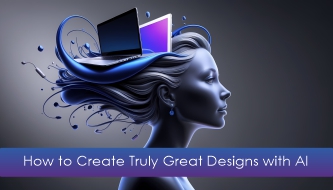
AI can generate a layout in seconds. It can suggest colors, write copy, create images, remove backgrounds, build wireframes, and produce dozens of visual directions before a designer even opens a blank canvas.
But speed is not the same as quality.
Many AI-generated designs look impressive at first glance and then fall apart when you look closer. The spacing feels random. The typography has no rhythm. The message is generic. The visuals look polished but emotionally empty. The design exists, but it does not really communicate.
That is why learning how to create great designs with AI is not about using more tools. It is about using AI with stronger creative judgment.
The best designers in 2026 are not asking AI to replace their thinking. They use AI to explore faster, test ideas earlier, reduce repetitive work, and then bring the final result back to human taste, strategy, emotion, and craft.
In this DesignRise guide, we’ll explore how to create great designs with AI in a way that still feels professional, intentional, and human — not like something copied from a machine-generated template.
The Real Question: Is the Design Good, or Just AI-Generated?
There is a big difference between a design that looks “AI-made” and a design that uses AI well.
An AI-made design often feels like a visual shortcut. It may have dramatic lighting, trendy gradients, perfect mockups, or futuristic elements, but it does not always solve a real problem. It may look attractive, but it does not feel grounded in the audience, product, brand, or user experience.
A strong AI-assisted design is different. It uses AI as part of a thoughtful process. The designer still defines the goal, chooses the direction, edits the output, tests the message, and improves the final details.
That is the difference between “AI generated this” and “a designer created this with AI support.”
Explore More DesignRise Resources:
- Best Figma Website Templates for Designers
- Finger-Friendly UI Design: How to Create Mobile Interfaces Users Love
- The Best AI Art Generators & Tools for 2026
- AI Workflows for Designers: Tools, Systems & Real Use Cases
What AI Can Help Designers Do Better
AI design tools can support many parts of the creative process. They are especially useful when you need speed, variation, structure, or a starting point.
AI can help designers:
- generate early ideas before committing to one direction;
- explore visual styles faster than manual moodboard searching;
- create first drafts for layouts, landing pages, UI flows, and visuals;
- rewrite UX copy to make interfaces clearer;
- test different tones for brand and campaign messaging;
- remove repetitive tasks such as resizing, cleaning, summarizing, and formatting;
- create quick variations for social posts, thumbnails, ads, or presentations;
- review weak spots in hierarchy, clarity, or content structure.
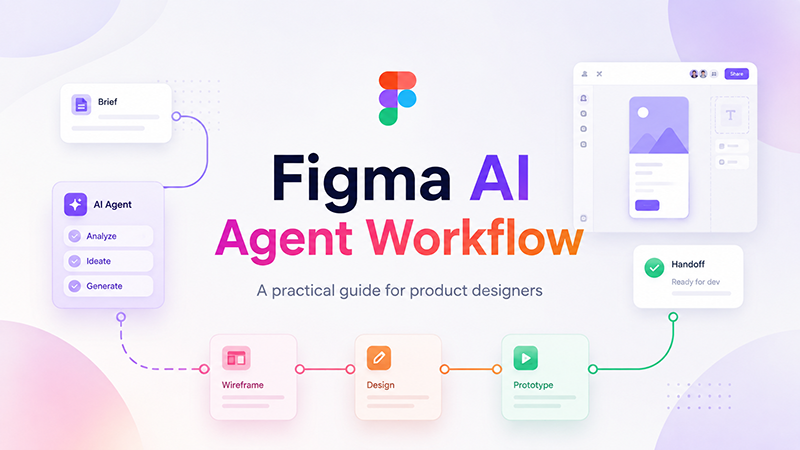
Tools such as Figma AI, Uizard, Runway, Adobe Firefly, and Khroma can support different stages of the workflow.
But the value of AI depends on how you use it. A weak brief produces weak results. A vague prompt produces generic visuals. A designer who accepts the first AI output usually ends up with average work.
What AI Still Cannot Do for Designers
AI can generate design assets, but it does not understand context the way a human designer does.
AI does not truly know:
- why a brand needs to feel more trustworthy;
- why a user might hesitate before clicking a button;
- why a layout feels visually heavy;
- why a client prefers a certain tone;
- why a product should feel calm instead of exciting;
- why one image creates emotion and another feels empty;
- why a design decision may work for one audience but fail for another.
This is where human design judgment matters most.
AI can imitate patterns. Designers understand people. AI can generate options. Designers choose meaning. AI can speed up execution. Designers protect quality.
The Design Smarter Method: 7 Human Decisions Before AI
Before asking AI to generate anything, make seven decisions. This keeps the design from becoming random.
1. Define the Goal
What should the design achieve? More sign-ups? Better understanding? Stronger brand awareness? A clearer product story? A more emotional campaign visual?
2. Define the Audience
Who is the design for? A landing page for startup founders should not feel the same as a wellness app for busy parents or a portfolio site for a motion designer.
3. Define the Emotion
Should the design feel calm, premium, playful, bold, futuristic, trustworthy, warm, minimal, editorial, or energetic?
4. Define the Message
What is the one thing the viewer should understand first? If the message is unclear, no AI-generated style will save the design.
5. Define the Visual Direction
Choose a direction before generating: clean SaaS, soft editorial, bold campaign, cinematic product, playful illustration, premium minimalism, or another style.
6. Define the Constraints
What should the design avoid? Too many colors? Too much text? Overly futuristic visuals? Generic stock-photo energy? Complex layouts?
7. Define the Final Format
A design for a mobile screen, Instagram carousel, website hero, pitch deck, or product mockup needs different proportions, hierarchy, and detail.
Once these decisions are clear, AI becomes far more useful.
Craft Better Prompts: The Foundation of Good AI Design
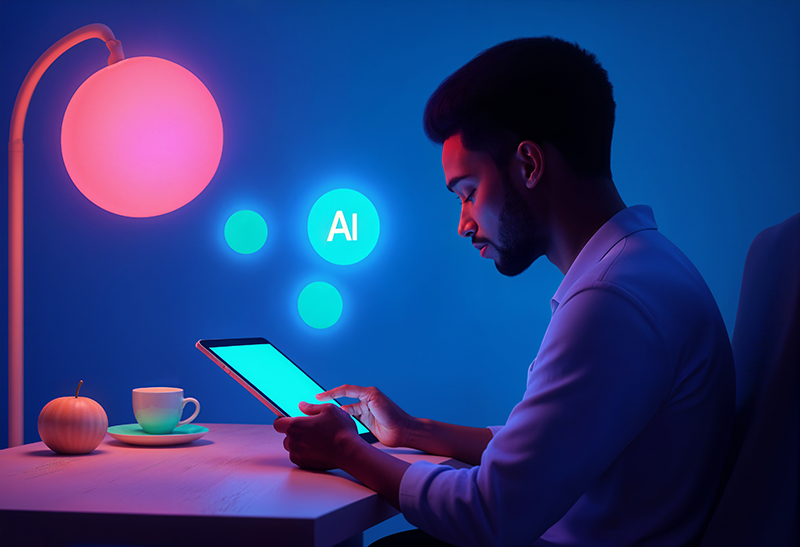
If you want to create great designs with AI, the prompt needs to do more than describe a style. It should explain the purpose, audience, mood, format, content, and constraints.
A weak prompt sounds like this:
Create a modern landing page.
A stronger prompt sounds like this:
Create a clean landing page concept for a wellness app for busy professionals. The design should feel calm, trustworthy, and easy to use. Use soft neutral colors, gentle gradients, friendly typography, clear hierarchy, and a strong call-to-action for starting a free trial. Avoid overly futuristic visuals, crowded layouts, and generic stock-photo style.
The second prompt gives AI direction. It describes who the design is for, what it should feel like, what the page should do, and what to avoid.
Prompt Ingredients for Better AI Design
- Project type: landing page, app screen, poster, logo concept, campaign visual, portfolio layout.
- Audience: who the design is for.
- Goal: what the design should achieve.
- Mood: emotional direction.
- Style: visual language.
- Content: what should appear in the design.
- Format: size, platform, or use case.
- Constraints: what to avoid.
Prompt Template
Create a [design type] for [audience]. The goal is to [main outcome]. The design should feel [mood]. Use [visual style, colors, typography, layout direction]. Include [key content]. Avoid [things to avoid].
Turn AI Output Into Real Design, Not Just a Draft
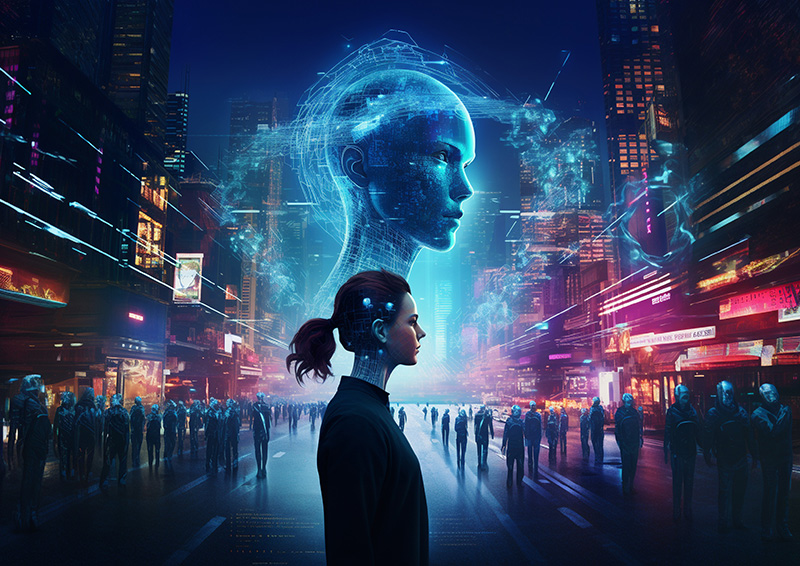
Once AI generates a layout, image, visual style, or interface concept, the real design process begins.
Do not accept the result as final. Treat it like a first draft from a very fast junior assistant. It may contain good ideas, but it still needs direction, editing, and quality control.
What to Refine Manually
- Hierarchy: does the most important information stand out?
- Spacing: does the layout breathe?
- Typography: is the text readable and consistent?
- Contrast: does the design work visually and accessibly?
- Brand voice: does it feel like the right company or product?
- UX logic: does the user know what to do next?
- Composition: does the layout guide the eye naturally?
- Details: are icons, labels, images, and buttons polished?
AI can give you a direction. You still need to make it usable, beautiful, and meaningful.
The “Human Filter” That Makes AI Designs Better
Great design usually passes through a human filter. This filter is the difference between something that looks generated and something that feels designed.
Ask Yourself These Questions
- Does this design solve the original problem?
- Does it feel specific to the audience?
- Does it communicate clearly in the first few seconds?
- Is the visual style helping the message or distracting from it?
- Does the design feel emotionally appropriate?
- Would this still work if the AI effect was removed?
- Is anything too generic, too polished, or too predictable?
- What would I change if I were designing this fully by hand?
This human filter helps you avoid one of the most common AI design problems: a beautiful result with no real purpose.
Use AI for Exploration, Not Final Taste
One of the smartest ways to use AI is during exploration. AI can quickly show you different routes before you invest time in one direction.
For example, instead of asking AI to create one final homepage, ask it for multiple creative territories:
- Minimal premium: elegant spacing, neutral palette, refined typography.
- Bold startup energy: strong contrast, dynamic sections, confident copy.
- Soft editorial: warm imagery, magazine-like rhythm, human tone.
- Playful product: friendly colors, rounded shapes, approachable microcopy.
- Futuristic tech: dark interface, glowing accents, immersive visuals.
Then compare the directions. Which one fits the audience? Which one supports the brand? Which one feels most usable? Which one feels original without being confusing?
This is how designers can use AI intelligently: not to avoid decisions, but to make better decisions.
Tools That Help You Design Smarter With AI
Different tools support different parts of the design process. The smartest workflow is not about using every tool. It is about choosing the right tool for the right task.
| Tool | Useful For | Designer Note |
|---|---|---|
| Figma AI | Design workflow support, editing, ideation, UI tasks | Best when combined with real design systems and components |
| Visily | AI UI generation from prompts, screenshots, or sketches | Useful for early UI concepts and fast wireframe exploration |
| Uizard | Wireframes, prototypes, and early product ideas | Good for quick concept generation, not final design polish |
| Runway | Motion graphics, video, creative visuals | Useful for campaign concepts and experimental visual work |
| Khroma | AI-assisted color palette exploration | Helpful for testing color moods and visual identity directions |
| Adobe Firefly | Generative visuals, image editing, creative exploration | Strong for designers already using Adobe workflows |
Each tool has strengths, but none of them replace design thinking. The best AI tool is the one that supports your workflow without taking away your judgment.
Keep the Human Fingerprint in AI-Generated Design

The best AI-assisted designs still have a human fingerprint. That may come from a small detail, a better metaphor, a warmer tone of voice, a more thoughtful layout, or a design decision that AI would not make by default.
Human design is not only about perfection. It is about empathy, context, and intention.
How to Add a Human Touch
- Use real audience insights instead of generic personas.
- Choose images that support emotion, not just style.
- Write copy that sounds specific and useful.
- Add microcopy that reduces confusion.
- Use visual metaphors that connect to the product story.
- Keep brand personality visible.
- Leave space for clarity instead of filling every area.
- Remove elements that look impressive but do not help the message.
Good design connects through emotion. AI can mimic style, but designers create meaning.
How to Avoid Generic AI Design
Generic AI design often happens when the prompt is vague, the brief is weak, or the designer accepts the first output.
Signs Your AI Design Feels Generic
- It looks like many other AI-generated visuals.
- The copy could fit any brand.
- The layout has no clear hierarchy.
- The colors are trendy but not strategic.
- The images look polished but emotionally empty.
- The design does not clearly solve a problem.
- The style is stronger than the message.
How to Fix It
- Add real audience context.
- Define a sharper brand personality.
- Use more specific prompts.
- Remove unnecessary effects.
- Rewrite copy in a more human tone.
- Adjust spacing, contrast, and hierarchy manually.
- Compare several directions before choosing one.
- Ask whether the design would still work without the AI aesthetic.
Mini Example: From Generic AI Output to Stronger Design
Imagine you need to create a landing page for a productivity app.
Weak AI Direction
A modern productivity app landing page with blue gradients and app screenshots.
This could produce a clean but generic result.
Stronger Creative Direction
A calm productivity app landing page for freelancers who feel overwhelmed by tasks, deadlines, and client messages. The design should feel organized, focused, and supportive. Use soft neutral colors, simple dashboard visuals, clear section hierarchy, and friendly but professional copy. Avoid busy tech clichés, aggressive gradients, and generic business stock imagery.
The second direction is more specific. It gives AI a real design problem: reduce the feeling of chaos and make planning feel easier.
That is how you create great designs with AI: you use the tool to support a clear idea, not to invent the whole strategy for you.
Common Mistakes Designers Make With AI Design
Using AI Before Defining the Problem
If you do not know what problem the design should solve, AI will generate decoration instead of direction.
Accepting the First Output
The first output is usually a draft. Strong design comes from comparing, editing, refining, and combining ideas.
Overloading the Design With Effects
AI makes it easy to add glow, gradients, textures, 3D shapes, surreal images, and motion. Too much can weaken the message.
Ignoring Accessibility
AI-generated layouts may have low contrast, small text, weak hierarchy, or confusing interaction patterns. Designers still need to check accessibility basics.
Forgetting the Brand
A design may look good but still feel wrong for the brand. Always check voice, color, typography, imagery, and personality.
Letting AI Write Generic Copy
AI copy often needs editing. Make it specific, shorter, clearer, and more human.
Design Smarter With AI Checklist
Use this checklist before presenting or publishing an AI-assisted design:
- Is the project goal clear?
- Is the audience clearly defined?
- Does the design communicate the main message quickly?
- Does the visual style support the strategy?
- Is the hierarchy easy to understand?
- Is the typography readable?
- Are spacing and alignment polished?
- Does the design feel specific to the brand?
- Has the AI output been refined manually?
- Are there any generic AI-looking elements?
- Is the color palette intentional?
- Is accessibility considered?
- Does the final design feel human?
Useful Resources for Designing Smarter With AI
If you want to improve how you create great designs with AI, these resources can support different parts of the workflow:
- Figma AI — AI features for design workflows.
- Adobe Firefly — generative AI for creative work.
- Nielsen Norman Group: AI and UX resources — helpful for understanding AI in user experience.
- W3C WCAG — accessibility guidelines for better digital products.
- Runway — creative AI tools for video and visual workflows.
FAQ: How to Create Great Designs With AI
Can AI create great designs by itself?
AI can create strong drafts and visual ideas, but great design still needs human strategy, taste, context, accessibility checks, brand understanding, and final refinement.
How can designers use AI without making generic work?
Designers can avoid generic AI work by starting with a clear brief, defining the audience, writing specific prompts, comparing multiple directions, and manually refining the final result.
What is the best way to write prompts for AI design?
A good AI design prompt should include the project type, audience, goal, mood, visual style, format, content requirements, and things to avoid.
Which AI tools are useful for designers?
Useful AI tools for designers include Figma AI, Adobe Firefly, Uizard, Visily, Runway, Khroma, and other tools that support ideation, visual generation, UI design, color exploration, and production.
Does AI replace designers?
No. AI can speed up parts of the design process, but designers still make the most important decisions about strategy, emotion, usability, brand fit, and final quality.
How do I make AI-generated designs feel more human?
Add real audience context, refine copy, improve hierarchy, use thoughtful spacing, choose emotional visuals, remove generic effects, and make sure the design solves a real problem.
Can AI help with UI/UX design?
Yes. AI can help with wireframes, UX copy, user flows, research summaries, layout ideas, accessibility reminders, and prototype explanations. The final UX decisions should still be made by a designer.
What should I check before using AI-generated design professionally?
Check brand consistency, accessibility, typography, spacing, hierarchy, image quality, licensing, usability, and whether the design truly supports the project goal.
Final Thoughts: Collaborate With AI, Don’t Compete With It
AI is not your rival. It is a creative ally when used with intention.
It can help you design faster, explore bolder directions, generate more variations, and reduce repetitive work. But AI is not the source of great design. The source is still the designer’s ability to understand people, shape ideas, edit details, and make meaningful decisions.
To create great designs with AI, do not simply generate more. Think better. Prompt better. Curate better. Refine better.
Let AI handle some of the speed and repetition, while you focus on the vision, story, emotion, usability, and final quality.
AI can help you design faster. Human judgment helps you design smarter.
Explore more AI design guides, creative workflow ideas, and design resources on DesignRise.
Discover more from DesignRise
Subscribe to get the latest posts sent to your email.