









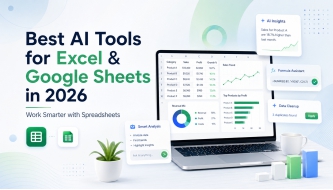
Best AI Tools for Excel & Google Sheets in 2026: Work Smarter with Spreadsheets
The best AI tools for Excel and Google Sheets in 2026 are changing the way people work with spreadsheets. Instead of spending hours fixing formulas, cleaning messy rows, building charts, summarizing survey answers, or copying data between tabs, you can now ask AI to help you understand, organize, transform, and analyze your spreadsheet work faster.
For years, spreadsheets were powerful but frustrating. Everyone used them, but not everyone felt confident with formulas, pivot tables, dashboards, lookups, data cleaning, or automation. That is exactly why AI spreadsheet tools are becoming so useful. They make Excel and Google Sheets easier for beginners, faster for professionals, and more powerful for teams that work with data every day.
At DesignRise, we follow AI tools from a practical workflow perspective. We do not look only at what sounds impressive in a product demo. We look at what actually helps designers, marketers, founders, analysts, content teams, small businesses, and creators save time in real work.
This guide covers the top AI tools for Excel and Google Sheets in 2026, including built-in assistants, formula generators, AI spreadsheet add-ons, data analysis tools, reporting platforms, and AI-native spreadsheet alternatives. You will learn what each tool is best for, where it fits in your workflow, and how to choose the right one for your own spreadsheet tasks.
What Are AI Tools for Excel and Google Sheets?
AI tools for Excel and Google Sheets are software tools that use artificial intelligence to help you work with spreadsheet data using plain language. Instead of manually writing every formula, building every report, or cleaning every messy column by hand, you can describe what you want and let AI help you create the next step.
For example, you can ask an AI spreadsheet assistant to:
- Generate an Excel formula from a plain-English request.
- Explain why a Google Sheets formula is not working.
- Clean names, emails, product lists, or exported CRM data.
- Summarize customer feedback from hundreds of rows.
- Classify leads, tickets, reviews, or survey responses.
- Create charts, dashboards, and pivot tables.
- Find patterns, outliers, and trends in business data.
- Turn a CSV file into a readable report.
- Translate or rewrite text across many spreadsheet rows.
- Build a repeatable reporting workflow without coding.
The biggest change is not only speed. The real shift is accessibility. Many people understand the business question they want answered, but they do not always know the exact spreadsheet function needed to get there. AI helps bridge that gap.
A traditional spreadsheet asks you to know the formula. An AI spreadsheet tool lets you start with the problem. That difference matters for small business owners, marketers, creators, freelancers, designers, operations teams, and anyone who works with data but does not want to become a spreadsheet expert.
Why AI Spreadsheet Tools Matter in 2026
Spreadsheets are still one of the most important business tools in the world. Even with modern dashboards, CRMs, analytics platforms, and no-code apps, teams still export data into Excel or Google Sheets because spreadsheets are flexible, familiar, and easy to share.
But spreadsheets also create problems. They can become messy. Formulas break. Reports take too long. Data is copied manually. Teams waste time cleaning CSV exports. People build the same dashboard every week. A small mistake in a formula can change the entire result.
This is where AI Excel tools and Google Sheets AI tools become valuable. They help reduce repetitive work and make spreadsheets easier to understand. Instead of searching online for formula examples, you can ask the AI assistant inside your spreadsheet. Instead of manually reading 500 customer reviews, you can ask AI to group them by sentiment or topic. Instead of building a dashboard from scratch, you can ask for charts and summaries based on your data.
In 2026, AI spreadsheet tools are especially useful for:
- Small businesses that need reports but do not have a data team.
- Marketers who work with campaign exports, keyword lists, content calendars, and performance data.
- Sales teams that need lead enrichment, CRM cleanup, and pipeline summaries.
- Designers and creators who manage client lists, pricing sheets, product research, and content plans.
- Finance teams that need scenario analysis, variance checks, and clean models.
- Students and researchers who need help organizing datasets and summarizing findings.
- Operations teams that use spreadsheets for inventory, scheduling, workflows, and dashboards.
For DesignRise readers, the opportunity is clear: AI can turn spreadsheets from a stressful manual task into a smarter creative and business workflow. The goal is not to replace Excel or Google Sheets. The goal is to make them easier, faster, and more useful.
Explore More DesignRise Resources
If you are building a smarter AI workflow, these DesignRise collections can help you go deeper:
Quick Comparison: Best AI Tools for Excel & Google Sheets in 2026
Here is a quick overview of the best AI spreadsheet tools worth trying in 2026. Some work directly inside Excel or Google Sheets, while others are better for analysis, dashboards, reporting, or AI-native spreadsheet workflows.
| AI Spreadsheet Tool | Best For | Works With | Best User Type |
|---|---|---|---|
| Microsoft Copilot in Excel | Excel formulas, analysis, charts, PivotTables, workbook editing | Microsoft Excel | Excel users and Microsoft 365 teams |
| Gemini in Google Sheets | Google Sheets formulas, tables, charts, formatting, insights | Google Sheets | Google Workspace users |
| ChatGPT for Excel & Google Sheets | Building, updating, and understanding spreadsheets with ChatGPT | Excel and Google Sheets | General users, analysts, professionals |
| GPT for Work | Spreadsheet AI agents, formulas, formatting, bulk row tasks | Excel and Google Sheets | Teams and power users |
| Numerous.ai | AI functions inside cells, text cleanup, classification, summaries | Excel and Google Sheets | Marketers, researchers, content teams |
| Formula Bot | Formula generation, spreadsheet analysis, charts, quick insights | Excel and Google Sheets | Beginners and business users |
| SheetAI App | Google Sheets AI functions and prompt-based automation | Google Sheets | Google Sheets users |
| Ajelix | Formula help, dashboards, spreadsheet workflows, AI reporting | Excel and Google Sheets workflows | Spreadsheet-heavy professionals |
| Rows AI | AI-native spreadsheet analysis and reporting | Rows platform | Teams willing to work beyond Excel/Sheets |
| Coefficient | Live business data, AI dashboards, spreadsheet reporting | Google Sheets and Excel | Sales, marketing, RevOps, reporting teams |
| Quadratic | AI spreadsheet analysis connected to data | Quadratic platform | Data teams and modern spreadsheet users |
| Julius AI | Analyzing Excel and Google Sheets data with natural language | Excel files and Google Sheets data | Analysts, students, business users |
Best AI Tools for Excel & Google Sheets in 2026
Below are the top tools to consider if you want to make spreadsheets faster, smarter, and easier to manage. Each tool has a different purpose, so the best choice depends on whether you need formula help, bulk text processing, reporting, dashboards, data analysis, or a full AI spreadsheet assistant.
1. Microsoft Copilot in Excel
Best for: Excel users who want AI help directly inside workbooks.
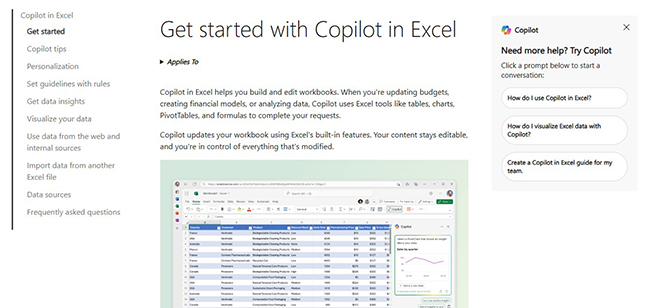
Microsoft Copilot in Excel is one of the most important AI spreadsheet tools in 2026 because it brings AI assistance directly into Excel. Instead of switching between a spreadsheet and a chatbot, you can ask Copilot to help build, edit, analyze, and explain workbook content inside the Excel environment.
Copilot is useful when you want to analyze data, create formulas, build charts, generate PivotTables, highlight important values, filter rows, or understand what is happening inside a dataset. It is especially helpful for people who already use Microsoft 365 every day and do not want to add another third-party tool to their workflow.
The biggest advantage is context. Copilot works with Excel’s own features, so the output stays editable in the workbook. That matters because business users often need to review, adjust, and verify every number. You do not want a black-box result that you cannot inspect. You want AI assistance that helps you move faster while keeping control over your spreadsheet.
For example, you can ask Copilot to identify trends in quarterly sales data, summarize a budget table, suggest a formula, create a chart, or explain why some values look unusual. This makes it useful for finance, operations, sales, marketing, reporting, and management workflows.
Why DesignRise recommends it: Copilot is the best starting point for serious Excel users who want native AI assistance without leaving Microsoft 365.
- Strong native option for Excel users.
- Helpful for formulas, charts, PivotTables, and workbook editing.
- Good for business teams already using Microsoft 365.
- Best results come from clean, structured data.
- Important financial or legal work should still be manually verified.
2. Gemini in Google Sheets
Best for: Google Sheets users who want built-in AI help for formulas, tables, charts, and analysis.
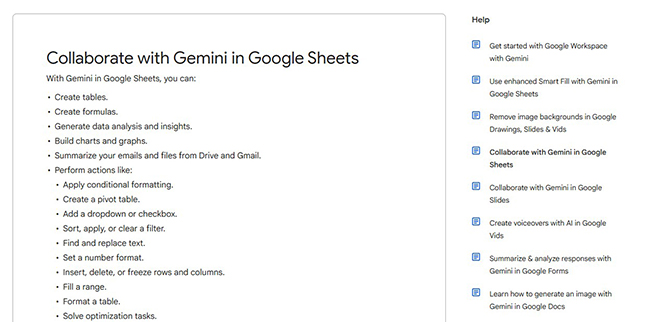
Gemini in Google Sheets is Google’s built-in AI assistant for spreadsheet work. It helps users create tables, generate formulas, analyze data, build charts and graphs, summarize information, and perform actions like formatting, sorting, filtering, creating pivot tables, and filling ranges.
This makes Gemini one of the most convenient Google Sheets AI tools because it is already part of the Google Workspace experience. If your team uses Gmail, Drive, Docs, and Sheets, Gemini can fit naturally into your existing workflow.
Gemini is especially useful for people who are comfortable in Google Sheets but do not always know the exact formula or menu path they need. Instead of searching for how to build a formula, you can describe the result you want. Instead of manually turning raw data into a table, you can ask Gemini to help structure it.
For example, you can ask Gemini to create a content calendar table, suggest a formula to calculate monthly revenue, summarize a campaign export, build a chart, or explain why a formula is not returning the expected result.
Why DesignRise recommends it: Gemini is a practical choice for creators, marketers, educators, and businesses already working inside Google Sheets. It lowers the barrier for spreadsheet tasks without requiring a separate add-on.
- Built directly into Google Sheets workflows.
- Useful for formulas, tables, charts, formatting, and insights.
- Good for teams already using Google Workspace.
- Helpful for beginners who need plain-language spreadsheet guidance.
- Complex analysis may still need review by a human expert.
3. ChatGPT for Excel & Google Sheets
Best for: using ChatGPT where you already work with spreadsheets.
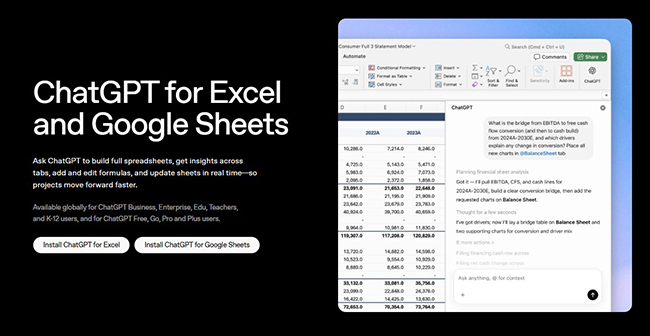
ChatGPT for Excel and Google Sheets is one of the most interesting spreadsheet AI options because it brings ChatGPT into the tools many people already use every day. It can help users build, update, and understand spreadsheets without constantly switching between tabs.
This is useful for a wide range of spreadsheet tasks: creating a tracker, cleaning imported data, understanding a workbook, drafting formulas, explaining calculations, summarizing row-level information, or helping turn a messy sheet into something more structured.
ChatGPT is especially strong when your spreadsheet task also involves writing, reasoning, planning, or explaining. For example, a marketer can use it to classify keywords, rewrite ad copy across rows, summarize campaign notes, or generate content ideas from spreadsheet data. A small business owner can use it to build a budget tracker, clean customer records, or create a simple sales report.
The key advantage is flexibility. Many spreadsheet AI tools focus only on formulas. ChatGPT can help with formulas, but it can also help you think through what the spreadsheet should become. That makes it useful for planning and analysis, not only execution.
Why DesignRise recommends it: ChatGPT for spreadsheets is a strong choice for users who want an AI assistant that can support both data work and content work inside Excel or Google Sheets.
- Works across both Excel and Google Sheets.
- Helpful for building, updating, and understanding spreadsheets.
- Strong for mixed workflows involving data and writing.
- Useful for marketers, small businesses, creators, and analysts.
- Outputs should be checked when accuracy matters.
4. GPT for Work
Best for: AI agents and bulk work directly inside Excel and Google Sheets.
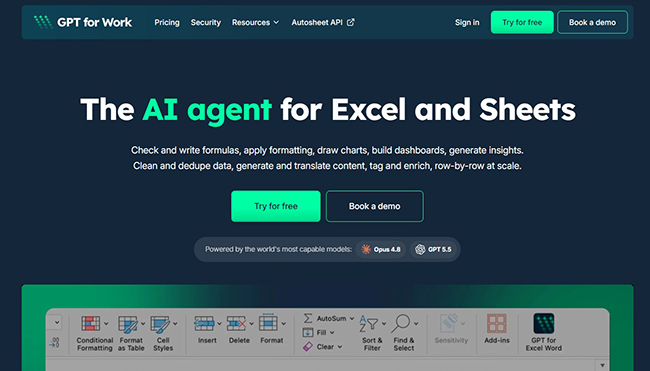
GPT for Work is built for people who want AI inside their spreadsheet workflow, especially for repetitive row-by-row tasks. It works with Excel and Google Sheets and focuses on practical spreadsheet jobs like formulas, formatting, translating, enriching, cleaning, and processing data at scale.
This is a strong option for teams that work with many rows of text. For example, you might have a spreadsheet full of product descriptions, customer support tickets, survey comments, lead lists, URLs, or campaign keywords. GPT for Work can help apply AI instructions across many rows instead of handling each one manually.
That makes it useful for marketers, SEO teams, content teams, operations teams, consultants, and sales teams. If your spreadsheet is full of text data that needs to be classified, summarized, rewritten, cleaned, translated, scored, or enriched, GPT for Work can save a lot of time.
It is also useful because it supports the way spreadsheet users already think: one row, one result. You can apply a prompt across a column and produce structured outputs that can be reviewed, filtered, and edited.
Why DesignRise recommends it: GPT for Work is a strong choice when your spreadsheet is not only numbers but also text, research, content, lead data, or business information that needs AI processing at scale.
- Works with both Excel and Google Sheets.
- Good for bulk row-by-row AI tasks.
- Useful for translation, enrichment, cleanup, classification, and formatting.
- Strong fit for marketing, sales, SEO, and operations teams.
- Needs clear prompts and review for important outputs.
5. Numerous.ai
Best for: adding AI functions directly into spreadsheet cells.
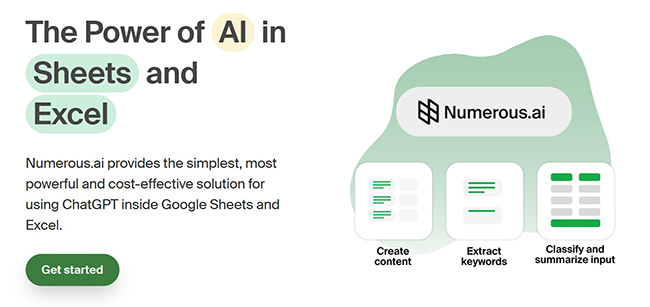
Numerous.ai is a spreadsheet AI tool that brings ChatGPT-style intelligence into Excel and Google Sheets through simple AI functions. It is especially useful for users who want to run the same AI task across many rows.
The workflow is easy to understand: write a prompt, apply it to a row or column, and use AI to generate or transform results. This makes Numerous.ai useful for summarizing text, categorizing responses, extracting keywords, cleaning messy data, generating product copy, creating ad variations, or organizing research.
For example, a marketer could paste a list of customer reviews into Google Sheets and ask Numerous.ai to classify each review by sentiment. An eCommerce team could generate product descriptions based on product attributes. A researcher could summarize long text entries into short notes.
The biggest advantage of Numerous.ai is that it feels natural inside the spreadsheet grid. You do not need to export your data, upload a file to a separate tool, or copy and paste prompts one by one. You can treat AI output like another spreadsheet column.
Why DesignRise recommends it: Numerous.ai is a practical AI tool for people who want to process many spreadsheet rows quickly without building complicated automation.
- Works with Excel and Google Sheets.
- Good for row-by-row AI tasks.
- Useful for text cleanup, classification, summarization, and content generation.
- Strong fit for marketers, researchers, and eCommerce teams.
- Prompt quality strongly affects output quality.
6. Formula Bot
Best for: generating formulas, analyzing spreadsheets, and creating quick charts.
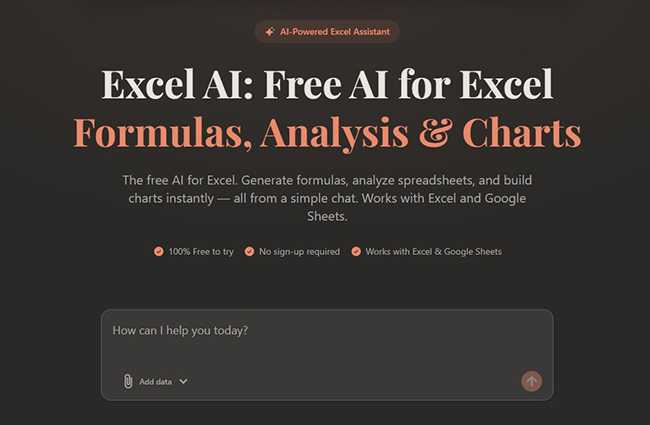
Formula Bot started as a tool for generating spreadsheet formulas, but it has grown into a broader AI assistant for spreadsheet analysis, charts, and insights. It works with Excel and Google Sheets, making it useful for people who need quick help without learning complex functions.
If you have ever spent time trying to remember whether you need VLOOKUP, XLOOKUP, INDEX MATCH, COUNTIFS, SUMIFS, IFERROR, FILTER, or a nested formula, tools like Formula Bot can help. You describe what you want in plain English, and the tool creates a formula you can copy into your sheet.
Formula Bot is especially helpful for beginners and intermediate spreadsheet users. It can also explain formulas, which is important because copying formulas without understanding them can be risky. A good formula assistant should help you learn, not only paste results.
Beyond formulas, Formula Bot also supports analysis and visualizations, which makes it useful for turning raw spreadsheet data into clearer insights.
Why DesignRise recommends it: Formula Bot is one of the easiest tools to try if your main spreadsheet pain is formulas. It helps users move from “I know what I want” to “I have the formula that does it.”
- Good for formula generation and formula explanations.
- Works with Excel and Google Sheets.
- Useful for beginners who struggle with spreadsheet functions.
- Also supports analysis and chart-building workflows.
- Generated formulas should be tested before relying on them.
7. SheetAI App
Best for: using AI functions directly inside Google Sheets.
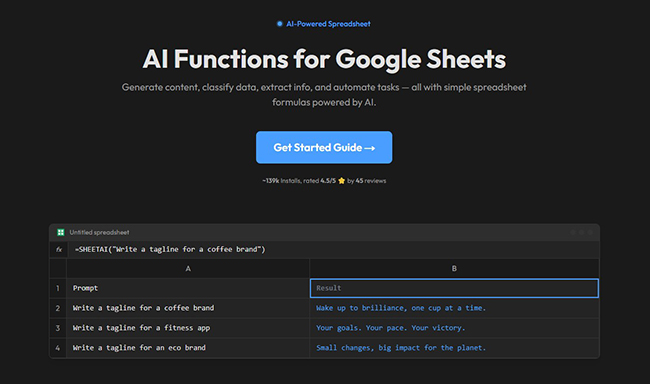
SheetAI App is a Google Sheets AI add-on designed to bring AI functions, formula help, prompts, and automation into spreadsheets. It is especially useful for users who live inside Google Sheets and want AI support without moving to a completely different platform.
With SheetAI, users can generate text, automate repetitive work, build formulas, and use AI functions inside their sheets. This makes it useful for simple AI-powered workflows such as generating descriptions, cleaning data, summarizing cells, creating short text outputs, or transforming row content.
SheetAI is most useful when you want lightweight AI inside a familiar spreadsheet interface. It is not necessarily the right choice for complex business intelligence or advanced financial modeling, but it can be very helpful for everyday Google Sheets tasks.
For example, a content creator could use SheetAI to generate social media post ideas from topic keywords. A small business could summarize customer notes. A teacher could organize student feedback. A marketer could rewrite campaign copy variations directly inside a sheet.
Why DesignRise recommends it: SheetAI is a good option for Google Sheets users who want simple, direct AI inside cells and do not need a heavy enterprise tool.
- Built for Google Sheets.
- Good for AI functions, text generation, and formula support.
- Useful for creators, educators, marketers, and small teams.
- Easy to test for lightweight spreadsheet automation.
- Less suitable for complex multi-source business reporting.
8. Ajelix
Best for: spreadsheet-heavy professionals who need formulas, dashboards, and AI reporting.

Ajelix is an AI tool for professionals who work with spreadsheets and business data. It focuses on turning data into actionable results, helping users reduce spreadsheet wrangling, formula debugging, and manual reporting work.
Ajelix is useful if your spreadsheet work goes beyond one formula. It can help with formula generation, spreadsheet guidance, dashboards, reports, and AI-assisted business workflows. That makes it a good fit for analysts, consultants, managers, founders, and teams that frequently turn spreadsheet data into decisions.
One of the strongest use cases is moving from spreadsheet data to a report or dashboard. Many teams already have the data, but they struggle to present it clearly. Ajelix can help bridge the gap between raw rows and a more understandable business view.
It is also useful for people who want to learn formulas. Instead of simply generating an answer, a good spreadsheet AI tool should help users understand the logic behind the formula and improve their own skills over time.
Why DesignRise recommends it: Ajelix is a strong option for users who need more than a formula generator and want a broader AI assistant for spreadsheet-driven business work.
- Good for spreadsheet workflows, formulas, dashboards, and reporting.
- Useful for professionals working with data regularly.
- Can help turn spreadsheet work into business outputs.
- Strong fit for consultants, analysts, and managers.
- May be more than casual spreadsheet users need.
9. Rows AI
Best for: teams that want an AI-native spreadsheet experience.
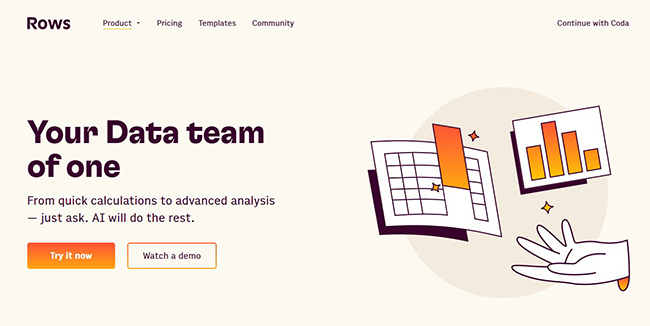
Rows AI is not just an add-on for Excel or Google Sheets. It is an AI-powered spreadsheet platform designed to help users analyze and transform data using plain language. Instead of relying on formulas, menus, and manual steps, users can ask questions and let Rows help import, transform, and surface insights.
This makes Rows interesting for teams that are open to moving beyond traditional spreadsheets. If Excel and Google Sheets feel too manual for your reporting workflow, Rows can be a modern alternative with AI built into the experience.
Rows is useful for quick calculations, reporting, business analysis, data imports, and interactive spreadsheet workflows. It can be especially helpful for teams that want to combine spreadsheet flexibility with AI-driven analysis and integrations.
The main question is whether you want to stay inside Excel or Google Sheets. If yes, choose tools like Copilot, Gemini, ChatGPT, Numerous.ai, or GPT for Work. If you are willing to work in a new AI-native spreadsheet platform, Rows deserves attention.
Why DesignRise recommends it: Rows AI is a strong option for teams that want a smarter spreadsheet environment rather than simply adding AI to an old workflow.
- AI-native spreadsheet platform.
- Good for analysis, reports, imports, and business workflows.
- Useful for teams open to alternatives beyond Excel and Google Sheets.
- Plain-language workflow is beginner-friendly.
- May not fit teams that must stay inside Microsoft or Google systems.
10. Coefficient
Best for: connecting live business data to spreadsheets and building AI-powered reports.
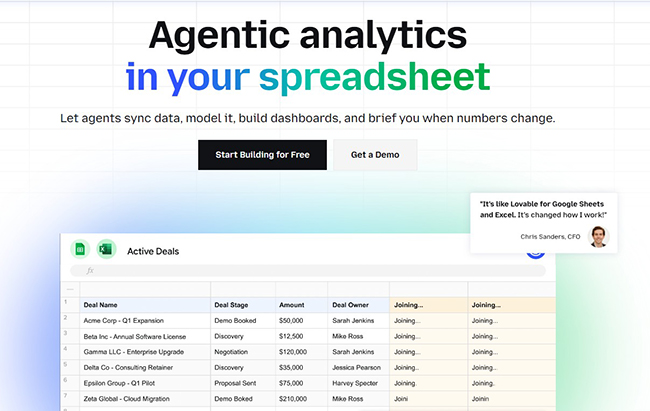
Coefficient is a no-code data platform that connects live business data to Google Sheets and Excel. It is especially useful for teams that use spreadsheets as reporting hubs but need data from tools like CRMs, databases, ad platforms, sales systems, and business apps.
Many teams still create reports by exporting CSV files, cleaning them manually, and pasting them into spreadsheets. That workflow is slow and error-prone. Coefficient helps reduce this by connecting live data and automating refreshes, dashboards, and reporting workflows.
Its AI value comes from helping teams move from raw connected data to clearer insights and dashboards. This makes it useful for sales operations, marketing reporting, RevOps, finance, business intelligence, and leadership reporting.
Coefficient is not the same as a simple formula generator. It is more about data connectivity and reporting automation. If your main problem is “I do not know the formula,” Formula Bot may be easier. If your main problem is “my data is spread across tools and I need live reports in Sheets or Excel,” Coefficient is more relevant.
Why DesignRise recommends it: Coefficient is a strong choice for teams that already rely on spreadsheets for dashboards and want to connect live data without manual exports.
- Connects live business data to Google Sheets and Excel.
- Good for dashboards, reports, and recurring business workflows.
- Useful for sales, marketing, finance, and operations teams.
- Better for reporting automation than simple formula help.
- Works best when data sources and reporting goals are clearly defined.
11. Quadratic
Best for: modern AI spreadsheet analysis connected to data.
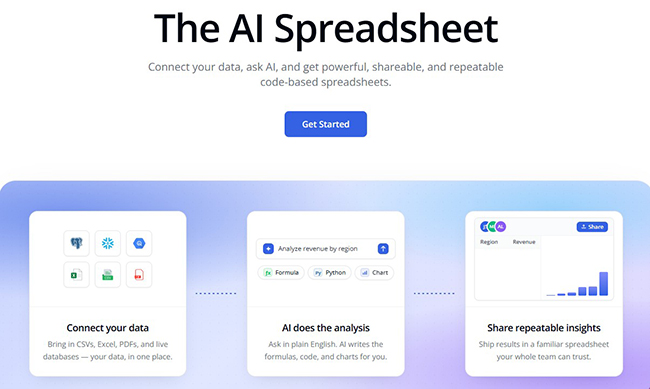
Quadratic is an AI spreadsheet built for modern data analysis. It connects to data and helps users understand it faster through a spreadsheet-like interface. It is especially interesting for teams that want spreadsheet flexibility with AI-powered insights and deeper data workflows.
Quadratic is not simply a Google Sheets add-on or an Excel plugin. It is a different kind of spreadsheet environment. That makes it more relevant for data teams, product teams, analysts, startup teams, and advanced users who want to ask questions, explore datasets, and create shareable insights.
One reason Quadratic stands out is that many spreadsheet users eventually hit limits. They need more analysis power, better collaboration, or a smoother connection to databases. AI-native spreadsheet tools are trying to solve that gap.
If you only need help creating a SUMIFS formula, Quadratic may be more advanced than necessary. But if you want to explore data, connect sources, and work in a more modern AI-powered spreadsheet, it is worth testing.
Why DesignRise recommends it: Quadratic is a strong choice for teams that want to rethink spreadsheet analysis rather than only automate small spreadsheet tasks.
- AI-native spreadsheet experience.
- Good for data analysis and connected data workflows.
- Useful for analysts, product teams, and modern business teams.
- Better for exploratory analysis than simple formula generation.
- May require a workflow shift for traditional Excel users.
12. Julius AI
Best for: analyzing Excel and Google Sheets data with natural language.
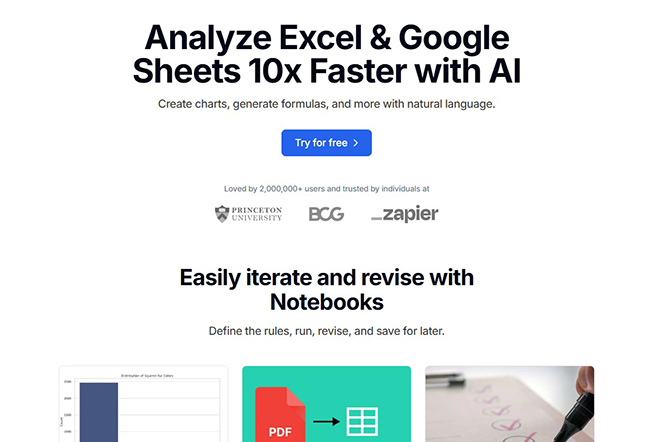
Julius AI is an AI data analysis tool that helps users work with spreadsheet files and data using natural language. It is useful when you want to upload or connect spreadsheet data, ask questions, create charts, generate formulas, and explore insights without manually building everything yourself.
Julius is especially helpful for users who are less interested in cell-by-cell editing and more interested in understanding what the data means. For example, you can use it to analyze sales data, survey results, marketing performance, financial records, or operational reports.
This makes Julius a good fit for students, researchers, business owners, analysts, consultants, and teams that need quick answers from data. It can help explain trends, compare categories, create visuals, and generate summaries.
Unlike a formula-only tool, Julius is closer to an AI analyst. That means it can be more useful when your question is not “what formula do I need?” but “what does this dataset show?”
Why DesignRise recommends it: Julius AI is a helpful option for people who want to analyze spreadsheet data conversationally and create charts or insights without manually building every step.
- Good for analyzing Excel and Google Sheets data.
- Useful for charts, formulas, summaries, and insights.
- Strong fit for students, researchers, business users, and analysts.
- Better for analysis than for staying inside a live spreadsheet grid.
- Important results should be verified before business decisions.
How to Choose the Right AI Spreadsheet Tool
The best AI spreadsheet tool depends on your platform, your skill level, and the kind of work you do. A formula beginner, a marketing team, a finance analyst, and a sales operations manager will not need the same tool.
Choose Microsoft Copilot if you live in Excel
If Excel is your main work environment and your team already uses Microsoft 365, Copilot in Excel is the most natural starting point. It is especially useful for workbook editing, formulas, charts, PivotTables, and business analysis.
Choose Gemini if you live in Google Sheets
If your team works inside Google Workspace, Gemini in Google Sheets is the easiest built-in option. It is useful for tables, formulas, charts, formatting, and simple data insights without installing extra tools.
Choose ChatGPT for Excel and Google Sheets if you want flexible AI help
ChatGPT is a strong choice if your spreadsheet work includes both data and writing. It is useful for business owners, marketers, content teams, and professionals who need help building, updating, explaining, and restructuring spreadsheets.
Choose GPT for Work or Numerous.ai for bulk row-by-row tasks
If your sheet contains hundreds or thousands of rows that need classification, summarization, translation, enrichment, cleanup, or content generation, GPT for Work and Numerous.ai are strong options.
Choose Formula Bot if formulas are your biggest pain
If you often struggle with spreadsheet formulas, Formula Bot is one of the easiest tools to try. It helps generate and explain formulas from plain English.
Choose Coefficient if your biggest problem is live business data
If your team keeps exporting CSV files from CRMs, databases, ad platforms, or business tools, Coefficient is a better fit than a simple AI formula generator. It helps connect live data to spreadsheets and build reports.
Choose Rows or Quadratic if you are open to AI-native spreadsheets
If Excel and Google Sheets feel too limited or too manual, Rows and Quadratic are worth exploring. They are stronger for users who want a more modern spreadsheet experience with AI built in.
Choose Julius AI if you want conversational data analysis
If your goal is to understand a dataset, create charts, and ask questions about spreadsheet files, Julius AI is a strong AI analyst-style option.
What Can You Do with AI in Excel and Google Sheets?
AI spreadsheet tools can help with many common business and creative tasks. The key is to understand what kind of job you want the AI to do.
1. Generate formulas from plain English
You can describe a calculation and ask AI to create the correct formula. For example: “Calculate total revenue for each month based on date and amount columns.” This is useful for SUMIFS, COUNTIFS, XLOOKUP, FILTER, IF, INDEX MATCH, and nested formulas.
2. Explain broken formulas
Instead of staring at a formula error, you can ask AI to explain what went wrong. This is helpful for errors like #VALUE!, #REF!, #N/A, circular references, incorrect ranges, missing commas, wrong date formats, or mismatched data types.
3. Clean messy data
AI can help standardize names, remove extra spaces, fix capitalization, split full names, extract domains from emails, normalize product categories, or organize inconsistent exported data.
4. Summarize text data
If your spreadsheet contains comments, reviews, survey answers, support tickets, or notes, AI can summarize the key ideas. This is one of the best use cases for marketers, researchers, customer success teams, and product teams.
5. Classify and tag rows
AI can categorize rows by topic, sentiment, priority, stage, audience, industry, product type, or customer intent. This is helpful when your data is too large to classify manually.
6. Create dashboards and reports
AI tools can help turn raw spreadsheet data into charts, tables, summaries, and dashboards. This is useful for monthly reports, campaign performance, sales tracking, budget reviews, and executive updates.
7. Build spreadsheet templates
You can ask AI to create templates for budgets, content calendars, project trackers, inventory systems, client lists, workout plans, class schedules, editorial calendars, or lead scoring sheets.
8. Analyze trends and outliers
AI can help you find patterns in data. For example, it can identify which products are growing fastest, which campaigns have the best conversion rate, or which customers are at risk.
9. Rewrite and generate text at scale
For content teams, AI inside spreadsheets is useful for generating meta descriptions, product titles, ad copy, social captions, email subject lines, category descriptions, and SEO keyword ideas.
10. Prepare data for other tools
AI can help structure spreadsheet data before importing it into a CRM, email platform, CMS, dashboard tool, no-code app, or analytics system.
A Simple AI Spreadsheet Workflow for Better Results
AI works best when your spreadsheet is organized. If your data is chaotic, the AI may misunderstand your goal or produce weak output. Before using any AI spreadsheet assistant, follow this simple workflow.
Step 1: Clean the structure
Use one header row, clear column names, consistent formats, and no empty merged sections in the middle of the dataset. AI tools perform better when the table structure is predictable.
Step 2: Define the business question
Do not start with “analyze this.” Start with a specific question. For example: “Which marketing channels produced the highest conversion rate last quarter?” or “Which customer reviews mention pricing problems?”
Step 3: Ask for a first pass
Let AI summarize the dataset, identify obvious issues, or suggest next steps. This helps you see whether the AI understands your sheet correctly.
Step 4: Ask for a formula, chart, or report
Once the structure is clear, ask the AI to create the exact output you need: formula, table, pivot view, chart, dashboard summary, or row-level classification.
Step 5: Review and verify
Always check formulas, totals, data ranges, and assumptions. AI can save time, but it can also make mistakes, especially with complex financial models or messy datasets.
Step 6: Save repeatable prompts
If you do the same work every week, save your best prompts. Repeatable AI workflows are where the biggest time savings happen.
Prompt Examples for Excel and Google Sheets AI Tools
The quality of your prompt affects the quality of the result. A vague prompt creates a vague answer. A specific prompt creates a useful spreadsheet output.
Formula prompt
Create an Excel formula that calculates total revenue for each month using the Date column in A and the Revenue column in D. The month I want to calculate is in cell G2.Formula explanation prompt
Explain this formula in simple language and tell me what each part does: =IFERROR(XLOOKUP(A2,Products!A:A,Products!D:D),"Not found")Data cleaning prompt
Clean this customer list by standardizing capitalization, removing extra spaces, separating full names into first and last name, and flagging duplicate email addresses.Marketing analysis prompt
Analyze this campaign performance sheet. Identify the top 3 channels by conversion rate, the weakest channel by cost per lead, and give me a short summary for a marketing report.Customer feedback prompt
Classify each customer review by sentiment: positive, neutral, or negative. Then add a second category for the main topic: pricing, quality, delivery, support, or usability.Dashboard prompt
Create a simple dashboard summary from this sales data with total revenue, average order value, top product category, monthly trend, and 3 key insights.Content workflow prompt
Using the keywords in column A, generate one SEO title, one meta description, and one blog post angle for each row. Keep the tone professional and useful for a US audience.Business report prompt
Turn this spreadsheet into a short executive summary. Include key wins, risks, unusual changes, and recommended next actions. Use clear bullet points.Common Mistakes to Avoid with AI Spreadsheet Tools
AI can make spreadsheet work much faster, but it can also create problems if used carelessly. Here are the most common mistakes to avoid.
Relying on AI without checking formulas
AI-generated formulas can be wrong. Always test the result with sample data before using it in a real business report.
Using messy data without cleaning it first
If your columns are inconsistent, headers are missing, or data types are mixed, AI may misunderstand the task. Clean structure leads to better output.
Asking vague questions
“Analyze this” is usually too vague. Explain what you want to know, what columns matter, and what output format you need.
Using AI for high-stakes work without review
Do not rely only on AI for tax filings, legal reporting, audited financial statements, medical decisions, or anything that requires strict accuracy and accountability.
Letting AI overwrite important data
Work on a copy of your spreadsheet when testing AI tools. Keep the original file safe in case the result needs to be reversed.
Ignoring privacy and data policies
Before uploading sensitive data to any third-party AI tool, check privacy terms, security settings, and whether the tool is approved for your company’s data.
Using too many tools at once
Start with one or two tools that solve your main problem. Too many AI add-ons can create confusion, duplicated work, and inconsistent outputs.
Best AI Spreadsheet Tool by Use Case
| Use Case | Recommended Tools |
|---|---|
| Best native Excel AI | Microsoft Copilot in Excel |
| Best native Google Sheets AI | Gemini in Google Sheets |
| Best flexible AI for both Excel and Sheets | ChatGPT for Excel & Google Sheets |
| Best for bulk row-by-row AI tasks | GPT for Work, Numerous.ai |
| Best for formula generation | Formula Bot, Ajelix, Gemini, Copilot |
| Best Google Sheets add-on | SheetAI App |
| Best for live business data reporting | Coefficient |
| Best AI-native spreadsheet platforms | Rows AI, Quadratic |
| Best for conversational data analysis | Julius AI |
| Best for marketing and content spreadsheets | Numerous.ai, GPT for Work, ChatGPT |
AI Spreadsheet Tools and the Future of Work
AI spreadsheet tools are not just a small productivity upgrade. They are part of a bigger shift in how people work with data. In the past, spreadsheet skills were divided into two groups: people who knew formulas and people who had to ask someone else for help. AI is making that gap smaller.
Now, a small business owner can build a simple revenue dashboard. A marketer can classify thousands of keywords. A teacher can summarize student feedback. A designer can organize client pricing. A founder can create an investor-ready report. A team manager can ask questions about operational data without waiting for a data analyst.
This does not mean spreadsheet expertise is no longer valuable. Actually, it becomes even more valuable. People who understand data, business logic, and quality control will get the most from AI because they know how to check the results.
The future of spreadsheet work is not “AI does everything.” The future is a smarter partnership: humans define the goal, AI speeds up the work, and humans verify the outcome.
For DesignRise, this is exactly where creative productivity is going. AI tools are not only for generating images, videos, or text. They are also becoming everyday business assistants that help creators and teams make better decisions faster.
Final Verdict: What Are the Best AI Tools for Excel and Google Sheets in 2026?
The best AI tool for Excel and Google Sheets depends on how you work.
If you mainly use Excel, start with Microsoft Copilot in Excel. If you mainly use Google Sheets, start with Gemini in Google Sheets. If you want a flexible AI assistant that works across both platforms, try ChatGPT for Excel and Google Sheets.
If your workflow involves bulk text processing, row-by-row classification, enrichment, translation, or content generation, GPT for Work and Numerous.ai are strong options. If your biggest frustration is formulas, Formula Bot is one of the easiest tools to try. If you want AI functions inside Google Sheets, SheetAI App is worth testing.
For broader spreadsheet workflows, Ajelix can help with formulas, dashboards, and reporting. For live business data and automated spreadsheet reports, Coefficient is a better fit. For AI-native spreadsheet environments, look at Rows AI and Quadratic. For conversational data analysis from spreadsheet files, Julius AI is a useful option.
The smartest approach is not to chase every new AI tool. Start with your real spreadsheet pain. Do you need formulas? Data cleaning? Reports? Dashboards? Bulk text work? Live data? Once the problem is clear, the right tool becomes much easier to choose.
At DesignRise, we believe the best AI spreadsheet tools in 2026 are the ones that help people make better decisions, not just faster spreadsheets. Speed is useful, but clarity is the real advantage.
Frequently Asked Questions
What is the best AI tool for Excel in 2026?
For most Excel users, Microsoft Copilot in Excel is the strongest native option because it works directly inside Excel and can help with formulas, charts, PivotTables, workbook editing, and data analysis. ChatGPT for Excel, Formula Bot, GPT for Work, and Julius AI are also useful depending on the task.
What is the best AI tool for Google Sheets in 2026?
Gemini in Google Sheets is the best built-in option for Google Workspace users. SheetAI App, Numerous.ai, GPT for Work, Formula Bot, and ChatGPT for Google Sheets are also strong choices for different types of Google Sheets workflows.
Can AI create Excel formulas?
Yes. AI tools like Microsoft Copilot, ChatGPT, Formula Bot, Ajelix, Gemini, and GPT for Work can generate formulas from plain-English descriptions. However, formulas should always be tested before being used in important reports.
Can AI analyze spreadsheet data?
Yes. AI tools can summarize spreadsheet data, find trends, classify rows, create charts, suggest insights, and generate reports. Tools like Copilot, Gemini, ChatGPT, Rows AI, Julius AI, Quadratic, and Formula Bot can help with different types of analysis.
Can AI clean messy spreadsheet data?
Yes. AI can help clean names, emails, categories, dates, duplicates, exported CRM data, product lists, and survey responses. Numerous.ai, GPT for Work, ChatGPT, Gemini, and Formula Bot are especially useful for cleanup tasks.
Are AI spreadsheet tools accurate?
AI spreadsheet tools can be very helpful, but they are not always perfect. They can misunderstand data, create incorrect formulas, or make assumptions. Always verify important outputs, especially for financial, legal, operational, or high-stakes work.
What is the best free AI tool for Excel and Google Sheets?
The best free option depends on availability and usage limits. Formula Bot, SheetAI App, Numerous.ai, Rows AI, ChatGPT, and Gemini may offer free or limited access depending on the plan. Always check current pricing before choosing a tool.
Do AI tools replace spreadsheet skills?
No. AI tools reduce manual work, but spreadsheet skills still matter. Users who understand data structure, formulas, logic, and reporting will get better results because they can check and improve AI output.
Which AI tool is best for marketing spreadsheets?
For marketing spreadsheets, GPT for Work, Numerous.ai, ChatGPT, Gemini, and Coefficient are strong options. They can help with keyword lists, campaign reports, customer feedback, content calendars, lead scoring, and ad copy generation.
Which AI spreadsheet tool should beginners try first?
Beginners should start with the tool already inside their spreadsheet platform: Copilot for Excel or Gemini for Google Sheets. Formula Bot is also beginner-friendly for formula help, while ChatGPT is useful for explaining spreadsheet concepts in simple language.
Discover more from DesignRise
Subscribe to get the latest posts sent to your email.