AI Creative Tutorial for Beginners: How to Create Better Images and Videos With AI
If you’re stepping into the world of AI creative design, you’re entering one of the fastest-growing areas of digital creation. Designers, marketers, content creators, video editors, and small business owners are now using AI to generate images, videos, campaign concepts, social media visuals, product mockups, and branded content faster than ever before.
But using AI well is not just about typing a few words into a tool and hoping for a beautiful result. Strong AI-generated work still needs direction, taste, structure, editing, and creative judgment.
This AI Creative tutorial will show you how to start creating better AI visuals, how to choose the right tools, how to write effective prompts, how to use seeds and references, and how to build a professional workflow for 2026 and beyond.
At DesignRise, we explore AI tools, design workflows, and creative resources that help designers work smarter without losing originality. This guide is written for beginners, but it also includes practical tips that experienced creators can use to improve their AI workflow.
Explore More DesignRise Resources:
- AI-Powered Ad Creatives for 2026: Smarter, Faster, Personalized
- A Complete Guide to Using Seeds in AI Image and Video Generation
- How to Use Negative Prompts to Improve AI-Generated Videos and Images
What Is AI Creative?
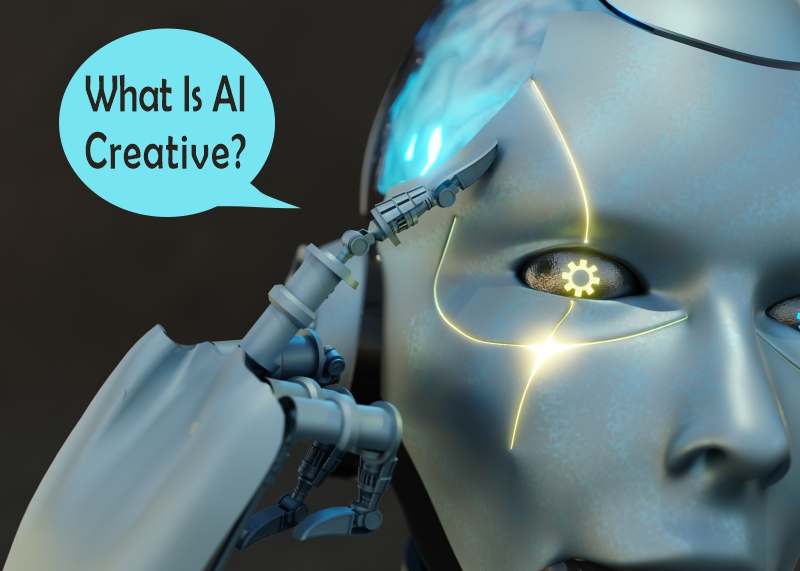
AI Creative refers to the use of artificial intelligence tools to help create visual, video, audio, written, or mixed-media content. For designers, this can include AI-generated images, videos, brand concepts, mood boards, product visuals, presentation graphics, UI ideas, social media posts, and creative campaign directions.
The important thing to understand is that AI does not replace creativity. It expands what creators can explore. A designer still needs to decide what looks good, what fits the brand, what communicates the idea clearly, and what should be edited before publishing.
Designers use AI Creative tools to:
- Create visual concepts faster.
- Generate images in specific styles.
- Produce short videos from text prompts.
- Edit and enhance existing visuals.
- Test different creative directions.
- Build mood boards and campaign ideas.
- Create social media and marketing assets.
- Speed up repetitive production work.
Whether you’re a beginner or an experienced designer, AI can support your creative process when you use it with clear direction and strong editing.
Before You Start: Think Like a Creative Director, Not Just a Tool User
Many beginners open an AI tool and immediately start generating random images. This can be fun, but it usually does not lead to professional results. The better approach is to think like a creative director.
Before creating anything, ask yourself:
- What is the goal of this visual?
- Who is the audience?
- Where will this image or video be used?
- What mood should it create?
- What style fits the brand or project?
- What should the AI avoid?
- Will this need text, editing, or layout work later?
This mindset helps you create more useful AI-generated content instead of random outputs that look impressive but do not solve a real design problem.
1. Choose the Right AI Creative Tool
The first step is choosing an AI tool that matches your creative goal. Not every AI platform is good for every task. Some tools are better for artistic images, some are stronger for realistic visuals, some work better for video, and others are designed for quick social media or design layouts.
Tools for AI Image Generation
- Midjourney — strong for artistic concepts, branding ideas, fantasy visuals, editorial-style images, and illustrations.
- DALL·E — useful for structured image generation, clean compositions, and prompt-based visual concepts.
- Stable Diffusion — flexible for custom models, style control, advanced workflows, and open-source experimentation.
- Adobe Firefly — helpful for professional creative workflows, commercial design projects, and Adobe ecosystem users.
Tools for AI Video Generation
- Runway — useful for text-to-video, video editing, visual effects, and motion experiments.
- Pika — helpful for short AI video clips, cinematic scenes, and creative motion tests.
- Kling AI — popular for realistic motion, character-based scenes, and visual storytelling experiments.
Tools for Mixed-Media Creation
- Canva AI — useful for social media graphics, presentations, simple layouts, and quick content creation.
- Figma AI — helpful for UI/UX workflows, interface ideas, components, and design systems.
- Artlist AI — useful for creators working with image, video, music, and production-focused creative assets.
If you are just starting, choose one image tool and one editing tool. Learn them well before jumping into five different platforms. Mastery is more valuable than constantly switching tools.
2. Learn the Anatomy of a Strong AI Prompt
A strong prompt is the foundation of good AI-generated content. A weak prompt produces random results. A clear prompt gives the AI direction.
A professional AI prompt usually includes:
- Subject: what the image or video should show.
- Style: the visual direction, such as editorial, cinematic, minimal, futuristic, realistic, or playful.
- Lighting: soft natural light, dramatic shadows, studio lighting, neon glow, sunset, or high contrast.
- Composition: close-up, wide shot, centered layout, top-down view, product shot, or empty space for text.
- Color palette: warm tones, pastel colors, dark premium palette, blue gradients, monochrome, or brand colors.
- Mood: calm, energetic, luxury, futuristic, friendly, mysterious, or professional.
- Restrictions: what the AI should avoid.
Weak Prompt Example
“Create a futuristic city.”
Better Prompt Example
“Create a futuristic neon city at night, cinematic lighting, wet streets with detailed reflections, wide-angle composition, deep blue and magenta color palette, realistic atmosphere, high contrast, no text, no watermark.”
The second prompt gives the AI more creative direction. It describes style, lighting, mood, color, composition, and restrictions.
3. Use Negative Prompts to Avoid Common AI Mistakes
A negative prompt tells the AI what you do not want in the result. This is especially useful when generating images with people, products, hands, text, architecture, or detailed scenes.
Common negative prompt terms include:
- No blur.
- No distortion.
- No extra limbs.
- No broken hands.
- No watermark.
- No random text.
- No low-quality details.
- No oversaturated colors.
- No messy background.
For example:
No blur, no distorted face, no extra fingers, no random text, no watermark, no low-quality details, no messy background.
Negative prompts are not magic, but they can improve results and reduce unwanted visual errors.
4. Use Seeds for More Consistent Results
Many beginners ignore seeds, but they can be very useful for consistency. A seed is a number that helps an AI model reproduce or vary a specific result.
Seeds can help you:
- Recreate a similar image style.
- Generate variations of the same concept.
- Keep visual consistency across a project.
- Build a series of related images.
- Test prompt changes without losing the original direction.
For example:
Seed: 49281812 — use the same seed across several images to keep a more consistent structure or visual direction.
Seeds are especially helpful when creating campaign visuals, character-based images, storyboards, or social media series where every image needs to feel connected.
5. Use Reference Images for Better Control
Text prompts are powerful, but reference images can give the AI much clearer direction. If you want a specific composition, color mood, pose, product style, or visual structure, references can help.
Reference-based workflows are useful for:
- Image-to-image generation: transforming an existing sketch, photo, or layout into a new visual.
- Style transfer: applying a similar mood, lighting, or texture to a new image.
- Character consistency: keeping a person or character more recognizable across variations.
- Product visuals: creating new scenes around a product reference.
- Storyboard frames: keeping camera angles and scenes more consistent.
When using references, make sure you have the right to use the original image, especially for commercial projects.
6. Improve Results With Advanced AI Controls
Once you understand basic prompting, you can start using more advanced controls. These features help you move from random generations to more intentional creative output.
Image-to-Image
Image-to-image lets you upload an existing image, sketch, photo, or composition and transform it with AI. This is useful when you want to keep the structure but change the style or mood.
Video-to-Video
Video-to-video tools can transform existing footage into a new style, add visual effects, or create stylized motion scenes. This is useful for music videos, reels, experiments, and concept previews.
ControlNet and Pose Control
ControlNet and similar tools help define pose, depth, structure, or layout. This gives you more control over composition and reduces random AI behavior.
Multi-Prompting
Multi-prompting allows creators to blend several ideas together. For example:
Nature-inspired design 0.7, futuristic technology 0.3, soft lighting, clean composition.
This kind of prompt can help balance different creative directions in one image.
7. Edit and Refine the AI Output
AI gives you a starting point. Editing makes it professional. The best creators do not publish raw AI output immediately. They refine it.
After generating an image or video, check:
- Are the details clean?
- Are hands, faces, products, and text correct?
- Does the image match the brand style?
- Is the composition strong?
- Does it need cropping?
- Does the color need correction?
- Does it need upscaling?
- Is the file ready for web, social media, or print?
AI Image Upscaling
AI upscaling can make images sharper and more usable for websites, presentations, thumbnails, or print previews.
Inpainting and Outpainting
Inpainting helps fix specific areas inside an image. Outpainting expands the image beyond its original borders, which is useful for banners, hero images, and social media crops.
Color Grading
Color grading helps make a set of visuals feel connected. You can use Photoshop, Lightroom, Canva, or other editing tools to create a more consistent final style.
Video Enhancement
For AI video, refinement may include stabilization, upscaling, trimming, color correction, sound design, and editing transitions.
A Simple AI Creative Workflow for Beginners
If you want better results, do not generate randomly. Use a repeatable workflow.
- Define the goal: decide whether you need a poster, thumbnail, storyboard, ad visual, product mockup, or video scene.
- Collect references: gather colors, styles, compositions, and examples that match your direction.
- Write a structured prompt: include subject, style, lighting, mood, composition, and restrictions.
- Generate several variations: create at least 5–10 options before choosing one.
- Select the strongest result: judge based on composition, clarity, style, and usefulness.
- Refine with AI controls: use image-to-image, inpainting, ControlNet, seeds, or references if needed.
- Edit manually: adjust color, crop, text, layout, and final details.
- Export correctly: prepare the image or video for web, social media, presentation, or client delivery.
- Save your prompt: document prompts, seeds, settings, and references for future projects.
This workflow helps you build consistency and avoid wasting time on random outputs.
AI Creative Tips for Better Results
Small improvements in your workflow can dramatically improve the quality of your AI-generated visuals.
- Use consistent style descriptions when creating a series of images.
- Create a personal AI style library with your best prompts, references, and settings.
- Test prompts in multiple models to compare results.
- Combine AI with traditional design tools instead of relying only on raw generations.
- Avoid over-stylizing if the project needs a clean professional look.
- Use references carefully to guide composition and mood.
- Check details before publishing, especially faces, hands, products, logos, and text.
- Keep your brand style consistent across all generated assets.
Common Mistakes Beginners Make With AI Creative Tools
AI tools are powerful, but beginners often make the same mistakes. Avoiding these will instantly improve your results.
- Writing vague prompts: “Make it cool” is not enough direction.
- Skipping references: visual references often produce better results than text alone.
- Publishing raw AI output: most images need editing before they look professional.
- Ignoring licensing: always check whether your AI-generated assets can be used commercially.
- Using too many styles at once: this can create messy results.
- Not saving prompts: without saved prompts, it is hard to recreate good results.
- Forgetting the audience: beautiful visuals are not useful if they do not fit the project goal.
Best Projects to Practice AI Creative Skills
If you are new to AI Creative, start with small practice projects. These will help you learn prompting, editing, consistency, and workflow structure.
- Instagram carousel visuals for one brand topic.
- YouTube thumbnail backgrounds with empty space for text.
- Product mockups for a fictional coffee, skincare, or tech brand.
- AI poster series using one consistent style.
- Storyboard frames for a short commercial concept.
- Website hero images for different business niches.
- Brand mood boards for a startup or personal brand.
The goal is not to create one perfect image. The goal is to learn how to guide AI toward a consistent creative result.
FAQ: AI Creative Tutorial for Beginners
What is AI Creative?
AI Creative is the use of artificial intelligence tools to create or improve visual, video, audio, written, or mixed-media content. Designers use it for images, videos, branding, mockups, campaigns, and creative workflows.
What is the best AI tool for beginners?
The best tool depends on your goal. Canva AI is simple for quick designs, Midjourney is strong for artistic visuals, Adobe Firefly works well for professional design workflows, and Runway is useful for AI video creation.
Do I need design skills to use AI Creative tools?
You can start without advanced design skills, but design fundamentals still matter. Layout, color, typography, composition, and visual hierarchy help you create better results with AI.
How do I write better AI prompts?
Use a clear structure: subject, style, lighting, mood, color, composition, format, and negative prompt. The more specific your direction, the better the output usually becomes.
Can AI replace designers?
AI can automate some tasks, but it does not replace creative direction, strategy, taste, problem-solving, and human judgment. Designers who learn AI can work faster and offer stronger creative solutions.
Can I use AI-generated images commercially?
It depends on the tool, license, subscription plan, and usage rights. Always check the platform’s commercial usage rules before using AI-generated content for clients, ads, products, or paid projects.
Conclusion: AI Creative Is a New Core Skill for Designers
Learning AI Creative tools is no longer just a trend. It is becoming a core skill for designers, creators, marketers, and digital professionals who want to work faster and create stronger visual content.
The best results come from combining AI with human creativity. AI can generate options, speed up production, and help you explore ideas. But your vision, editing, storytelling, and design judgment are what turn those outputs into professional creative work.
Start simple. Choose the right tool, write better prompts, use references, test seeds, refine your output, and build a repeatable workflow. Over time, you will develop your own AI creative style and a smarter way to produce high-quality visuals.
AI expands creativity. It does not replace it. The strongest results happen when human direction and AI speed work together.
Explore more AI tools, design tutorials, and creative workflow guides on DesignRise.
Discover more from DesignRise
Subscribe to get the latest posts sent to your email.