






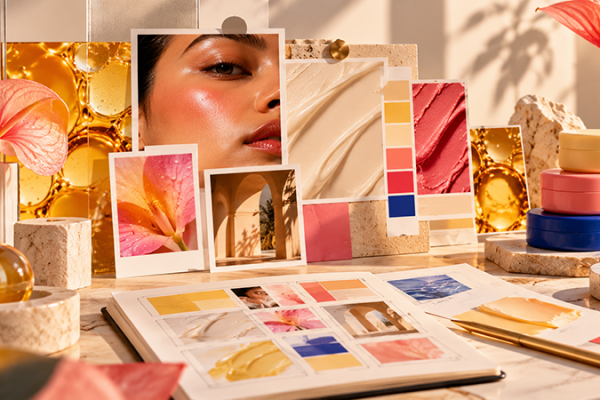



Free Photoshop gradients are an easy way to add depth, color, atmosphere, and visual energy to a design without building every color transition manually.
Gradients can be used in backgrounds, typography, UI elements, posters, social media graphics, branding, photo editing, digital illustration, packaging, and many other creative projects.
This updated DesignRise collection combines several useful resources from the original article with newer free Photoshop gradient packs that are still available today.
The collection includes:
- Pastel gradients.
- Spring color palettes.
- Purple gradients.
- Sunset gradients.
- Gold gradients.
- Holographic and iridescent gradients.
- Retro gradients.
- Sky gradients.
- Metallic gradients.
- Gradient Maps for photo editing.
- General-purpose Photoshop gradients.
- Gradients for digital painting and illustration.
Important: free download availability does not automatically mean unrestricted commercial use. Always check the current license on the original resource page before using a gradient pack in paid client work, advertising, products for sale, templates, or other commercial projects.
Explore More DesignRise Resources:
- Free Photoshop Gradients for Designers
- Free Abstract Photoshop Brushes for Creative Design
- Free Old Paper Texture
- 13 Free Grunge Style Texture Sets
What Are Photoshop Gradients?
A Photoshop gradient is a smooth transition between two or more colors. Instead of filling an area with one flat color, a gradient blends colors gradually to create more depth and visual interest.
Photoshop gradients can be applied to backgrounds, text, shapes, photographs, layer styles, masks, and other design elements.
Common gradient types include:
- Linear gradients – colors transition in a straight direction.
- Radial gradients – colors spread outward from a central point.
- Angle gradients – colors rotate around a center.
- Reflected gradients – the transition is mirrored.
- Diamond gradients – colors spread outward in a diamond shape.
The same gradient preset can look completely different depending on its angle, scale, position, opacity, blending mode, and the colors underneath it.
Quick Comparison: Which Photoshop Gradient Pack Should You Choose?
12 Free Photoshop Gradient Packs
1. Pastel Gradients for Photoshop

Best for: soft branding, backgrounds, invitations, lifestyle graphics, social media designs, and gentle color combinations.
This pastel gradient pack appeared in the original DesignRise collection and is still available through an active archive page from Saltaalavista Blog.
The pack focuses on soft pastel color transitions that are useful when you want color without overpowering typography, photography, or other important design elements.
Why Keep This Original Resource?
Pastel gradients remain useful across many styles, and this is one of the original resources from the DesignRise article that still has a visible download source.
2. Spring Gradients by MysticEmma
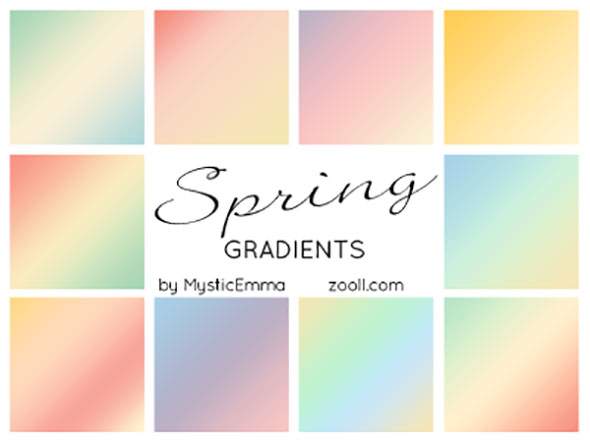
Best for: spring graphics, invitations, floral compositions, lifestyle designs, seasonal campaigns, and colorful backgrounds.
Spring Gradients is another original resource from the older DesignRise selection that continues to be referenced online through its original DeviantArt artwork.
Fresh greens, pinks, yellows, and other light seasonal tones work particularly well for spring-themed designs where a dark or metallic gradient would feel too heavy.
Try It Beyond Seasonal Design
Spring palettes can also work well for beauty branding, children’s graphics, social media layouts, and colorful editorial compositions.
3. 20 Purple Photoshop Gradients

Best for: fantasy artwork, beauty graphics, dark UI backgrounds, posters, editorial design, gaming artwork, and purple-themed branding.
This is another resource retained from the original DesignRise article.
A focused single-color family can be more practical than a random gradient library when you already know the visual direction of the project.
Use Purple Gradients for Depth
Combining deep violet shadows with lighter lavender or magenta highlights can give flat shapes and backgrounds much more visual depth.
4. 200 Sunset Photoshop Gradients
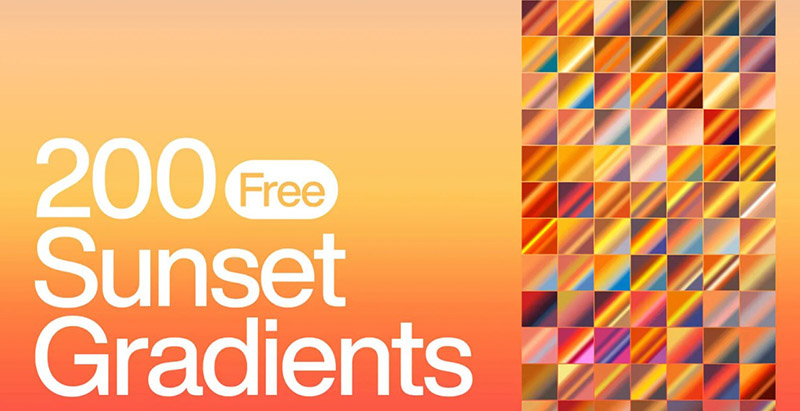
Best for: warm backgrounds, travel graphics, social posts, posters, editorial layouts, and atmospheric designs.
This collection contains a large selection of sunset-inspired Photoshop gradients.
The combinations include warm colors such as orange, pink, red, purple, and yellow, making the pack useful when you want to create a stronger sense of warmth and atmosphere.
Keep Text Readable
Bright sunset gradients can compete with typography. If necessary, darken the background slightly or place a subtle overlay between the gradient and the text.
5. 200 Gold Photoshop Gradients
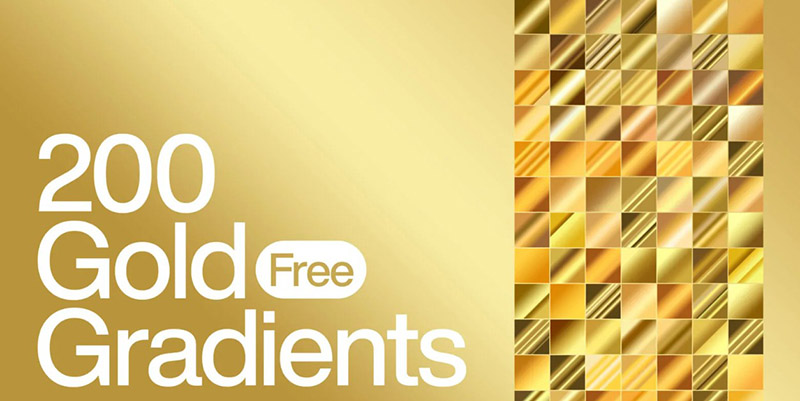
Best for: luxury branding, premium packaging, certificates, invitations, typography, logos, and beauty graphics.
A convincing gold effect usually requires more than one yellow tone. The impression of metal comes from contrast between deep shades, midtones, and bright highlights.
This collection provides a large number of gold-inspired transitions that can save time when creating metallic effects manually.
Where Gold Gradients Work Best
- Luxury logos.
- Wedding stationery.
- Premium packaging.
- Beauty and fashion graphics.
- Award designs.
- Decorative typography.
6. 200 Holographic & Iridescent Photoshop Gradients
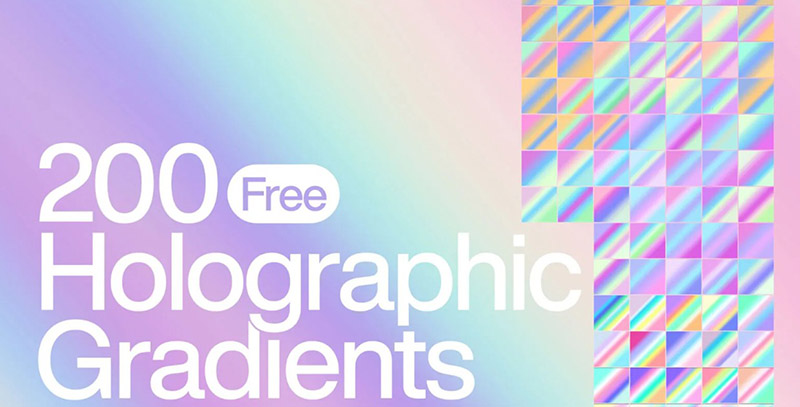
Best for: Y2K graphics, futuristic design, album artwork, fashion, experimental typography, posters, and social content.
Holographic gradients use multiple shifting colors to create an iridescent or reflective appearance.
They are particularly useful when a project needs a more experimental visual language than a traditional two-color gradient can provide.
Do Not Overload the Composition
Holographic gradients already contain a lot of visual information. They usually work best with simpler typography and cleaner layouts.
7. 200 Retro Photoshop Gradients
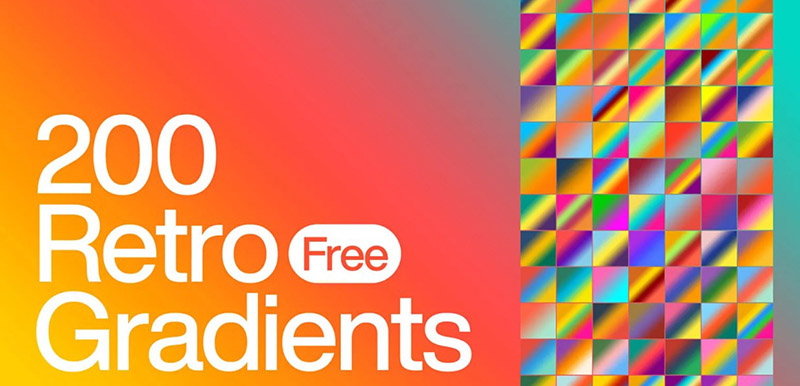
Best for: retro posters, vintage-inspired branding, social graphics, nostalgic layouts, album artwork, and editorial design.
This free collection focuses on retro-inspired color combinations rather than modern neon or holographic effects.
It is useful when you want an older visual mood without manually experimenting with dozens of color combinations.
Combine With Texture
Retro gradients can look even more convincing when combined carefully with paper grain, print texture, or subtle noise.
8. Hypercolor Gradient Maps by Texturelabs

Best for: photo editing, bold portraits, pop-art effects, experimental posters, album artwork, and dramatic color grading.
This free Texturelabs pack includes seven Photoshop Gradient Map presets created for strong, highly saturated color effects.
Gradient Maps behave differently from ordinary background gradients because their colors are assigned according to the tonal values of the image.
Use Adjustment Layers
Apply Gradient Maps as adjustment layers whenever possible so you can continue editing opacity, masks, blending modes, and individual colors.
9. FREE PS Gradients by Marc Brunet
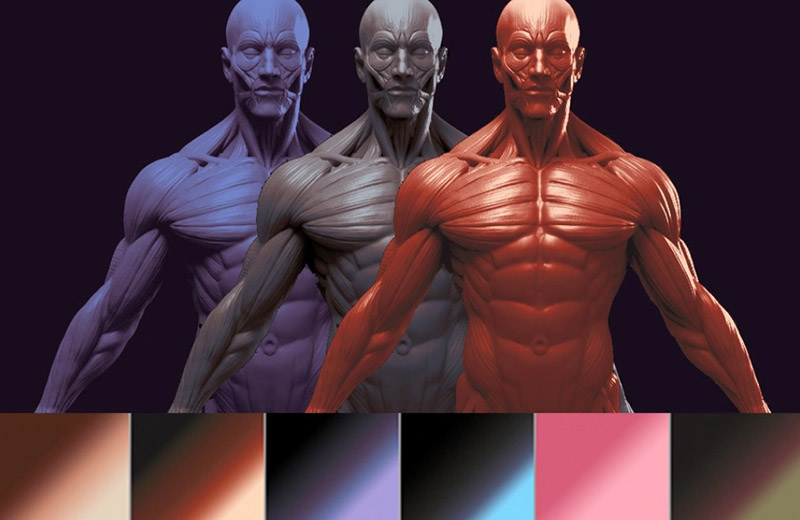
Best for: digital painting, concept art, illustration, grayscale-to-color workflows, and material studies.
This free collection includes 12 Photoshop gradients created for coloring artwork quickly.
The pack includes gradients inspired by materials such as skin, leather, metal, rock, and plastic.
Useful Beyond Graphic Design
This is a good reminder that Photoshop gradients are not limited to website backgrounds or typography. They can also become an important part of a digital painting workflow.
10. 30 Free Sky Gradients for Photoshop
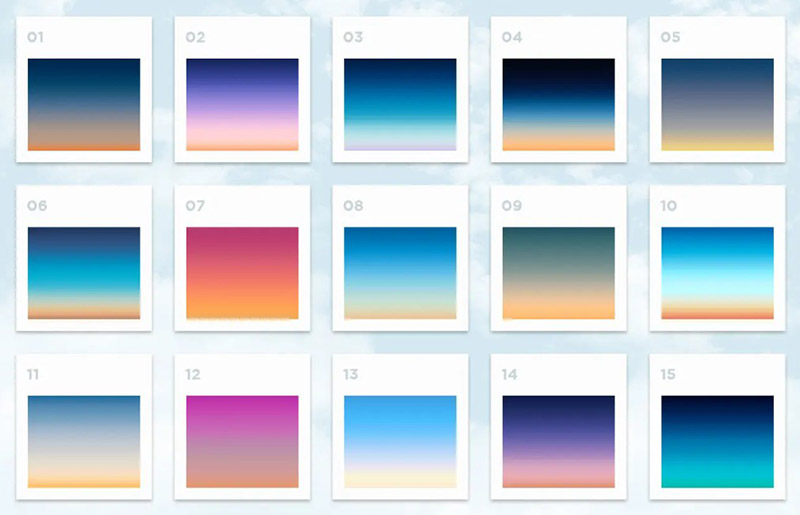
Best for: landscapes, sky effects, photo editing, posters, packaging, invitations, and natural background colors.
This collection contains 30 gradients created from high-resolution photographs of skies from different locations.
The colors can be useful for sky replacements or as a starting point for compositions that need more natural color transitions.
The pack includes both GRD and ASL files.
Check the Free License
The free version currently requires attribution to MediaLoot for personal and commercial projects. Always review the current license before publishing commercial work.
11. 30 Original Photoshop Gradients
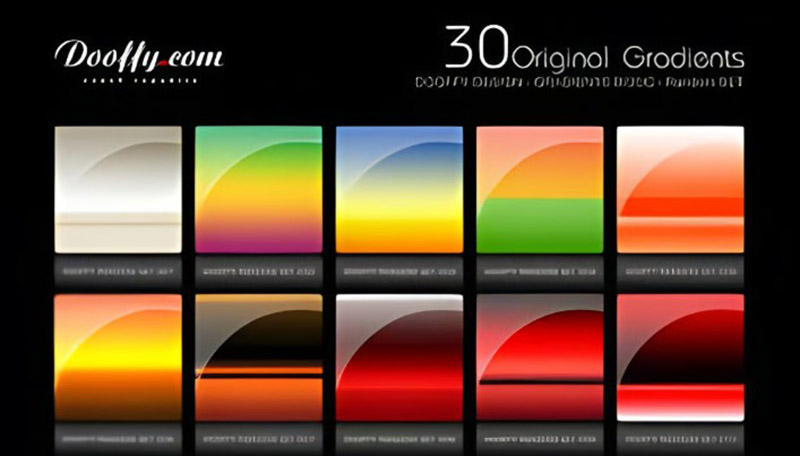
Best for: backgrounds, web graphics, buttons, typography, abstract designs, and general Photoshop work.
This is a useful general-purpose collection containing 30 Photoshop gradients in GRD format.
Unlike packs built around one specific color, this set provides a wider variety of transitions for everyday design work.
A Good Everyday Pack
Specialized gradient collections are useful when you already have a defined style. A mixed collection like this can be more practical when you are still exploring different directions.
12. 50 Golden Metal Photoshop Gradients
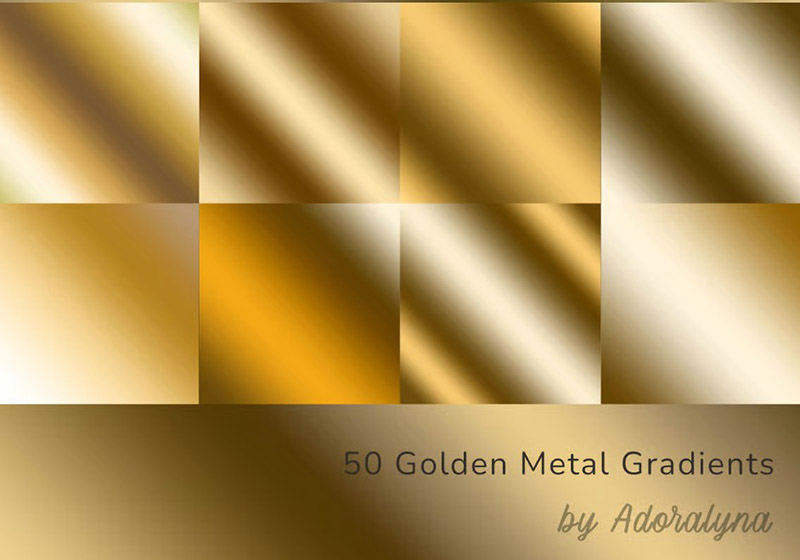
Best for: metallic typography, luxury branding, logos, premium packaging, certificates, badges, and decorative Photoshop effects.
This free collection contains 50 golden metallic gradients in GRD format.
The pack includes different variations of polished and darker gold, giving you more control than trying to create a metallic effect from one simple yellow gradient.
Metal Needs Contrast
Metallic effects usually look more realistic when bright highlights sit next to much darker tones. If a gold gradient feels flat, try changing its scale or direction before increasing saturation.
What Is a GRD File?
A GRD file is a Photoshop gradient preset file. It can contain one saved gradient or an entire collection of gradient presets.
GRD files are useful because they allow you to reuse color transitions instead of rebuilding the same gradient manually for every project.
You can use gradient preset libraries to:
- Maintain consistent brand colors.
- Save frequently used color combinations.
- Create reusable design systems.
- Move presets between Photoshop installations.
- Organize gradients by project or visual style.
How to Install Photoshop Gradients
- Download the gradient pack.
- Extract the ZIP archive if necessary.
- Locate the .GRD file.
- Open Adobe Photoshop.
- Open the Gradients panel.
- Open the panel menu.
- Select the option to import or load gradients.
- Choose the downloaded GRD file.
- The imported gradients should appear in the Gradients panel.
Photoshop also allows gradient presets to be managed through Edit > Presets > Preset Manager.
For current instructions, see Adobe’s guide to managing Photoshop presets.
How to Use Gradients in Photoshop
Gradient Tool
Select the Gradient Tool and drag across the canvas. The direction and length of the drag affect the position and transition of the colors.
Gradient Fill Layer
A Gradient Fill layer gives you an editable gradient that can be adjusted later without permanently changing the underlying artwork.
Gradient Overlay
Gradient Overlay is useful for applying gradients to text, shapes, logos, icons, and other layer content.
Gradient Map
A Gradient Map assigns colors according to the brightness values of an image, making it particularly useful for photo color grading and experimental image effects.
Photoshop Gradients vs. Gradient Maps
A regular Photoshop gradient creates a transition between colors across an area.
A Gradient Map uses the brightness values of an existing image to decide where each gradient color should appear.
For example:
- A normal gradient can create a pink-to-purple website background.
- A Gradient Map can assign dark purple to the shadows of a photograph and pale pink to its highlights.
Both techniques use gradients, but they solve different design problems.
What Can You Create With Photoshop Gradients?
Website and UI Backgrounds
A subtle gradient can add depth to an interface without requiring complex illustration or texture.
Typography
Gradient Overlays can create metallic, holographic, sunset, neon, or dimensional text effects.
Social Media Graphics
Gradients can create fast backgrounds for quotes, announcements, promotions, products, and campaign graphics.
Branding
A consistent gradient system can become part of a recognizable visual identity when used carefully across multiple brand assets.
Photo Editing
Gradient Maps can dramatically change the mood of a photograph while remaining editable when applied as adjustment layers.
Posters and Album Covers
Strong gradients can become one of the main visual elements in music, fashion, event, and experimental graphic design.
How to Avoid Gradient Banding
Gradient banding happens when a transition that should look smooth appears as visible strips or steps.
To reduce banding:
- Use sufficient bit depth when possible.
- Enable Dither when appropriate.
- Avoid excessive compression.
- Use subtle noise when necessary.
- Check large gradients at the final output size.
- Avoid stretching an extremely narrow tonal range across a very large area.
Common Photoshop Gradient Mistakes
1. Using Too Many Colors
A gradient does not need five highly saturated colors to look interesting. Simple transitions often work better behind text and photography.
2. Poor Text Contrast
A visually attractive gradient is not successful if the typography placed over it becomes difficult to read.
3. Ignoring Gradient Direction
The position of light and dark areas influences visual hierarchy and can affect where the viewer looks first.
4. Making Gold Too Yellow
Metallic gold needs tonal contrast. One flat bright yellow rarely looks like real metal.
5. Overusing Holographic Effects
Highly colorful gradients usually work better when typography, imagery, and other decorative elements remain simpler.
6. Ignoring Banding
Always inspect large gradient areas for visible color steps before exporting a final design.
7. Assuming Every Free Pack Has the Same License
Free download availability and permission for commercial use are separate issues.
8. Keeping Broken Resource Links
Older Photoshop resource pages often disappear, move, or change ownership. Resource collections should be reviewed periodically.
Free Photoshop Gradient Licensing Checklist
- Is the gradient pack still free?
- Is personal use permitted?
- Is commercial use permitted?
- Is attribution required?
- Can it be used in client work?
- Can it be used in advertising?
- Can the colors be modified?
- Can it be used in products for sale?
- Can the original GRD file be redistributed?
- Does the license prohibit reselling the original resource?
Frequently Asked Questions About Free Photoshop Gradients
What are Photoshop gradients?
Photoshop gradients are smooth transitions between two or more colors that can be used on backgrounds, text, shapes, photographs, masks, and other design elements.
What file format do Photoshop gradients use?
Traditional Photoshop gradient preset collections commonly use the .GRD file format.
How do I import a GRD file into Photoshop?
Open the Gradients panel in Photoshop and use the panel menu to import or load the downloaded GRD file.
Can Photoshop gradients be edited?
Yes. Colors, stops, opacity, angle, scale, position, interpolation, and other properties can be adjusted depending on how the gradient is applied.
Can free Photoshop gradients be used commercially?
Only when the license for the individual gradient pack permits commercial use. Always check the original source page.
What is the difference between a gradient and a Gradient Map?
A normal gradient creates a color transition across an area. A Gradient Map assigns colors according to the tonal values of an existing image.
Why does my Photoshop gradient show visible lines?
This effect is known as banding. It can be caused by limited tonal range, bit depth, compression, export settings, or the way the gradient was created.
Can I use gradients on text?
Yes. Gradient Overlay is one of the easiest ways to add an editable gradient to Photoshop typography.
Are old GRD gradient files still useful?
Many older GRD files can still be useful, but download availability, compatibility, and licensing should be checked before using them in a current workflow.
Final Thoughts
The best free Photoshop gradients are not simply the brightest or most colorful presets.
A good gradient should support the content and help create the right mood for the project.
Pastel gradients can feel soft and modern. Sunset colors create warmth. Purple gradients can feel dramatic or imaginative. Gold and metallic gradients work well for premium designs, while holographic palettes create a more experimental and futuristic appearance.
For photography and digital artwork, Gradient Maps provide another way to use color by assigning gradient tones directly to the highlights, midtones, and shadows of an image.
Start with one of the free gradient packs above, then customize the color, opacity, direction, scale, interpolation, and blending according to your own project.
A useful gradient preset should speed up your workflow without making every design look the same.
For more Photoshop brushes, textures, gradients, mockups, and free design resources, continue exploring DesignRise.