





Free retro text styles for Photoshop are an easy way to transform ordinary typography into vintage, 3D, embossed, 1980s-inspired, or old-school lettering without building every effect manually.
Instead of creating multiple shadows, bevels, gradients, textures, outlines, and highlights from scratch, you can open a ready-made PSD, replace the sample text, and customize the colors to match your own project.
This updated DesignRise collection includes 8 free retro Photoshop text effects for posters, logos, album covers, packaging, social media graphics, advertising, titles, and other typography-based projects.
You will find styles inspired by:
- Classic vintage typography.
- Old-school advertising.
- Bold 3D lettering.
- Retro signage.
- 1980s typography.
- Embossed text.
- Vintage poster design.
- Retro-futuristic artwork.
Important: most of these resources are editable PSD text effects rather than traditional Photoshop ASL layer-style files. In many cases you simply replace the text inside a Smart Object and Photoshop automatically applies the complete effect.
Licensing note: always check the current license on the original source page before using a free text effect in commercial client work, advertising, merchandise, templates, or products for sale.
Explore More DesignRise Resources:
- Top Best Bold Fonts Collection
- FREE Photoshop Actions for Stunning Photo Effects
- New Free PSD Mockups for Designers
- Free Light Leak Photoshop Actions
What Is a Retro Photoshop Text Effect?
A retro Photoshop text effect is a pre-designed typography treatment inspired by visual styles from previous decades.
Depending on the resource, the effect may combine:
- 3D extrusion.
- Drop shadows.
- Bevels and embossing.
- Gradients.
- Vintage color palettes.
- Textures and grain.
- Outlines.
- Highlights.
- Distressed details.
- Chrome or metallic surfaces.
Many PSD text effects use Photoshop Smart Objects. You replace the original placeholder text with your own wording, save the Smart Object, and Photoshop automatically rebuilds the finished typography effect.
Quick Comparison: Which Retro Text Style Should You Choose?
8 Free Retro Text Styles for Photoshop
1. Retro Text Effect by GraphicBurger
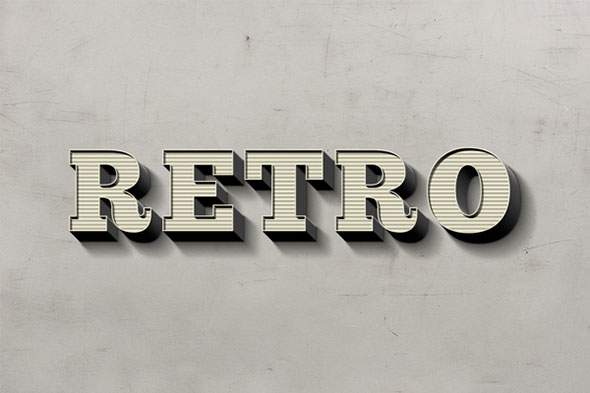
Best for: vintage posters, advertising, logos, headlines, packaging, badges, and bold typography.
This classic GraphicBurger resource is a layered PSD with Smart Objects. You can replace the sample wording with your own text or shape and automatically apply the bold dimensional vintage effect.
The PSD is compatible with Photoshop CS4 and newer versions and is designed to make distinctive retro typography without manually rebuilding every shadow and layer effect.
Why Try It?
This is one of the most versatile options in the collection because the style is clearly retro without being limited to one specific decade or theme.
2. Charlie Text Effect

Best for: old-fashioned headlines, vintage branding, posters, labels, packaging, editorial graphics, and signage.
Charlie is an embossed retro-style Photoshop text effect with a strong old-fashioned character.
The layered PSD uses a Smart Object, so the typography remains easy to replace. GraphicBurger also notes that the colors can be changed, allowing you to adapt the original vintage palette to your project.
Choose a Suitable Font
Bold display fonts usually work better than very thin typefaces because they provide enough surface area for the bevel, shadow, and dimensional details to remain visible.
3. Free 3D Retro Text Effect PSD

Best for: vintage magazine covers, music artwork, album covers, posters, advertising, and nostalgic typography.
This free Photoshop 3D Retro Text Effect from Unblast combines dimensional typography with a strong vintage color palette.
The colors can be customized, including the background, which makes it easier to adapt the original design to different branding and poster projects.
Try Different Color Combinations
You do not have to keep the original palette. Changing the background, main lettering, and shadow colors can dramatically change the personality of the same PSD effect.
4. Old School Retro PSD Text Effect
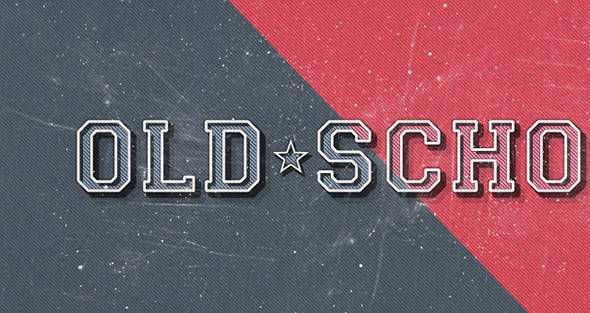
Best for: vintage logos, poster titles, packaging, classic advertising, labels, and retro branding.
This Pixeden effect combines a subtle old-school appearance with layered Photoshop styling.
The resource is useful when you want a vintage result that does not look as extreme as neon 1980s or heavily distressed typography.
Best for Classic Retro Projects
This type of style works particularly well with diner-inspired graphics, vintage packaging, badges, traditional advertising, and old-fashioned logo concepts.
5. Retro Text Effect Vol.3

Best for: bold headlines, logos, promotional graphics, posters, banners, and title treatments.
Retro Text Effect Vol.3 uses a bold 3D treatment designed to remain visually strong even when the typography is displayed at different sizes.
The dimensional effect can help a short title or logo become the main focal point of a composition.
Keep Your Wording Short
Large 3D effects usually work better with shorter headlines. Long paragraphs become difficult to read once shadows, outlines, bevels, and extrusion are added.
6. Boulevard Retro Text Effect

Best for: vintage signage, elegant titles, labels, restaurant branding, packaging, posters, and logos.
The Boulevard Retro Text Effect uses a Smart Layer workflow to turn ordinary text into a polished vintage design.
Compared with aggressive 1980s styles, Boulevard has a more classic and refined appearance, making it easier to use for branding-oriented projects.
Good for Vintage Signage
Pair this effect with decorative display fonts, badge layouts, borders, or simple vintage illustrations for a more complete retro-sign aesthetic.
7. Free 3D 80s Text Effect

Best for: 1980s posters, music artwork, movie titles, logos, YouTube graphics, gaming designs, and retro-futuristic projects.
This Hyperpix effect is specifically inspired by 1980s visual culture and combines vivid color with strong 3D typography.
The PSD is supplied at 2200 × 1600 px, supports both 72 and 300 DPI workflows, and is compatible with Photoshop CS3 and newer versions.
Hyperpix currently lists this particular resource as free for personal and commercial use.
Perfect for an 80s Direction
If your project needs an unmistakable 1980s aesthetic rather than a general vintage look, this is one of the strongest options in the collection.
8. Retro Text Effect #2 by GraphicBurger

Best for: posters, titles, vintage graphics, packaging, logos, event graphics, and playful retro typography.
This GraphicBurger resource transforms plain typography into a distinctive vintage composition using an editable Smart Object.
The PSD is layered, compatible with Photoshop CS4 and newer versions, and allows you to replace the original sample text without manually recreating the complete effect.
Experiment With Different Fonts
The same PSD can look very different when applied to serif, sans-serif, condensed, rounded, or decorative display fonts, so it is worth testing several typefaces before choosing the final result.
Retro Text Effects vs. Photoshop Layer Styles
PSD Text Effects
A PSD text effect usually contains a complete composition with Smart Objects, adjustment layers, shadows, textures, backgrounds, and other design elements.
You normally open the PSD, edit the Smart Object, replace the text, save it, and return to the main document.
Photoshop Layer Styles
A traditional Photoshop layer style is normally saved as an ASL preset or applied directly through the Layer Style panel.
Layer styles may include:
- Bevel and Emboss.
- Stroke.
- Inner Shadow.
- Drop Shadow.
- Gradient Overlay.
- Color Overlay.
- Pattern Overlay.
- Outer Glow.
PSD templates are often more visually complex, while simple layer styles can be faster to apply to many separate text layers.
What Can You Create With Retro Photoshop Text Styles?
Vintage Posters
Retro typography can quickly establish the decade, mood, and visual direction of a poster.
Music and Album Artwork
1970s, 1980s, synthwave, rock, disco, and vintage-inspired music projects often rely heavily on distinctive title typography.
Logos
A retro text effect can help visualize how a logo might look in a finished vintage composition before you build a permanent custom version.
Packaging
Old-school typography can work well for food, beverage, cosmetic, fashion, handmade, and heritage-inspired packaging.
Social Media Graphics
Bold retro headlines are useful for promotional posts, event announcements, music releases, sales, and themed campaigns.
YouTube Thumbnails
High-contrast 3D and 80s typography can create strong titles that remain visible at smaller thumbnail sizes.
Event Flyers
Retro text effects are especially suitable for music events, themed parties, vintage markets, exhibitions, festivals, and creative promotions.
How to Edit a Retro PSD Text Effect in Photoshop
- Download the PSD resource from the original source.
- Extract the ZIP archive if necessary.
- Open the PSD file in Adobe Photoshop.
- Find the editable Smart Object layer in the Layers panel.
- Double-click the Smart Object thumbnail.
- Replace the sample wording with your own text.
- Adjust the font and size if necessary.
- Save the Smart Object.
- Return to the main Photoshop document.
- Wait for Photoshop to update the effect.
- Customize colors, shadows, textures, or background layers if needed.
- Export your finished typography as JPG, PNG, or another suitable format.
How to Get Better Results With Retro Text Effects
Use Bold Display Fonts
Heavy typography usually gives 3D extrusion, bevels, textures, and outlines more room to remain visible.
Do Not Use Too Much Text
These effects work best for titles, logos, and short phrases rather than paragraphs.
Match the Font to the Era
A 1980s chrome effect and a 1950s diner-style effect usually require very different typography.
Customize the Colors
Do not assume the default colors are the only option. Adjust the palette so the effect fits the rest of your composition.
Check Readability
Strong shadows, outlines, textures, and 3D extrusion can sometimes reduce letter clarity.
Keep Enough Contrast
Make sure the text remains clearly separated from the background.
Scale Carefully
Some Photoshop effects are designed at a specific resolution. Extreme resizing can change the appearance of textures, shadows, or strokes.
Common Retro Typography Mistakes
1. Choosing the Wrong Font
A beautiful effect can still look wrong if the underlying typeface does not match the intended period or design style.
2. Adding Too Many Effects
Combining 3D extrusion, glow, multiple outlines, textures, gradients, and heavy shadows can make typography difficult to read.
3. Using Long Sentences
Complex retro effects are usually more effective on short titles.
4. Ignoring the Background
The typography and background should work together rather than compete for attention.
5. Keeping the Default Colors Every Time
Changing the original palette can help a popular free template feel more unique.
6. Stretching the Text
Do not distort the original font proportions unnecessarily. Adjust size, tracking, or choose a more suitable font instead.
7. Ignoring Small-Size Readability
A title that looks impressive on a large Photoshop canvas may become unreadable when used as a small social media graphic or thumbnail.
8. Ignoring the License
Free download availability and commercial usage rights are separate issues. Always check the original creator’s current terms.
Free Photoshop Text Effect Licensing Checklist
- Is the PSD still available for free?
- Is personal use permitted?
- Is commercial use permitted?
- Is attribution required?
- Can it be used for client projects?
- Can the finished design appear in advertising?
- Can it be used on merchandise?
- Can the PSD itself be redistributed?
- Can the effect be included in another template?
- Are fonts or supporting assets licensed separately?
Frequently Asked Questions About Retro Photoshop Text Styles
What are retro text styles for Photoshop?
Retro text styles are typography effects inspired by design trends from previous decades. They can include vintage colors, shadows, 3D extrusion, textures, outlines, bevels, chrome effects, and other nostalgic visual treatments.
What file format do Photoshop text effects use?
Many complex text effects are distributed as layered PSD files. Traditional Photoshop layer-style presets may also use the ASL format.
What is a Smart Object text effect?
A Smart Object text effect lets you replace placeholder text inside a separate editable layer while Photoshop preserves the complete effect in the main PSD.
Can I change the text in these PSD files?
Yes. The resources in this collection are designed to let you replace the sample text with your own wording.
Can I change the colors?
In many PSD templates you can modify gradient overlays, color fills, adjustment layers, backgrounds, shadows, and other effect components.
Which fonts work best with retro text effects?
Bold display fonts, condensed typefaces, decorative serif fonts, and fonts inspired by specific historical periods usually work best.
Can retro text effects be used for logos?
Yes, especially for concept presentations and promotional artwork. However, for a final scalable logo, you may eventually want to recreate the core lettering as vector artwork.
Can these effects be used for commercial projects?
Only when the license of the individual resource allows commercial use. Always verify the current terms on the original source page.
Do I need Adobe Photoshop?
These PSD templates are designed primarily for Adobe Photoshop, especially when they rely on Smart Objects and Photoshop-specific layer effects.
Why does my effect look different from the preview?
The final appearance can change depending on the font, text length, Photoshop version, document size, scale, and any fonts or textures that may need to be installed separately.
Final Thoughts
The best free retro text styles for Photoshop make it possible to create detailed vintage typography without spending hours building every shadow, gradient, texture, and 3D layer manually.
Classic old-school styles work well for branding, packaging, and vintage advertising, while bold 1980s effects are ideal for posters, music artwork, gaming graphics, and retro-futuristic designs.
Use the supplied PSD as a starting point, replace the text through Smart Objects, experiment with different fonts, customize the colors, and make sure the finished typography remains easy to read.
A strong retro text effect should capture the personality of an era while still supporting the message of your modern design.
For more Photoshop effects, fonts, mockups, actions, brushes, textures, and free design resources, continue exploring DesignRise.