









Free Photoshop color actions are one of the fastest ways to experiment with color grading, correct flat tones, add contrast, create cinematic moods, or develop a more consistent look across a series of photographs.
Instead of rebuilding the same Curves, Color Balance, Gradient Map, saturation, and tonal adjustments for every photo, Photoshop actions can replay a prepared sequence of edits automatically.
This updated DesignRise collection includes 8 free Photoshop color actions and color-grading packs for portraits, landscapes, lifestyle photography, travel photos, social media images, and creative editing.
You will find effects for:
- General color correction.
- Color balance.
- Warm and cool tones.
- Retro and vintage color.
- Split toning.
- Bright and airy photography.
- Cinematic color grading.
- Soft color enhancement.
- Portrait color correction.
Important: color actions should be treated as editable starting points. The same action can look completely different on two photographs because exposure, white balance, skin tone, lighting, and the original color palette all affect the final result.
Licensing note: a free download does not automatically guarantee unrestricted commercial use. Check the current license on the original source page before using an action for paid client work, advertising, commercial photography, or products for sale.
Explore More DesignRise Resources:
- Photoshop Actions for Vintage Effects
- Free Light Leak Photoshop Actions
- Free Photoshop Retouching Actions
- Photoshop Actions for Your Work
What Are Photoshop Color Actions?
A Photoshop action is a recorded sequence of commands that can be replayed automatically on another image.
Color actions can include adjustments such as:
- Curves.
- Levels.
- Color Balance.
- Hue and Saturation.
- Selective Color.
- Gradient Maps.
- Brightness and Contrast.
- Blend modes.
- Color Lookup adjustments.
The advantage is speed and consistency. Instead of remembering every adjustment used on one photograph, you can replay the same workflow and then customize the result.
Quick Comparison: Which Free Photoshop Color Action Should You Choose?
8 Free Photoshop Color Actions
1. Action 01 – Free Photoshop Color Action

Best for: portraits, lifestyle photography, fashion images, creative color grading, and experimental edits.
This resource appeared in the original DesignRise collection and is still referenced through its original DeviantArt artwork.
The action changes the overall color relationship of the photograph rather than simply increasing saturation, making it useful for experimenting with a different visual mood.
Use It as a Creative Grade
If the effect changes skin tones too strongly, reduce the opacity of the generated layers or mask the effect away from important facial areas.
2. Photoshop Action – Bright Eyes

Best for: portraits, beauty photography, fashion, close-up photography, and headshots.
Bright Eyes was included in the original DesignRise article and continues to be referenced in Photoshop-action collections.
Unlike a full-image color grade, this action focuses on a smaller but important part of portrait color: the eyes.
Keep Eye Color Natural
Eye enhancement should remain believable. Avoid making the whites of the eyes completely white or increasing iris saturation until it no longer matches the lighting in the photograph.
3. Photoshop Old Tones Actions

Best for: vintage portraits, lifestyle images, travel photography, faded film looks, and nostalgic color grading.
The Old Tones collection is another resource preserved from the original DesignRise article.
These types of actions reduce the clean digital appearance of a photograph and shift the image toward softer, older-looking color palettes.
Watch Shadow Detail
Vintage effects can reduce contrast or darken shadow areas. Check hair, clothing, and background details before accepting the default result.
4. 15 Free Color Grading Photoshop Actions by Spoon Graphics

Best for: portraits, landscapes, travel photography, lifestyle images, social media, and general color experimentation.
This is one of the strongest resources from the original article to keep. The collection contains 15 different color-grading effects.
The pack is particularly useful if you do not know exactly which color direction you want before editing. Instead of committing to one style, you can test several different grades on the same photograph.
Compare Several Looks
Duplicate the image or use Photoshop history so you can compare several actions side by side instead of judging each effect from memory.
5. 140 Free Photoshop Color Actions by FixThePhoto
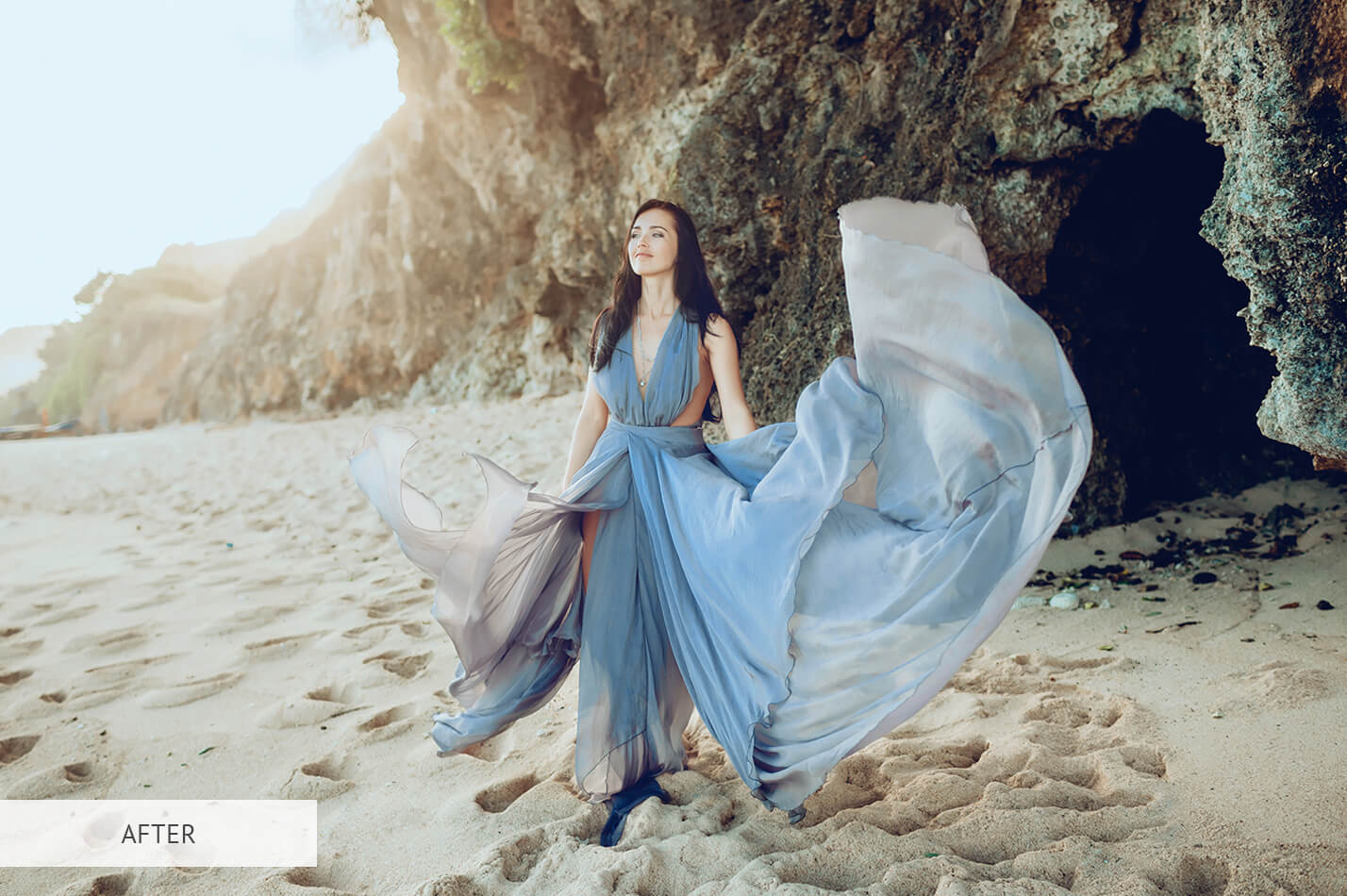
Best for: portraits, weddings, landscapes, fashion, family photography, social media images, and general color correction.
This large FixThePhoto collection currently includes 140 free Photoshop color actions covering a wide range of color-correction and creative-grading styles.
Available effects include:
- Aqua.
- Bright Colors.
- Creative.
- Hard Contrast.
- Ultra Violet.
- Warm Light.
- Daylight.
- Cool.
- Warm.
- Classic.
The variety makes this collection useful when you want to compare several color directions instead of relying on one single correction action.
Why Try It?
Because the collection includes warm, cool, contrast, daylight, landscape, portrait, and creative color options, it can serve as a general-purpose Photoshop color toolkit for many different types of photography.
6. 5 Free Split Tone Photoshop Actions
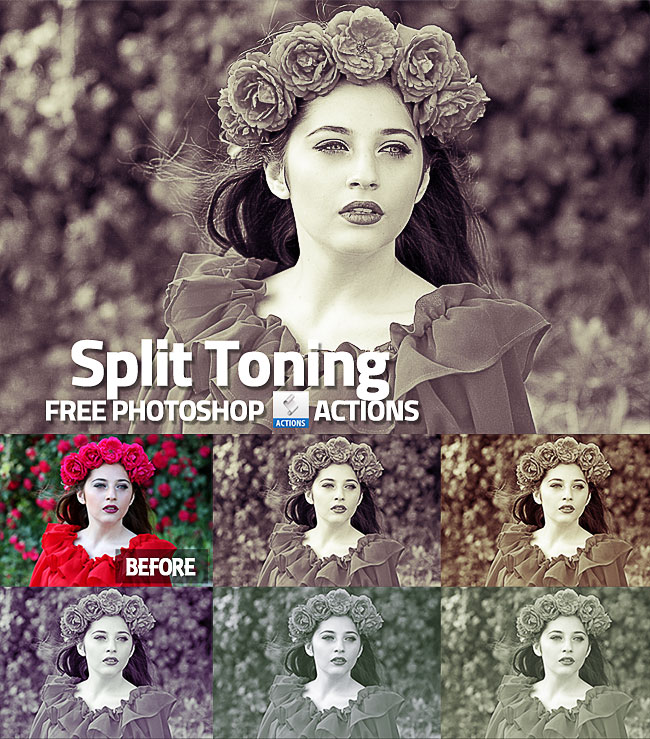
Best for: vintage color grading, creative portraits, editorial photography, landscapes, and stylized photo effects.
This PSDDude pack includes five free split-toning actions. Split toning applies different color directions to darker and lighter areas of an image, which can create much more interesting results than applying one flat color cast to the entire photograph.
The adjustments remain editable, so you can modify the Gradient Map and combine different effects.
Why Split Toning Works
A photograph can contain warm highlights and cool shadows — or the reverse. This separation gives the image more color depth than simply making everything warmer or cooler.
7. Free Soft Bright Photoshop Actions

Best for: portraits, lifestyle photography, nature, outdoor images, bright social media content, and soft editorial color.
These actions are designed to brighten shadows, soften the overall image, and adjust white levels while remaining customizable.
Do Not Lose Highlight Detail
Bright and airy editing can easily push light clothing, clouds, windows, or skin highlights too far. Always inspect the brightest areas after running the action.
8. Photo Color Correction Photoshop Action

Best for: wedding photography, portraits, outdoor photography, fashion images, and natural color enhancement.
This free color-correction action by Golam Rasul is available through its Behance project page.
The before-and-after preview makes it especially useful for understanding the intended result before downloading the resource.
Match the Grade to the Photograph
A cool, dramatic color grade that works beautifully on one outdoor portrait may look unnatural on warm indoor skin tones. Use the action as a base and then adjust according to the image.
Color Correction vs. Color Grading
Color Correction
Color correction is primarily about creating a balanced and believable image.
It can include:
- Correcting white balance.
- Removing unwanted color casts.
- Balancing exposure.
- Restoring natural skin tones.
- Controlling saturation.
- Improving highlight and shadow balance.
Color Grading
Color grading is more creative. It intentionally changes the mood and visual style of the photograph.
Examples include:
- Warm cinematic grading.
- Cool blue shadows.
- Vintage faded colors.
- Teal and orange grading.
- Pastel color palettes.
- Duotone effects.
- Film-inspired tones.
A useful workflow is often to correct the photograph first and apply the creative grade second.
Warm vs. Cool Color Grading
Warm Color Grading
Warm colors such as orange, yellow, red, and warm brown can create associations with:
- Sunlight.
- Golden hour.
- Summer.
- Romance.
- Comfort.
- Nostalgia.
Cool Color Grading
Blue, cyan, violet, and cooler greens can create a mood that feels:
- Moody.
- Cinematic.
- Urban.
- Calm.
- Wintery.
- Modern.
Neither direction is automatically better. The right choice depends on the subject, lighting, wardrobe, background, and intended emotion.
What Photos Work Best With Color Actions?
Portrait Photography
Color actions can help establish a consistent portrait style, but skin tone should remain believable unless the edit is intentionally experimental.
Wedding Photography
Soft warm and bright color grading can complement outdoor ceremonies, romantic details, and natural-light portraits.
Travel Photography
Color grading can help landscapes, architecture, streets, and lifestyle photographs feel like part of one visual story.
Fashion Photography
Fashion and editorial images can support stronger color decisions, including unusual shadow colors and more dramatic contrast.
Social Media Content
Using related color actions across several images can help create a more consistent visual identity.
How to Install Photoshop Actions
Photoshop action sets normally use the .ATN file extension.
- Download the action pack.
- Extract the ZIP archive if necessary.
- Locate the .ATN file.
- Open Adobe Photoshop.
- Select Window > Actions.
- Open the Actions panel menu.
- Select Load Actions.
- Choose the downloaded ATN file.
- Select the action you want to use.
- Press Play.
How to Get Better Results From Photoshop Color Actions
Correct White Balance First
If the source image already has an unwanted green, blue, or orange cast, a creative action may exaggerate the problem.
Reduce the Opacity
The strongest version of an action is not always the most professional-looking result.
Watch Skin Tones
Always check faces separately from backgrounds, especially when using warm orange, magenta, or green grading.
Check Shadows
Some actions increase contrast enough to remove detail from dark clothing, hair, or backgrounds.
Protect Highlights
Bright actions can clip white clothing, windows, skies, and skin highlights.
Compare With the Original
Toggle the effect on and off. After looking at a heavily graded image for several minutes, it becomes harder to judge whether the color is still balanced.
Common Photoshop Color Grading Mistakes
1. Applying Every Action at 100%
Reduce opacity when the effect becomes more noticeable than the photograph itself.
2. Making Skin Too Orange
Warm grading should not automatically turn every skin tone orange or red.
3. Crushing the Shadows
Strong contrast can remove useful detail from darker parts of the image.
4. Blowing Out Highlights
Bright and airy actions still need usable highlight detail.
5. Adding Too Much Saturation
More color does not automatically mean better color.
6. Using the Same Grade on Every Photo
A studio portrait, sunset landscape, and indoor product photograph may need very different color treatment.
7. Ignoring Generated Layers
If the action creates editable adjustment layers, customize them instead of accepting the default result.
8. Assuming Free Means Commercial Use
Always check the license separately from the download price.
Free Photoshop Action Licensing Checklist
- Is the action still free?
- Is personal use permitted?
- Is commercial use permitted?
- Is attribution required?
- Can the action be used for client photography?
- Can edited images appear in advertising?
- Can the generated layers be modified?
- Can the original ATN file be redistributed?
- Can it be included in another resource bundle?
- Does the creator restrict resale?
Frequently Asked Questions About Free Photoshop Color Actions
What are Photoshop color actions?
Photoshop color actions are recorded editing sequences that automate adjustments used for color correction, color grading, contrast, toning, saturation, and other photographic color effects.
What file format do Photoshop actions use?
Photoshop action sets normally use the .ATN file format.
What is the difference between color correction and color grading?
Color correction aims to create balanced and natural color, while color grading intentionally creates a particular visual mood or style.
Can Photoshop color actions be edited?
Often yes. Actions that create adjustment layers and masks are usually easy to customize after playback.
Can I reduce an action’s strength?
In many cases you can lower the opacity of the generated layer or group, edit individual adjustment layers, or use masks to control where the effect appears.
Are color actions suitable for portraits?
Yes, but always check skin tone carefully. A color treatment that looks good in the background may be too strong on a face.
Can Photoshop actions work on RAW photos?
RAW photographs are usually processed through Adobe Camera Raw first and then opened in Photoshop before an ATN action is applied.
Can free Photoshop color actions be used commercially?
Only when the individual resource license permits commercial use.
Why does the same action look different on different photos?
The result depends on the original exposure, white balance, contrast, dominant colors, lighting, and subject matter.
Should I apply color correction before color grading?
In most workflows, correcting major exposure and white-balance issues first gives a creative color grade a cleaner starting point.
Final Thoughts
The best free Photoshop color actions are not simply the ones that create the strongest transformation.
A useful action should help you reach a color direction faster while still giving you enough control to adapt the result to your own photograph.
Some images benefit from subtle color corrections. Others work well with vintage tones, split toning, soft bright effects, or stronger creative color grading.
Start with a technically solid photograph, test several looks, reduce opacity when needed, watch skin tones carefully, and use the generated adjustment layers instead of treating every action as a finished one-click filter.
Good color grading should strengthen the mood of the photograph without distracting from the photograph itself.
For more Photoshop actions, brushes, textures, gradients, mockups, and free design resources, continue exploring DesignRise.