












Finger-Friendly UI Design: Best Practices for Mobile UX, Accessibility & Touch Interfaces
Finger-friendly UI design is one of the most important aspects of modern mobile user experience. Unlike desktop users who interact with precise mouse cursors, mobile users rely on fingers and thumbs to navigate interfaces. Every tap, swipe, scroll, and gesture depends on how comfortable and intuitive an interface feels in real-world use.
As smartphones continue to dominate internet traffic across the United States, businesses, designers, developers, and product teams must create interfaces that support comfortable touch interactions. Poorly designed touch targets, crowded layouts, and hard-to-reach controls can quickly frustrate users and increase abandonment rates.
Finger-friendly design is not only about making buttons bigger. It is about understanding touch target size, thumb reach, spacing, mobile accessibility, visual feedback, form usability, and the way people naturally hold and use their devices.
In this DesignRise guide, you’ll learn practical strategies for creating touch-friendly mobile interfaces, improving usability, supporting accessibility, and designing better mobile experiences for real users.
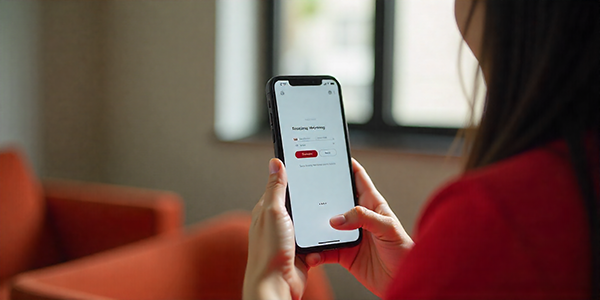
What Is Finger-Friendly UI Design?
Finger-friendly UI design means creating mobile interfaces that are easy and comfortable to use with fingers instead of a precise mouse cursor. The goal is to reduce effort, prevent accidental taps, and make every important action easy to reach and understand.
A finger-friendly interface considers touch target size, spacing, thumb zones, mobile ergonomics, accessibility, interaction feedback, and real-world user behavior. Instead of forcing users to adapt to the interface, the interface adapts to how people naturally use phones and tablets.
Why Finger-Friendly UI Design Matters
In mobile-first design, fingers are the main input method. If a button is too small, a link is too close to another element, or an important action is placed in a hard-to-reach area, users may feel frustrated even if the visual design looks beautiful.
A finger-friendly mobile interface helps users complete tasks with less effort. It improves navigation, reduces accidental taps, supports accessibility, and creates a smoother mobile experience.
For businesses, better mobile usability can also support stronger engagement and conversions. If users can easily tap buttons, complete forms, browse products, and navigate pages, they are more likely to stay on the site or app longer.
Designing for Thumb Reach and Comfort
Many people use smartphones with one hand, which makes thumb reach an important part of mobile UX design. The easiest areas to tap are usually closer to the lower part of the screen, while upper corners are harder to reach comfortably.
When designing mobile layouts, place primary actions where users can reach them quickly. Bottom navigation, sticky action buttons, and lower-screen controls often work better than placing important buttons at the top.
Thumb-Friendly Design Tips
- Place primary actions near the lower part of the screen when possible.
- Avoid putting important buttons only in the upper corners.
- Keep navigation simple and predictable.
- Consider how users hold the phone during common tasks.
- Use bottom navigation for frequently used sections.
- Make destructive actions harder to tap accidentally.
Minimum Touch Target Size for Buttons and Links
Touch targets should be large enough for users to tap accurately without zooming, slowing down, or making repeated mistakes. Small buttons may look elegant on a desktop layout, but they can become frustrating on mobile screens.
As a practical rule, interactive elements should have enough visible size and spacing to support comfortable tapping. Buttons, icons, menu items, form controls, and text links should be easy to select even for users with larger fingers or reduced motor precision.
Touch Target Checklist
- Make buttons large enough to tap comfortably.
- Leave clear spacing between interactive elements.
- Make small icons easier to tap by increasing the clickable area.
- Avoid placing multiple tiny links too close together.
- Test important actions on an actual mobile device, not only in a desktop preview.
Recommended Touch Target Sizes for iOS and Android
Major mobile platforms provide guidelines for comfortable touch interactions. These recommendations help designers create interfaces that feel natural across common devices used by audiences in the United States and worldwide.
- Apple Human Interface Guidelines: commonly recommend touch targets around 44 × 44 points.
- Google Material Design: commonly recommends minimum touch targets around 48 × 48 dp.
- Accessibility guidelines: encourage larger interactive areas to support users with limited motor control.
While exact values can vary by platform and context, the main goal remains the same: make interactive elements large enough to tap comfortably without requiring perfect precision.
1. Comfortable Tap Size
Every interactive element should be easy to tap without requiring perfect precision. This includes buttons, icons, menu items, checkboxes, sliders, tabs, form fields, and card-based links.
If users frequently miss a button or accidentally tap the wrong element, the interface is not truly mobile-friendly. Increasing the clickable area around icons and links can often solve this problem without changing the visual design too much.
2. Clear Interaction Feedback
Users should immediately understand that their action has been recognized. Visual feedback, loading states, button changes, pressed states, haptic feedback, and microinteractions can make the interface feel more responsive.
Without feedback, users may tap the same button multiple times or assume that the interface is broken. This is especially important for checkout buttons, form submissions, downloads, and app navigation.
3. Clean Mobile Layouts
Cluttered mobile screens increase the chance of mis-taps and confusion. A finger-friendly interface should focus on the most important actions and remove unnecessary visual noise.
Clean layouts make it easier for users to scan content, understand the next step, and interact confidently. Use enough white space, clear hierarchy, and simple navigation patterns.
4. Consistent Spacing
Consistent spacing helps users predict where they can tap and how the interface behaves. It also makes the design feel more polished and easier to scan.
Spacing is especially important around buttons, navigation items, filter controls, form inputs, and product cards. When interactive elements are too close together, accidental taps become more likely.
5. Accessibility-Friendly Design
Mobile accessibility is closely connected to finger-friendly design. Larger tap areas, readable labels, clear contrast, and predictable layouts help more people use mobile products comfortably.
This is especially important for older users, users with motor impairments, people using phones while moving, and anyone interacting with an interface in real-world conditions.
Finger-Friendly Forms and Mobile Input Design
Forms are often one of the biggest sources of mobile frustration. Small fields, unclear labels, poor keyboard choices, and crowded layouts can significantly increase abandonment rates.
A good mobile form should reduce effort. Users should understand what information is needed, which field they are editing, and how to correct mistakes without confusion.
- Use large input fields.
- Provide sufficient spacing between form controls.
- Use appropriate keyboard types for email, phone, numbers, and URLs.
- Display clear validation messages.
- Keep forms as short as possible.
- Support autofill whenever available.
- Use visible labels instead of relying only on placeholder text.
- Make submit buttons large and easy to reach.
Reducing typing effort is one of the easiest ways to improve mobile user experience.
Finger-Friendly Design for eCommerce Websites
Online stores depend heavily on mobile traffic, especially in the United States where many customers browse, compare, and purchase directly from their phones. If product filters, add-to-cart buttons, navigation menus, or checkout forms are difficult to use, customers may abandon their purchase.
Successful mobile eCommerce experiences focus on large CTAs, accessible navigation, simplified checkout flows, and touch-friendly product browsing.
- Make “Add to Cart” buttons large and easy to reach.
- Use sticky checkout or cart buttons when helpful.
- Keep product filters easy to open, close, and reset.
- Make product image galleries swipe-friendly.
- Use large tap areas for size, color, and quantity selectors.
- Reduce the number of checkout steps.
Even small improvements in mobile usability can have a strong impact on conversion rates, customer satisfaction, and revenue.
Best Practices for Touch-Friendly Mobile Design
- Use clear visual hierarchy: Make primary actions stand out and reduce competition from secondary elements.
- Design for real thumbs: Test navigation and CTAs on an actual phone whenever possible.
- Keep gestures simple: Swipes and gestures can improve UX, but essential actions should not depend only on hidden gestures.
- Use enough spacing: Separate buttons, links, and icons to reduce accidental taps.
- Optimize forms: Use large input fields, clear labels, suitable keyboard types, and simple error messages.
- Make CTAs easy to reach: Primary actions should be visible, clear, and comfortable to tap.
- Support accessibility: Design for users with different abilities, screen sizes, and interaction habits.
Common Finger-Friendly UI Mistakes
Many mobile usability problems happen because a design looks good visually but does not feel comfortable in real use. These small issues can create friction and reduce engagement.
- Buttons that are too small to tap accurately
- Links placed too close together
- Important actions hidden in hard-to-reach areas
- Forms with tiny inputs or unclear labels
- Navigation that depends too much on hidden gestures
- No visual feedback after tapping a button
- Desktop layouts that are simply resized for mobile
- Too many controls competing for attention on one screen
- Small close icons on popups or modals
How to Test a Finger-Friendly Interface
Testing is the easiest way to find mobile usability problems before users do. A design may look correct in Figma or a browser preview, but real-device testing often reveals issues with reach, spacing, scrolling, and tapping accuracy.
Quick Mobile Usability Test
- Open the design on an actual phone.
- Try completing the main task with one hand.
- Check whether the primary CTA is easy to reach.
- Tap every button, icon, and form field.
- Look for accidental taps or hard-to-select elements.
- Test the interface on both small and large screens.
- Ask another person to complete the same task without guidance.
If users hesitate, miss buttons, or need to adjust their grip too often, the interface probably needs better touch spacing or layout adjustments.
Finger-Friendly Design and Mobile Accessibility
Finger-friendly UI is closely connected to accessibility. Larger tap areas, clear controls, readable text, and predictable layouts help more people use mobile products comfortably.
This is especially important for users with motor impairments, older users, people using phones while walking, and anyone interacting with an interface in real-world conditions.
Good mobile UX should reduce physical effort. The easier it is to tap, read, and navigate, the more inclusive and effective the interface becomes.
Finger-Friendly UI Design Checklist
- Are all buttons easy to tap with one hand?
- Are primary actions placed in reachable areas?
- Are touch targets large enough for comfortable tapping?
- Is there enough spacing between links and controls?
- Do buttons provide clear feedback after tapping?
- Are forms easy to complete on mobile?
- Are important actions visible without excessive scrolling?
- Does the design work on both small and large phones?
- Can users complete the main task without zooming?
- Does the interface support accessibility and readability?
Frequently Asked Questions About Finger-Friendly UI Design
What is finger-friendly UI design?
Finger-friendly UI design focuses on creating mobile interfaces that are easy to use with fingers and thumbs through larger touch targets, better spacing, clear feedback, and accessible layouts.
Why are touch targets important?
Proper touch targets reduce accidental taps and improve usability, especially on smaller mobile screens. They help users interact with buttons, links, forms, and navigation elements more comfortably.
What size should mobile buttons be?
Most usability guidelines recommend touch targets around 44×44 points for iOS or 48×48 dp for Android. The exact size may vary, but interactive elements should always be easy to tap without precision.
How does finger-friendly design improve accessibility?
Larger tap areas, better spacing, readable labels, and predictable layouts help users with motor impairments, older adults, and anyone using mobile devices in real-world conditions.
Why is thumb reach important in mobile UX?
Many users operate smartphones with one hand. Designing around thumb reach zones improves comfort, reduces physical effort, and makes primary actions easier to access.
How can I test whether my interface is touch-friendly?
Test the design on an actual mobile device. Try completing the main task with one hand, tap every interactive element, check spacing, and ask another user to complete the task without instructions.
Conclusion
Finger-friendly UI design is essential for creating mobile interfaces that feel easy, comfortable, and natural to use. When buttons are large enough, spacing is clear, thumb reach is considered, and interactions provide feedback, users can complete tasks with less frustration.
Strong mobile UX is not only about visual style. It is about designing for real hands, real devices, and real user behavior. By applying touch-friendly principles, designers can improve usability, accessibility, engagement, and overall satisfaction.
For businesses, finger-friendly design can support better mobile performance, smoother customer journeys, and stronger conversion rates. For users, it creates a more comfortable and inclusive digital experience.
DesignRise regularly shares UI/UX design guides, workflow tips, and creative resources for modern designers. Bookmark this guide and revisit it whenever you need practical ideas for improving mobile interface design.
Explore More UI/UX Design Resources
- UI/UX Design Resources and Tutorials
- Figma Auto Layout: The Secret to Building Responsive Designs
- Best 3D Illustration Libraries for UI Designers
- AI Workflows for Modern Designers
- Best AI Mockup Tools & Generators for Designers
Discover more from DesignRise
Subscribe to get the latest posts sent to your email.


