




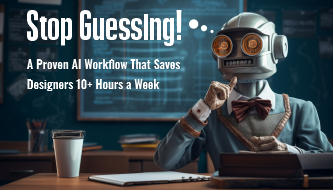
AI is powerful, but it does not automatically make designers faster. In fact, many designers waste more time with AI because they use it without a clear process. They jump between tools, test random prompts, restart ideas, compare too many options, and lose hours trying to decide what to do next.
The real problem is not AI. The real problem is guessing.
A proven AI workflow helps designers remove that guesswork. Instead of opening an AI tool and hoping for a good result, you follow a structured process: define the goal, generate multiple directions, curate the best ideas, build the design in real tools, use AI for feedback, and finalize with human judgment.
This workflow can save designers 10+ hours a week because it reduces unnecessary exploration, messy iteration, unclear direction, and repetitive manual work. It also helps designers make better decisions faster.
In this DesignRise guide, we’ll break down a practical proven AI workflow for UI/UX designers, brand designers, freelancers, creative teams, and digital product designers who want to work faster, smarter, and with more creative control in 2026.
The Real Problem Is Not AI — It Is Guessing

Let’s be honest. Most designers today are not struggling because AI is too weak. They are struggling because their workflow is unclear.
AI gives designers more options than ever before. You can generate concepts, moodboards, copy, layouts, visuals, prompts, social posts, presentations, and content variations in minutes. But more options do not always mean better work.
Without structure, AI creates a new problem:
- Too many tools.
- Too many prompts.
- Too many visual directions.
- Too many unfinished ideas.
- Too many revisions.
- Too many “almost good” outputs.
So what happens?
- You guess which tool to use.
- You guess what prompt to write.
- You guess which direction is strongest.
- You guess what the client will like.
- You guess whether the design is clear enough.
- You restart the same project again and again.
The result is slower work, inconsistent quality, decision fatigue, and frustration.
A proven AI workflow solves this by turning AI from a random generator into a structured design assistant. You stop asking AI to “make something good” and start using it for specific tasks inside a clear design process.
Explore More DesignRise Resources:
- From Idea to Final Design: A Complete AI Workflow Designers Use in 2026
- The AI Workflow Stack Every Modern Designer Uses in 2026
- AI as Your Art Director: Step-by-Step Workflow for Modern Designers
- The AI Design Workflow Blueprint: How Top Designers Work Faster and Smarter in 2026
Why Designers Waste So Much Time Without Realizing It
Before fixing the problem, it is important to understand where the time actually goes. Designers often think they are losing time during production, but the biggest time loss usually happens earlier: unclear direction, messy exploration, and weak decisions.
Starting Without Clarity
Many designers begin by opening Figma, Photoshop, Midjourney, ChatGPT, or another AI tool before defining the goal. This creates a weak foundation. If the direction is unclear, every output feels uncertain.
For example, a prompt like “create a modern website design” is too vague. Modern for whom? What industry? What audience? What feeling? What conversion goal? What brand personality?
Without clarity, the designer spends hours adjusting results that were never based on a strong brief.
Endless Iterations
AI makes it easy to generate many variations. That sounds helpful, but it can become a trap. If you do not know what you are looking for, every new result feels possible. You keep generating more instead of deciding.
This leads to endless iteration: more prompts, more visuals, more drafts, more comparison, and less progress.
Tool Switching
Another major time killer is switching between too many tools without a system. A designer may use one AI tool for copy, another for images, another for layouts, another for mockups, and another for presentations — but without a clear workflow connecting them.
The problem is not using multiple tools. The problem is using multiple tools randomly.
Reworking Designs Late in the Process
Many design problems could be avoided early. If the goal, user, hierarchy, and brand direction are unclear, the designer may need to rebuild large parts of the project later.
Rework is expensive because it happens after time has already been spent on production. A proven AI workflow helps reduce rework by forcing clarity before execution.
What Makes This Proven AI Workflow Different
This workflow is built around one principle: clarity first, AI second.
Instead of using AI to guess, you use AI to support a decision-making system. The designer stays in control. AI helps with exploration, structure, copy, feedback, and production support.
This workflow is different because it:
- Starts with a clear brief before using AI.
- Uses AI to explore multiple directions intentionally.
- Separates generation from curation.
- Moves final design work into real professional tools.
- Uses AI as a reviewer, not only as a generator.
- Includes final human quality control.
- Creates a repeatable system for future projects.
The goal is not to let AI design for you. The goal is to make better design decisions with less wasted time.
Quick Overview: The 6-Step Proven AI Workflow
| Step | What You Do | How It Saves Time |
|---|---|---|
| 1. Define | Clarify goal, audience, problem, and outcome | Prevents random exploration |
| 2. Explore | Generate multiple directions with AI | Creates more options faster |
| 3. Curate | Choose, combine, and refine the best ideas | Reduces weak concepts early |
| 4. Build | Create final design in Figma, Adobe, Webflow, or other tools | Turns ideas into real deliverables |
| 5. Review | Use AI for feedback, clarity checks, and variations | Reduces blind spots |
| 6. Finalize | Polish, check consistency, optimize, and deliver | Prevents last-minute rework |
The Proven AI Workflow Step by Step

Here is the exact structure modern designers can use to work faster and smarter with AI in 2026.
Step 1: Define Before You Design
Before touching any tool, define the project clearly. This is the most important step because AI performs better when the input is specific.
Start with four questions:
- What is the goal of this design?
- Who is the audience?
- What problem are you solving?
- What outcome do you want?
Then add project constraints:
- Brand tone.
- Visual style.
- Platform or format.
- Timeline.
- Content requirements.
- Things to avoid.
A short three-line brief can save hours because it gives every prompt and design decision a direction.
Example of a Weak Brief
Create a modern landing page for a fitness app.
Example of a Strong Brief
Create a landing page for a fitness app for busy women aged 25–40 who want short home workouts. The design should feel energetic, supportive, clean, and mobile-first. The main goal is to encourage users to start a free trial.
The second brief will produce much better AI output because it gives context, audience, tone, and purpose.
Step 2: Generate Multiple Directions, Not One
Once the direction is clear, use AI for exploration. The goal is not to find one perfect result. The goal is to generate a range of possibilities so you can compare and choose intelligently.
Use AI to generate:
- Five to ten visual directions.
- Different layout ideas.
- Moodboard concepts.
- Headline variations.
- Color palette directions.
- Typography style ideas.
- Content structures.
- Campaign angles.
This step prevents the biggest creative trap: falling in love with the first idea.
Good Prompt for Visual Exploration
Act as a senior digital designer. I am designing a landing page for a fitness app for busy women aged 25–40. Generate 6 visual directions. For each direction, include mood, color palette, typography style, layout style, imagery direction, and what emotion it should create.
Step 3: Curate and Combine
This is where designers create real value. AI can generate options, but it cannot always understand what is strategically right for your project.
Do not simply choose one AI output. Instead:
- Combine the best elements from different directions.
- Remove generic AI artifacts.
- Refine the visual direction.
- Check the idea against the brief.
- Reject anything that feels trendy but irrelevant.
- Look for what is useful, not just what looks impressive.
Think like an art director, not a passive user. AI gives you raw material. You shape it into a design direction.
Curation Questions
- Does this direction solve the original problem?
- Does it match the audience?
- Does it feel specific to the brand?
- Can this idea scale across the whole project?
- Is it useful or just visually attractive?
- What should be removed?
- What should be combined?
Step 4: Build in Real Design Tools
After curation, move into your main design tools. This may include Figma, Adobe Photoshop, Illustrator, Webflow, Framer, Canva, After Effects, or another platform depending on the project.
At this stage, AI gives direction, but you create the final product.
Focus on:
- Layout clarity.
- Visual hierarchy.
- Usability.
- Spacing.
- Typography.
- Color consistency.
- Brand rules.
- Responsive behavior.
- Accessibility.
- Export quality.
This is where professional design skill matters. AI can suggest, generate, and accelerate. But final design still needs human decisions.
Example: UI Design Workflow
A UI designer may use AI to generate onboarding copy, dashboard layout suggestions, empty state text, and feature section ideas. But the actual interface still needs to be built properly in Figma with components, Auto Layout, spacing, states, and responsive logic.
Step 5: Use AI for Feedback
This is the step many designers skip. They use AI for generation, but not for review.
AI can act like a second reviewer by helping you look for unclear areas, weak copy, confusing structure, or missing details. It will not replace user testing, but it can help you catch issues earlier.
Ask AI:
- What is unclear in this design?
- What could confuse users?
- How can this headline be clearer?
- What accessibility issues should I check?
- What information might be missing?
- How can this CTA be stronger?
- What alternative layout could improve clarity?
This feedback loop saves time because it catches problems before the final stage.
Step 6: Final Optimization
Before delivery, polish the work. This is where good design becomes great design.
Check:
- Is the layout consistent?
- Are spacing and alignment clean?
- Is typography readable?
- Is the visual hierarchy clear?
- Does the design match the brand?
- Are images optimized?
- Are mobile layouts checked?
- Are files named clearly?
- Are exports ready?
- Are handoff notes prepared?
AI can help create a final checklist, write handoff notes, summarize design decisions, and prepare presentation text. But final approval should always be human.
How This Workflow Saves 10+ Hours a Week
The time savings do not come from typing faster or generating more images. The time savings come from clarity and structure.
Faster Decision-Making
When you know the goal, audience, and direction, you can reject weak ideas faster. You do not need to test every possible style because your brief already filters the options.
Better Direction Early
Most redesigns happen because the early direction was weak. A proven AI workflow helps you define the project before production, which reduces rework later.
Fewer Random Iterations
AI can generate infinite variations. But this workflow uses variation with purpose. You generate options only after defining what you are trying to solve.
Reduced Mental Fatigue
Decision fatigue is a real problem in creative work. A clear process reduces stress because you always know the next step.
Better Reuse Across Projects
Once you build this workflow, you can repeat it. Your briefs, prompts, curation checklist, feedback questions, and final review process become reusable assets.
Real Example: Before vs After Using a Proven AI Workflow
| Without Workflow | With Proven AI Workflow |
|---|---|
| Starts with random prompts | Starts with a clear 3-line brief |
| Spends 3–4 hours exploring ideas | Spends 30–60 minutes on structured exploration |
| Falls in love with the first good output | Generates multiple directions and compares them |
| Rebuilds designs after unclear feedback | Uses curation and AI feedback before production |
| Switches tools randomly | Uses each tool for a specific workflow stage |
| Feels overwhelmed by options | Uses criteria to make decisions faster |
This is where the 10+ hours per week comes from: fewer restarts, clearer direction, faster reviews, fewer weak variations, and less time wasted deciding what to do next.
Practical Workflow Example for a Client Project
Let’s say you are designing a landing page for a digital product. Here is how the workflow might look in practice.
Project Brief
The client needs a landing page for a productivity app that helps freelancers manage tasks, invoices, and client communication in one place. The audience is freelance designers, writers, consultants, and developers. The page should feel clean, trustworthy, and efficient.
AI Step 1: Define Direction
You ask AI to turn the brief into a clear design direction:
- Target audience.
- Core pain points.
- Primary message.
- Desired emotional tone.
- Sections needed on the page.
- Possible objections users may have.
AI Step 2: Generate Directions
You ask AI for several creative directions:
- Minimal productivity dashboard style.
- Friendly freelancer-focused brand style.
- Premium SaaS business style.
- Bold time-saving campaign style.
- Calm organized workspace style.
Designer Step 3: Curate
You choose the strongest elements: clean SaaS structure, friendly freelancer tone, and a calm visual system. You reject anything that feels too corporate or too playful.
Designer Step 4: Build
You create the landing page in Figma:
- Hero section.
- Problem statement.
- Feature cards.
- Workflow explanation.
- Dashboard mockup area.
- Testimonials.
- Pricing preview.
- FAQ.
- Final CTA.
AI Step 5: Feedback
You ask AI to review the page structure and suggest where users might need more clarity. You also generate alternative hero headlines and FAQ wording.
Final Step 6: Optimize
You refine spacing, hierarchy, typography, responsive layout, CTA wording, and export assets for development. The result is stronger because the workflow was structured from the start.
Best AI Tasks for Designers Who Want to Save Time
AI works best when you give it clear, specific tasks. Here are practical ways designers can use AI without losing creative control.
Research Tasks
- Summarize a client brief.
- List audience pain points.
- Create competitor research questions.
- Organize notes into design insights.
- Generate discovery questions for a client call.
Ideation Tasks
- Generate moodboard directions.
- Create campaign concepts.
- Suggest landing page structures.
- Generate brand personality options.
- Create visual prompt ideas.
UX Writing Tasks
- Rewrite confusing interface text.
- Create button label options.
- Draft empty state copy.
- Write error messages.
- Generate onboarding screen text.
Feedback Tasks
- Review page clarity.
- Suggest accessibility checks.
- Find missing information.
- Create A/B testing copy variations.
- Improve presentation wording.
Delivery Tasks
- Write handoff notes.
- Create client presentation summaries.
- Turn project notes into a case study outline.
- Generate social post captions.
- Adapt content for different formats.
Common Mistakes That Kill Productivity
Even with AI, some mistakes can slow designers down. Avoid these if you want the workflow to actually save time.
Using AI Without Structure
Random AI use leads to random results. A structured process helps you know when to use AI, what to ask, and how to judge the output.
Trusting the First Result
The first AI output is usually not the final answer. Treat it as a draft. Compare, combine, edit, and refine.
Ignoring Brand Consistency
AI may generate visuals that look nice but do not match the brand. Always check colors, tone, typography, style, audience fit, and long-term consistency.
Overusing AI Visuals
AI-generated visuals can become generic if you rely on them too heavily. Use them as references or starting points, then add original design direction.
Skipping Human Review
AI can suggest improvements, but it does not understand every context. Always review output manually before sending it to a client or publishing it.
Forgetting Licensing and Usage Rules
If you use AI-generated visuals or assets commercially, always check the platform terms, client agreement, and licensing requirements.
Why This Workflow Matters in 2026
Design is no longer just about creativity. Clients expect more speed, more strategic thinking, more formats, more content, and more measurable results.
Designers who work without a system can fall behind because they spend too much time on exploration, revisions, and manual production.
Designers with a proven AI workflow stand out because they can:
- Move faster from brief to concept.
- Present multiple directions with more confidence.
- Reduce unnecessary revisions.
- Keep creative quality high.
- Explain decisions clearly.
- Scale deliverables across platforms.
- Stay focused instead of overwhelmed.
The advantage is not AI alone. The advantage is using AI inside a smart, repeatable process.
Useful AI Workflow Resources for Designers
If you want to improve your proven AI workflow, it helps to study both AI tools and professional design thinking. These resources can support a stronger and more responsible design process:
- Figma AI: AI features for design workflows
- Adobe Firefly: Generative AI for creative work
- Nielsen Norman Group: AI and UX resources
- W3C WCAG: Accessibility guidelines
- OpenAI: AI research and products
These resources are useful because a good AI workflow is not only about faster output. It also needs usability, accessibility, quality control, and clear creative direction.
Proven AI Workflow Checklist
Use this checklist before starting your next project with AI:
- Have I written a clear project brief?
- Do I know the audience?
- Do I know the main design goal?
- Have I defined the desired emotion or brand feeling?
- Have I listed constraints and things to avoid?
- Am I using AI for a specific task?
- Have I generated multiple directions instead of one?
- Have I curated and combined the strongest ideas?
- Have I removed generic AI outputs?
- Have I built the final design in a real design tool?
- Have I used AI for feedback and clarity checks?
- Have I reviewed accessibility and usability?
- Have I checked brand consistency?
- Have I prepared final files and handoff notes?
Key Takeaways
- Guessing is the biggest productivity killer.
- AI works best with clear direction.
- Structure saves more time than speed.
- Curation is one of the designer’s most valuable skills.
- The best designers use systems, not shortcuts.
- A proven AI workflow can save hours by reducing rework and decision fatigue.
FAQ: Proven AI Workflow for Designers
What is a proven AI workflow for designers?
A proven AI workflow is a structured design process that uses AI for specific stages such as briefing, exploration, curation, feedback, copywriting, and delivery while keeping the designer in control.
How can AI save designers 10+ hours a week?
AI can save time by reducing random exploration, speeding up research, generating multiple directions, improving UX copy, creating feedback loops, and helping prepare documentation or content variations.
Does this workflow replace design skills?
No. The workflow supports design skills. Designers still make final decisions about strategy, usability, layout, typography, branding, accessibility, and quality.
What should designers do before using AI?
Designers should define the goal, audience, problem, desired outcome, brand feeling, constraints, and things to avoid before using AI tools.
Why do AI results often feel generic?
AI results often feel generic when prompts are vague, the brief is unclear, or the designer accepts outputs without curation and manual refinement.
Can this workflow help freelancers?
Yes. Freelancers can use this workflow to speed up proposals, client research, moodboards, UX copy, presentation text, revisions, and final delivery.
Can this workflow help UI/UX designers?
Yes. UI/UX designers can use it for onboarding flows, microcopy, dashboard structures, user research summaries, wireframe ideas, accessibility checks, and product documentation.
What is the most important part of the workflow?
The most important part is defining the direction before using AI. Clear input leads to better output and fewer wasted hours.
Conclusion: Stop Guessing, Start Designing
AI is powerful, but only when it is used with intention. If you use AI randomly, it can create more confusion, more options, and more wasted time. But when you follow a proven AI workflow, AI becomes a practical assistant that helps you work faster and think more clearly.
The future of design is not about working harder. It is about working smarter with better systems.
If you remove guessing, define direction, generate options intentionally, curate like a professional, build in real design tools, use AI for feedback, and finalize with human judgment, you can save hours every week while creating stronger design work.
AI gives speed. A proven workflow gives control.
Explore more AI tools, workflows, and design resources on DesignRise.
Discover more from DesignRise
Subscribe to get the latest posts sent to your email.